Node-RED and the Start Set
Introduction
Node-RED is a simple but powerful tool. Here we'll show you how to build a basic dashboard that displays the number of button presses, the temperature and the tilt state.
How many times have I pressed the button?
Before we can display the number of presses, we have to get it from somewhere.
- If it isn't running yet, start HARDWARIO Playground. You know from the previous tutorial that the data shows up in Messages. Click the line with the topic
node/motion-detector:0/push-button/-/event-countand it is copied to the clipboard; a pop-up info panel confirms it.
If you have more than one Push Button module paired, they differ in the number after `motion-detector:`
- Now go to Functions. This is the built-in Node-RED application, which comes with excellent documentation, support and a large user community. It is based on visual programming: you place function blocks, called nodes, on the canvas and wire them together to build a working application (a flow).
- Delete the two nodes that are already on the canvas.
- Start with an mqtt in node. You'll find it in the network section on the left; drag it onto the canvas.
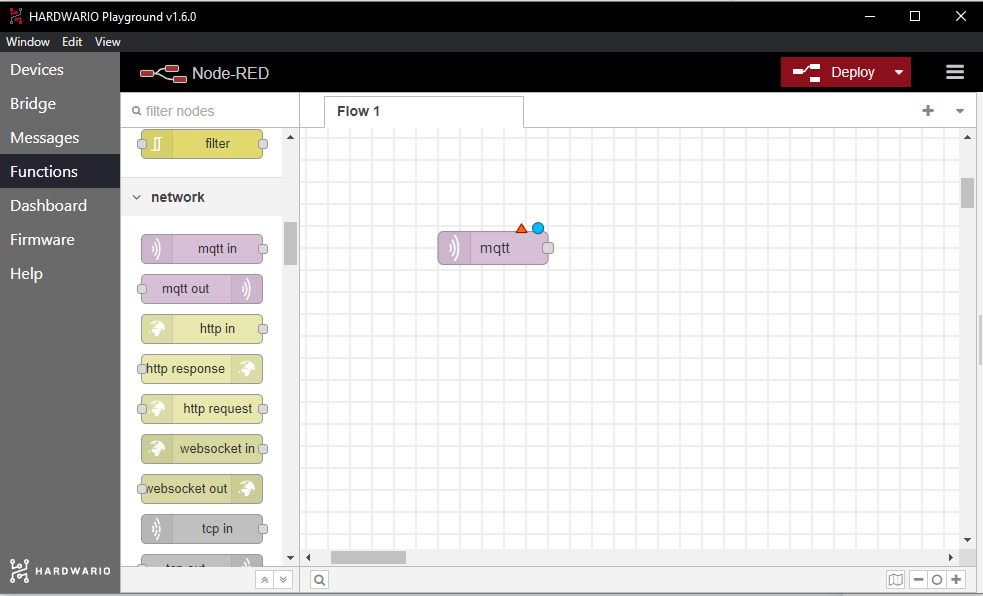
- Double-click it to open its settings. Fill in the topic field here; it determines which messages this flow receives.
- Go back to the Messages tab in Playground and find the temperature message. Next to the temperature value you'll see the message identifier, which looks like this:
node/push-button:0/thermometer/0:1/temperature. That is the topic. - Copy the topic, go back to Functions, paste it into the Topic field and save the settings with Done.
- Now drag a Gauge node onto the canvas. You'll find it in the dashboard section.
- Double-click it to open its settings and change max in the Range section to 50. Save the settings with Done.
- Wire the two nodes together. It's easy: click the gray square on one node and drag it to the gray square on the other.
- Click Deploy in the top right to start the application, then switch to the Dashboard tab in Playground.
- Breathe on the device so it sends a temperature message right away, and that's it! The gauge shows the current temperature.