Crystal ball
Introduction
Young programmers want to know what the future holds too. The box will tell you. IoT magic will answer every question running through your head. 🔮 😱
In this project, you will learn to turn the box into a fortune-telling ball, also known as a magic 8-ball. ️🎱 You'll set it up to pick one of several answers at random when you shake it.
You will need the box with a button and a USB dongle, so the basic HARDWARIO Start Set is all you need.
Make it happen in Node-RED
- Assemble the Start Set and pair it. The Core Module needs the radio-8-ball firmware.
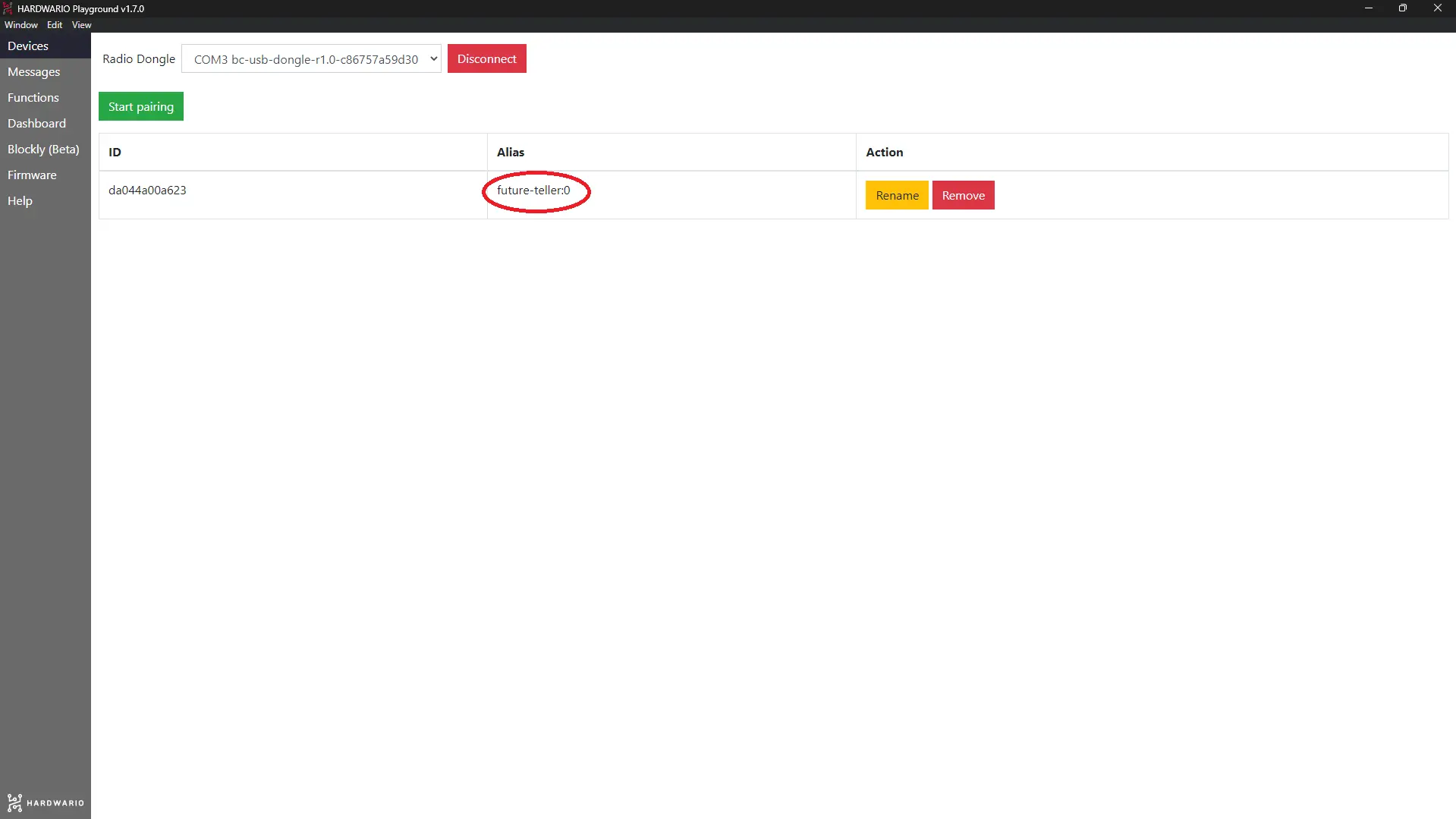
Once the firmware is uploaded, you'll see that the Alias of your device on the Devices tab has changed to Future teller.
-
In Playground, click the Functions tab, where you'll find the programming workspace.
-
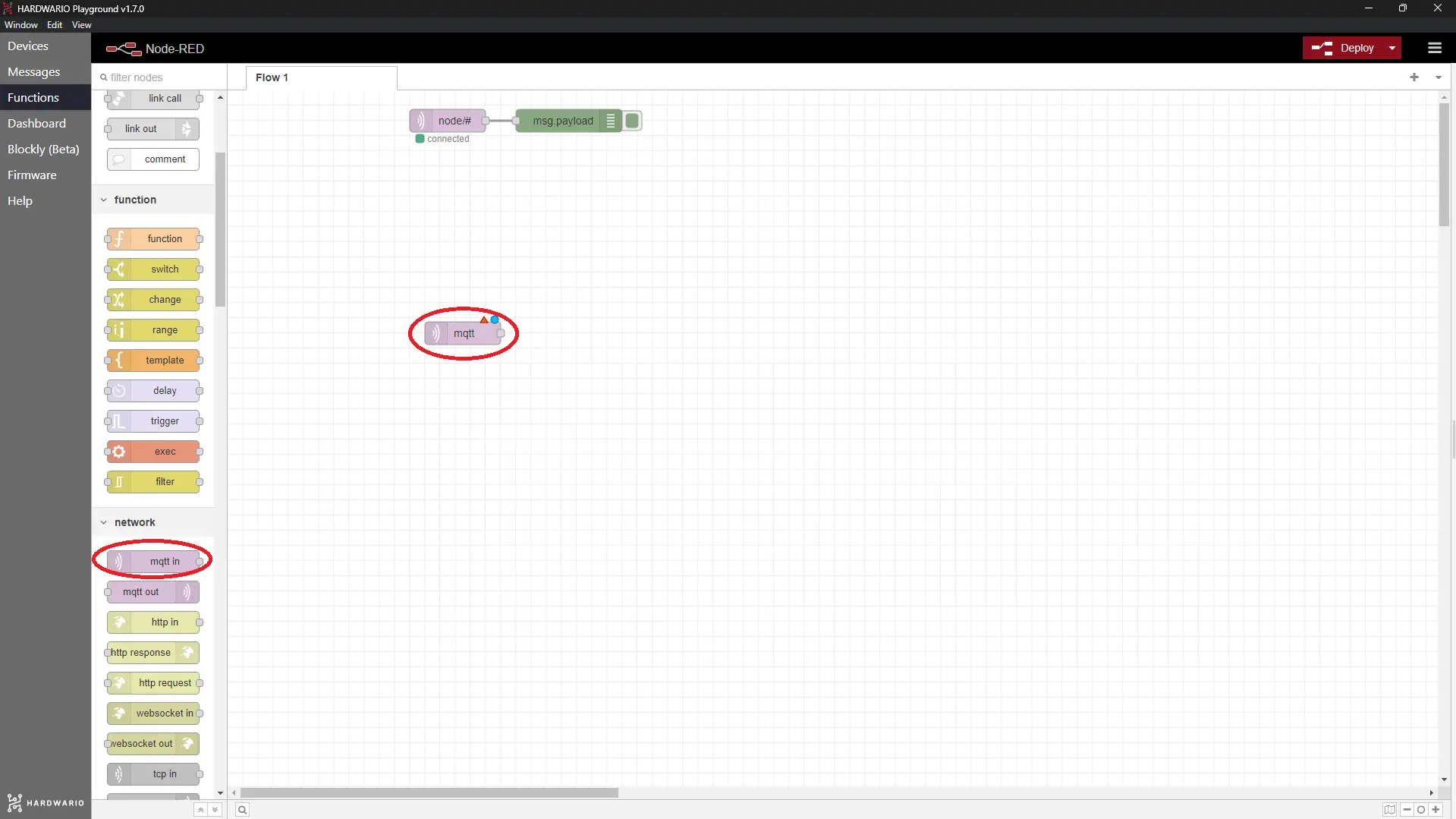
Place an mqtt in node from the network section on the workspace.
- Double-click the node and set up the key function: fortune-telling. 🔮 Copy this line into the Topic field:
node/future-teller:0/future/trigger
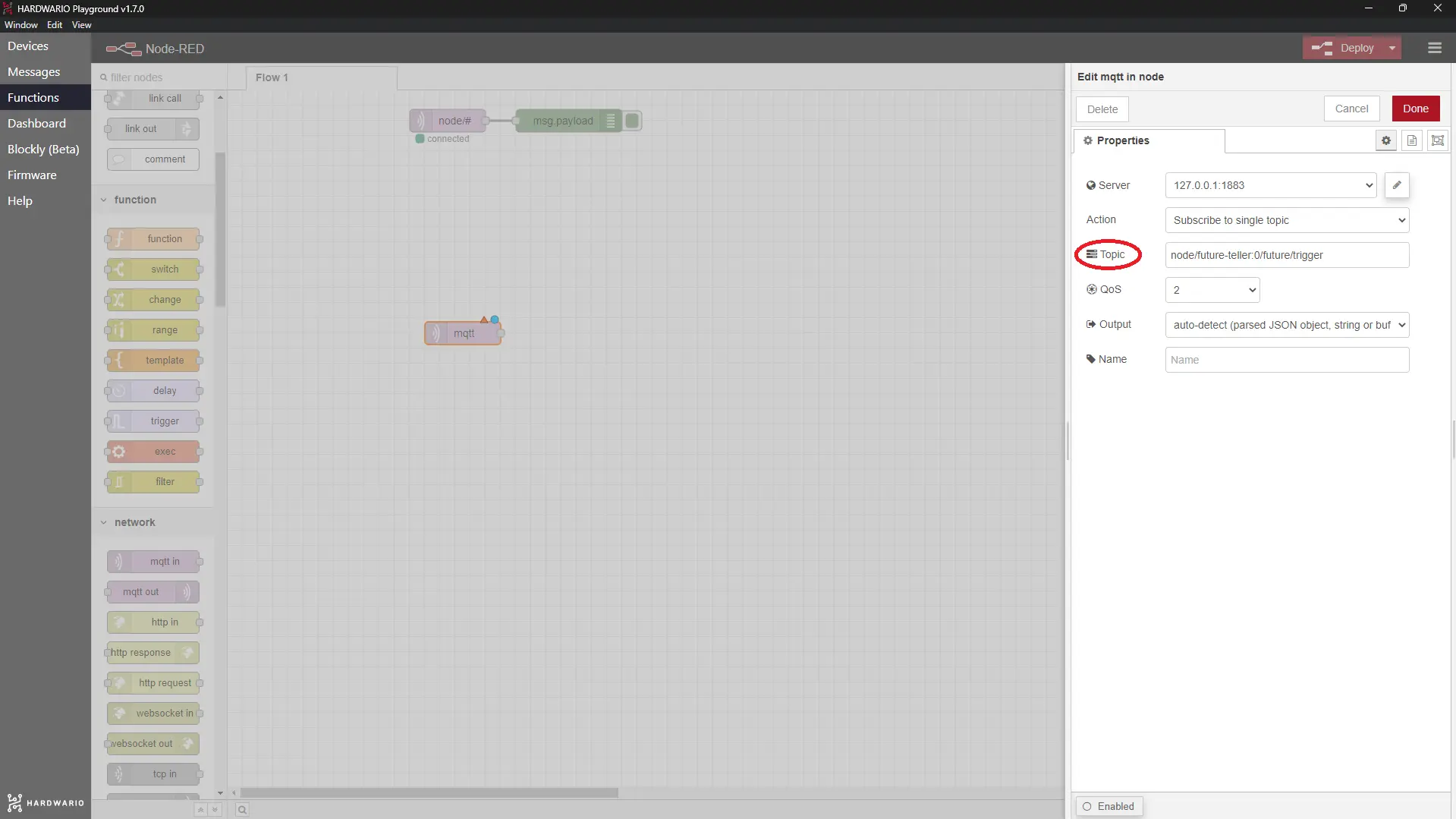
Confirm with Done.
Add a bit of chance
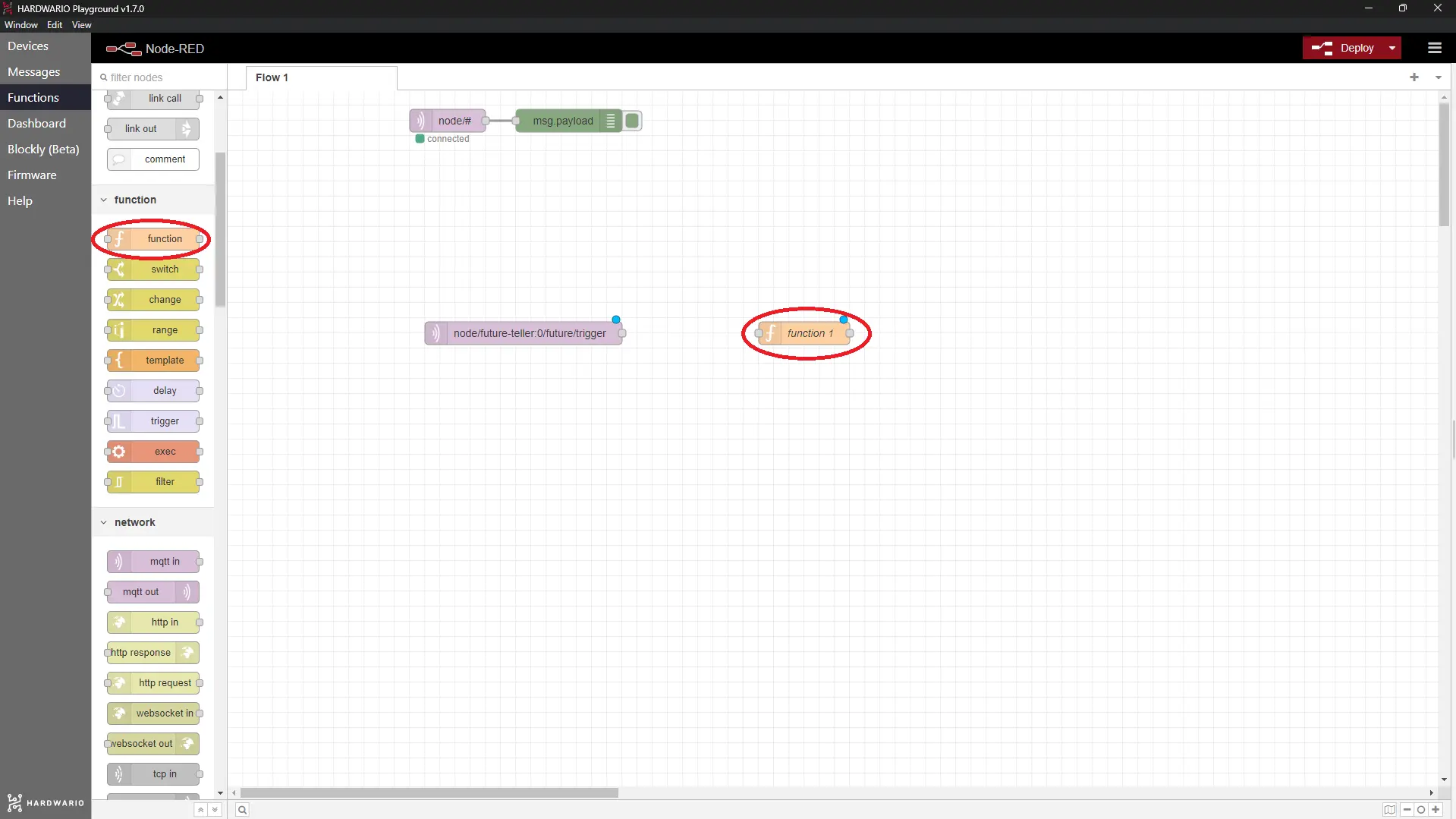
- The box works by giving you one of its preset answers, always picked at random. Let's set that up now. You program the random choice with a little JavaScript. How? After the MQTT node, place a function node, which you'll find in the section of the same name.
- Double-click the node to open it. Give it a name in the Name field (for example 8-ball). Copy this code into the On Message tab, exactly as you see it in the picture.
var answers = ["Nejspíš ano", "S tím nepočítej", "Možná", "Určitě ano"]
var num = Math.floor(Math.random() * Math.floor(answers.length));
msg.payload = answers[num];
return msg;
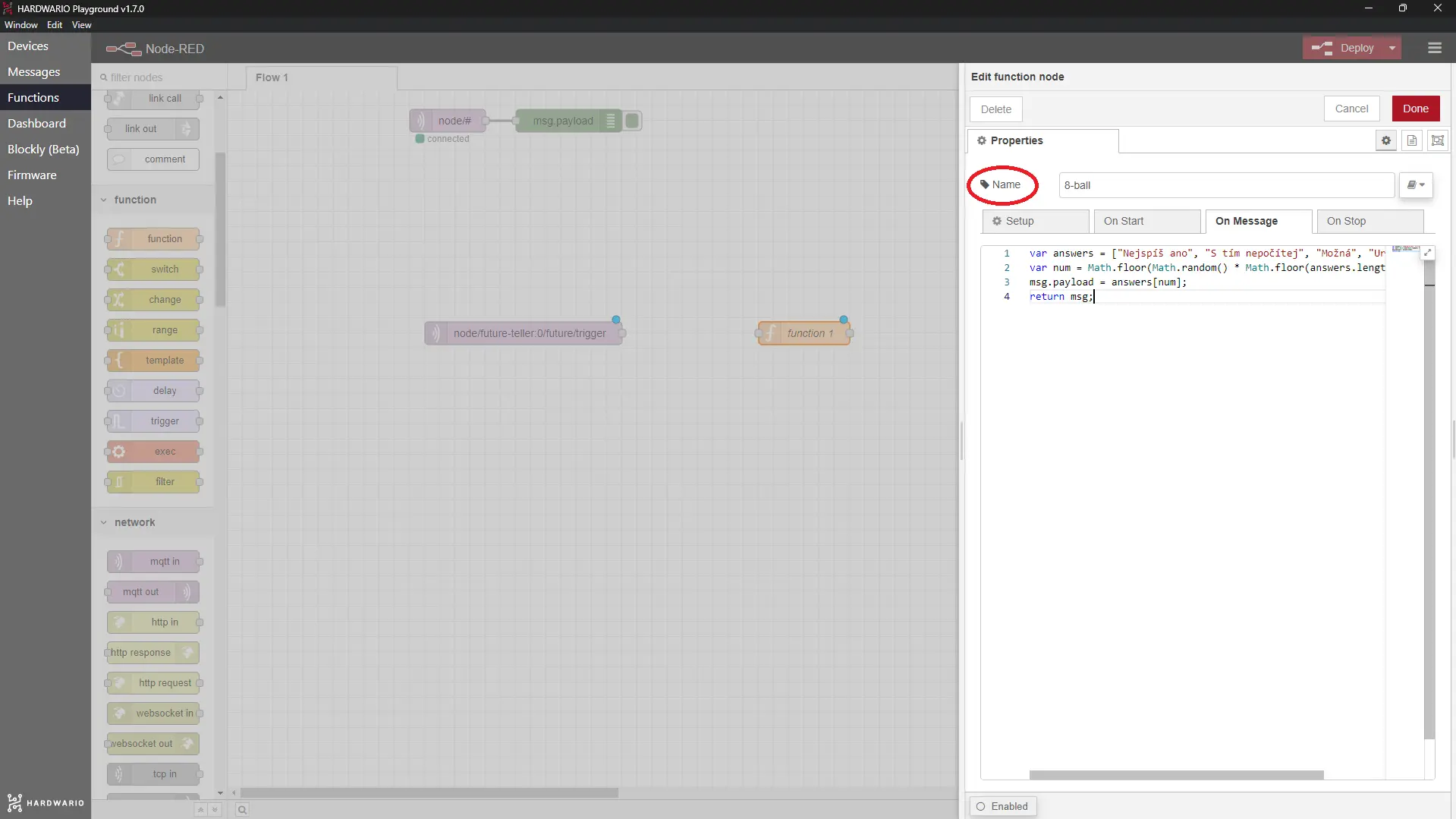
This code picks one of four answers (the code has them in Czech):
- Probably yes,
- Don't count on it,
- Maybe,
- Definitely yes.
Confirm with Done.
- Next to the 8-ball node, add a text node from the dashboard section.
- In it, set the Label field to Answer.
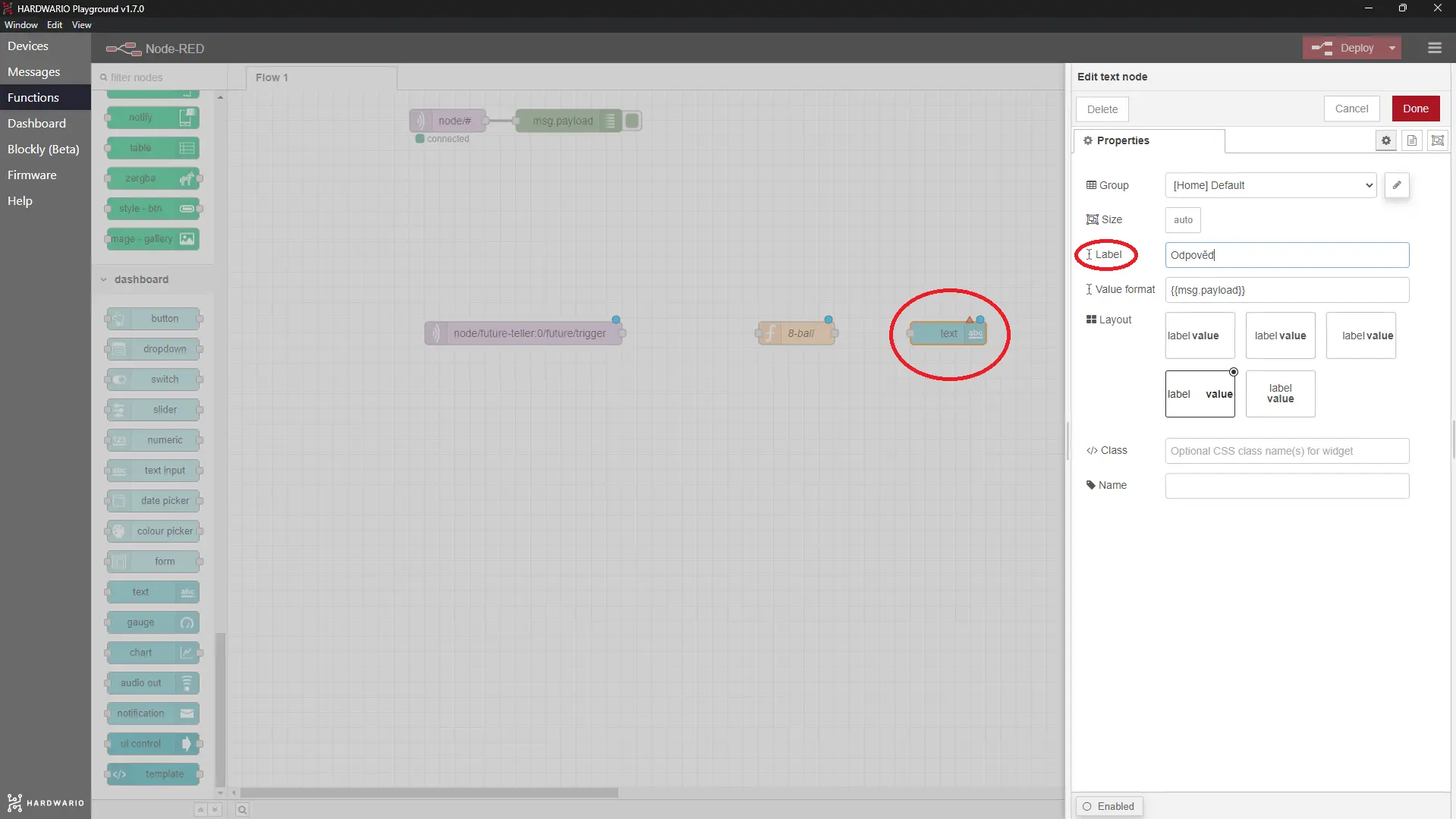
Confirm with Done.
- Add a robot to the workspace that reads the answer out loud. It will be properly spooky. 🤖 You'll find it as the audio out node, also in the dashboard section.
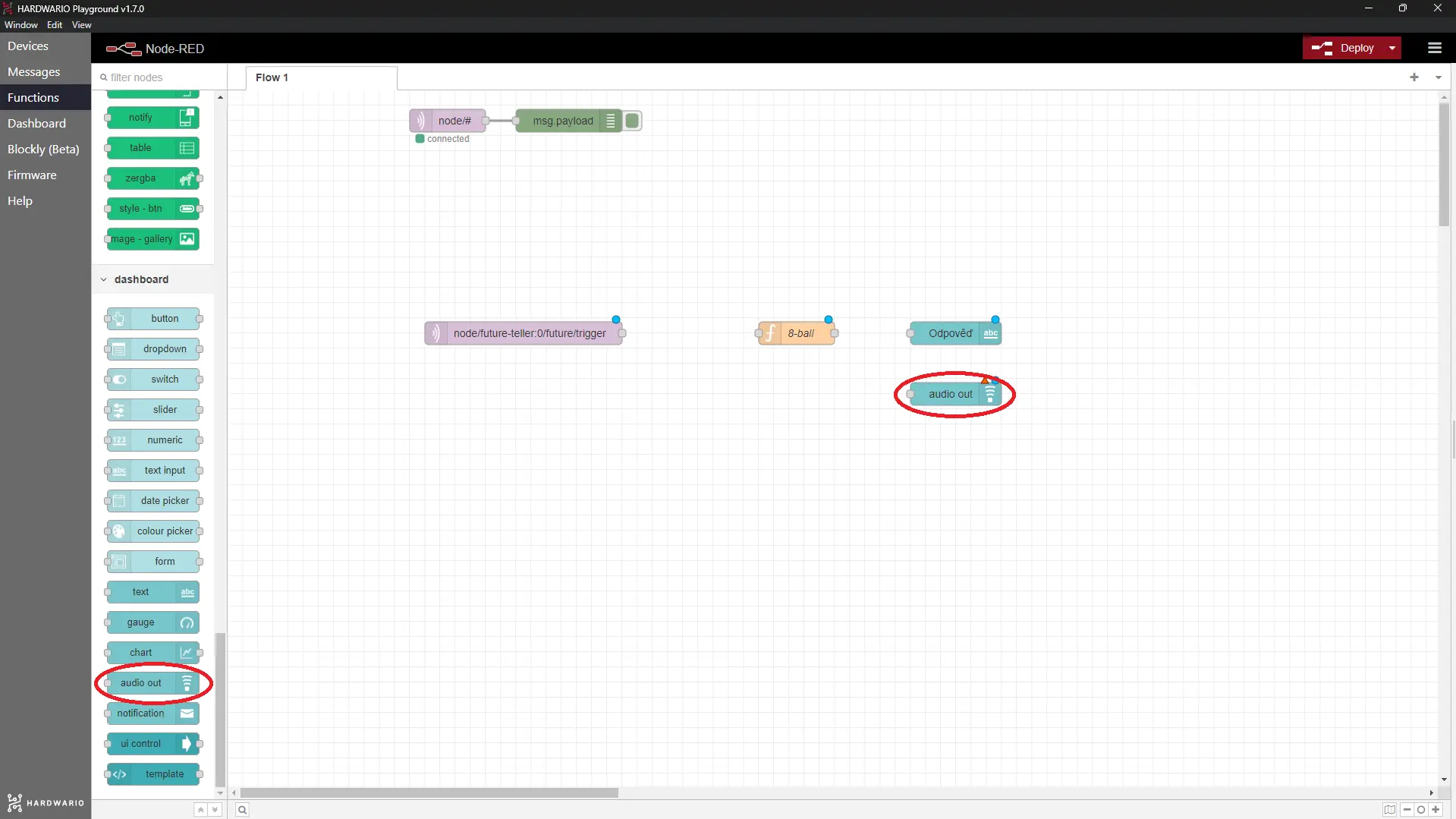
In the node, choose the voice that reads the message.
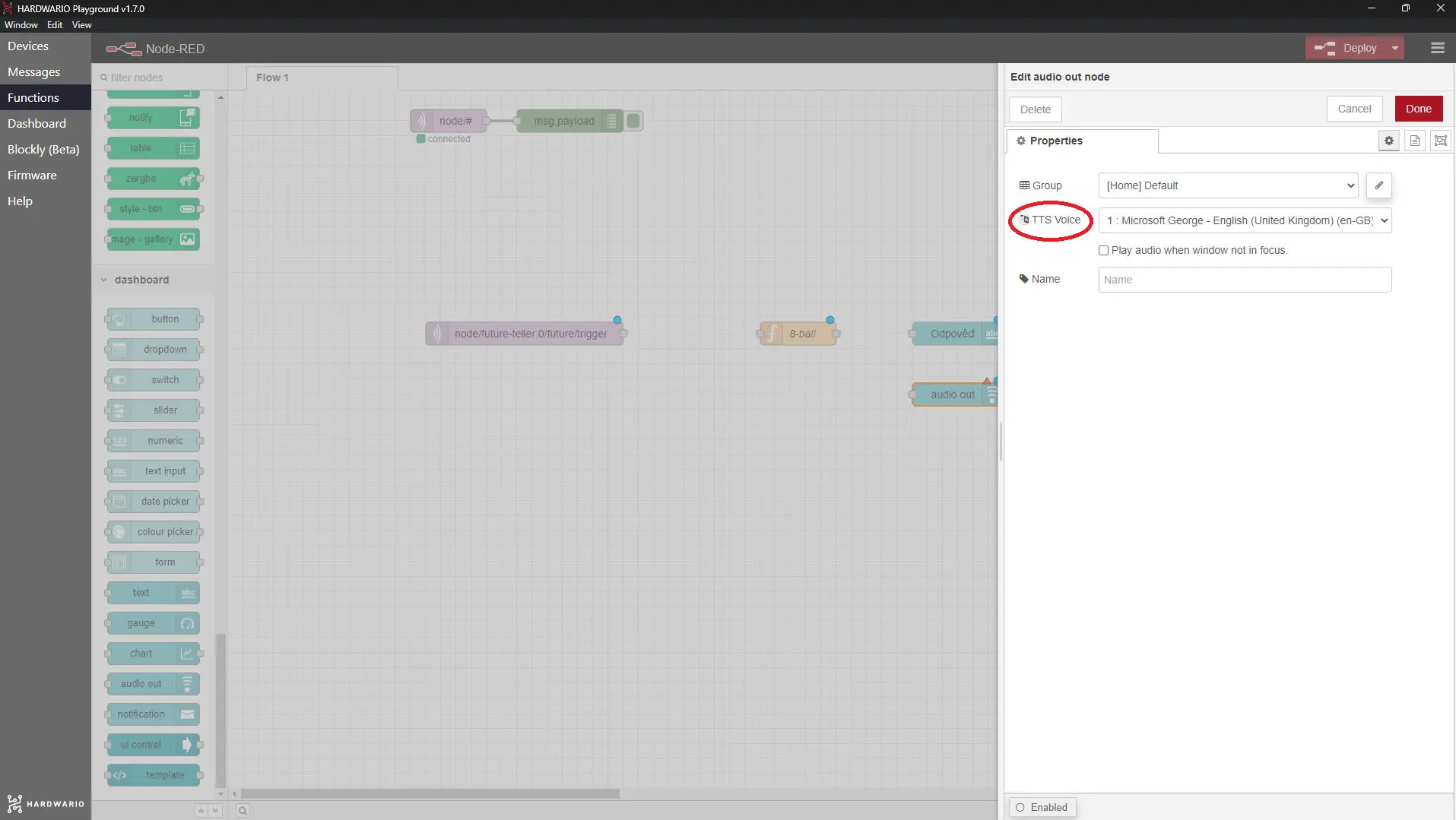
Confirm with Done.
- Connect the nodes as shown in the picture.
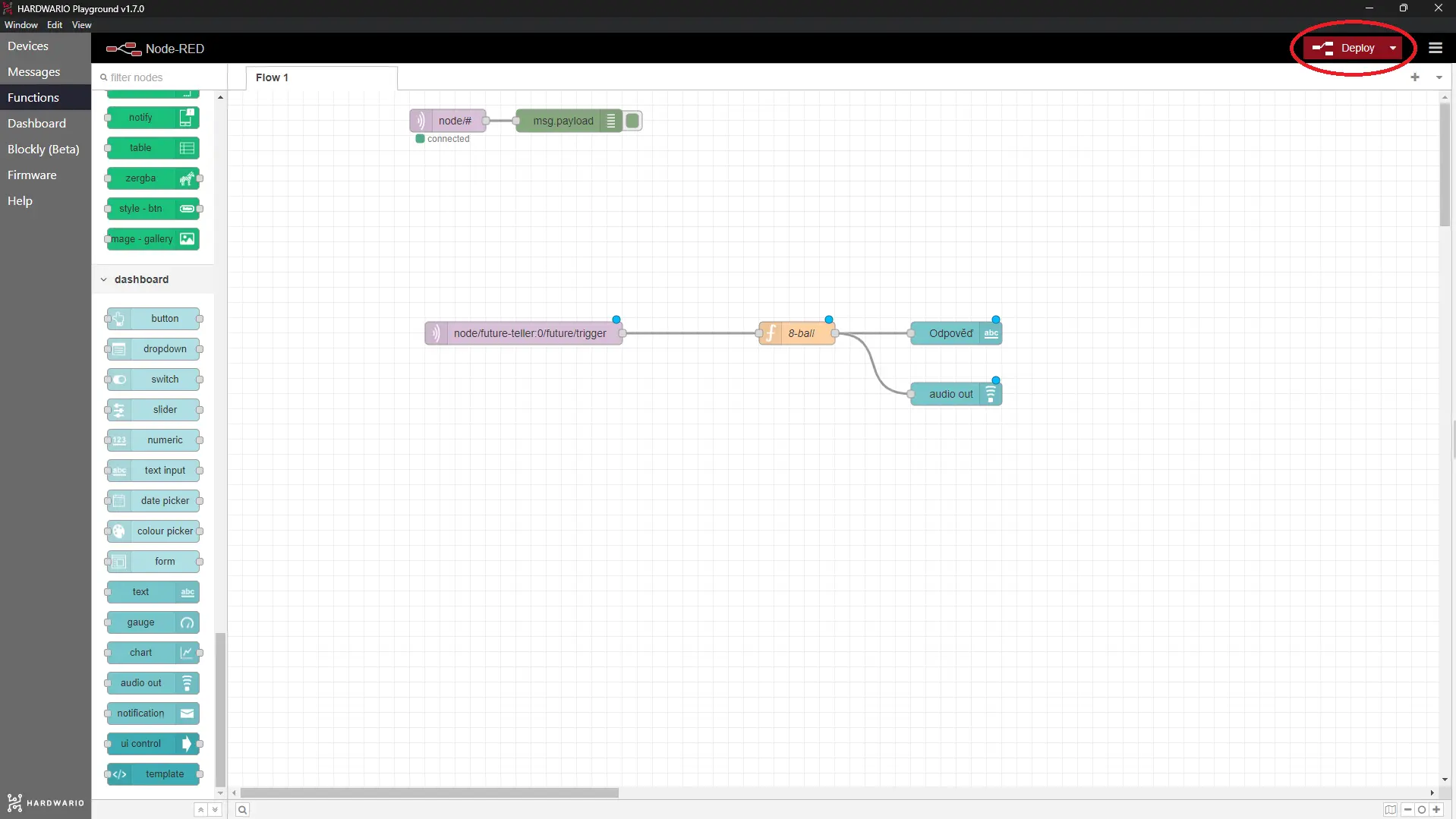
Start the flow with the Deploy button in the top right corner.
Let fate speak
- Pick up your mighty box and ask it the question that's burning inside you. For example:
- Will David from the year above love me back?
- Will there be blueberry dumplings for lunch at school tomorrow?
- Will I become a successful circus performer one day?
- Will the sun rise in the morning?
- Will I finally learn to eat with chopsticks?
- Will I work at Google one day?
- Should I dye my hair green?
- Shake the box and you'll find the answer in Playground on the Dashboard tab. 🎱 Don't forget to turn on your speakers, because you'll hear the answer too. Hallelujah!

P.S. The box doesn't guarantee that its answer is right. 🤡