Thief trap
Introduction
Is your younger brother entering your room? Are you going on holiday and afraid someone will steal your treasure? Set up an alarm against all thieves. 👮
Under this project, you will learn how to create a ** that sends notifications to your mobile if someone else is in your room**. 👁️
If you already have the Start Set, you will only need the PIR Module. Alternatively, the Motion Set contains all the equipment you need.
Download the new firmware
-
If you haven´t done so yet, put the Motion Set together.
-
Load special firmware onto the Core Module, namely bcf-radio-burglar-alarm (you will find it among the other firmware in Playground). With this firmware the box will reveal intruders and burglars.👂
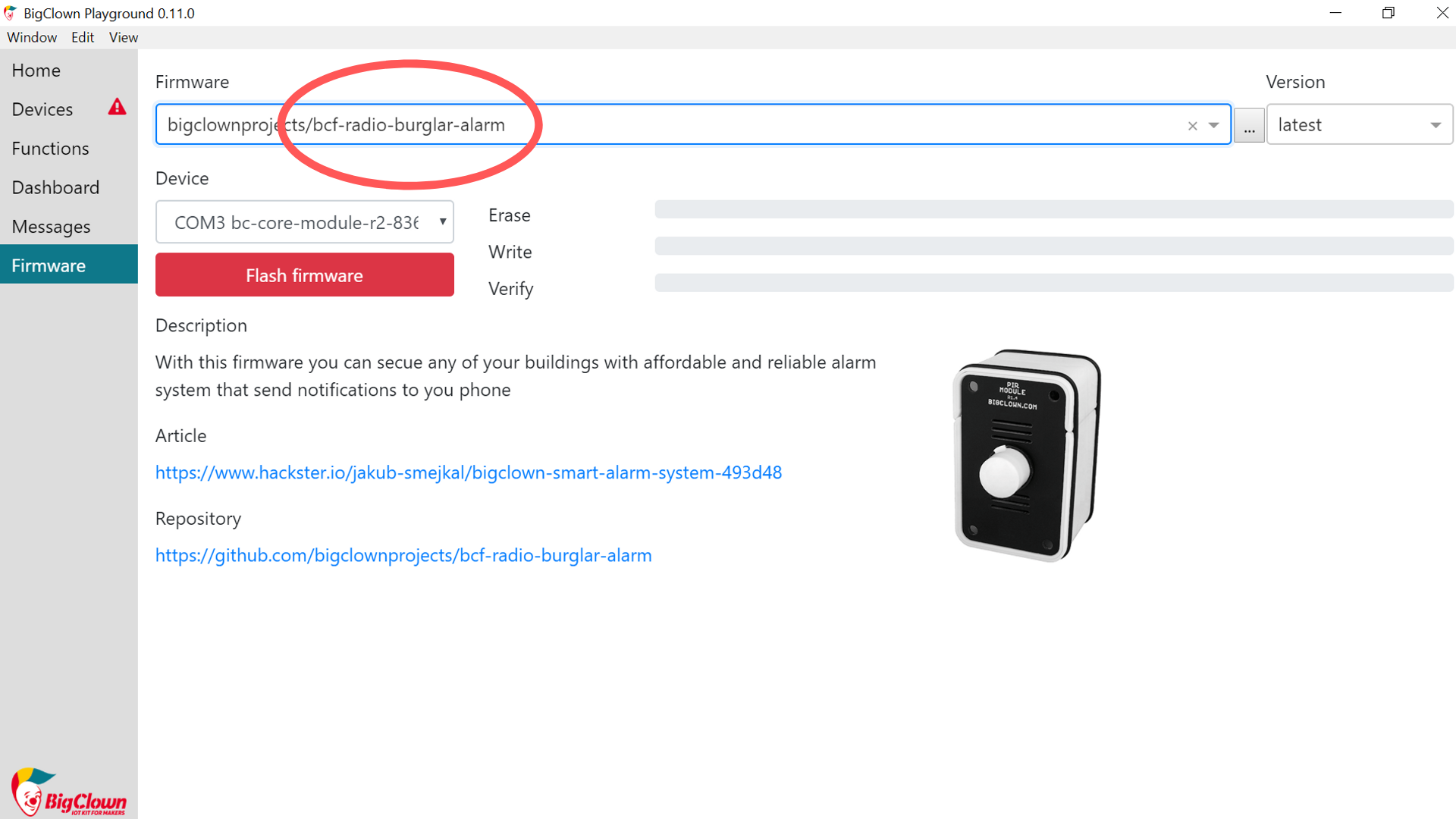
Our tip: You don’t know how to download the firmware or what is it? You'll find out here.
- Pair the Core Module with a USB Dongle. Right after pairing, you will see that your Core Module has changed the Alias to Burglar alarm.
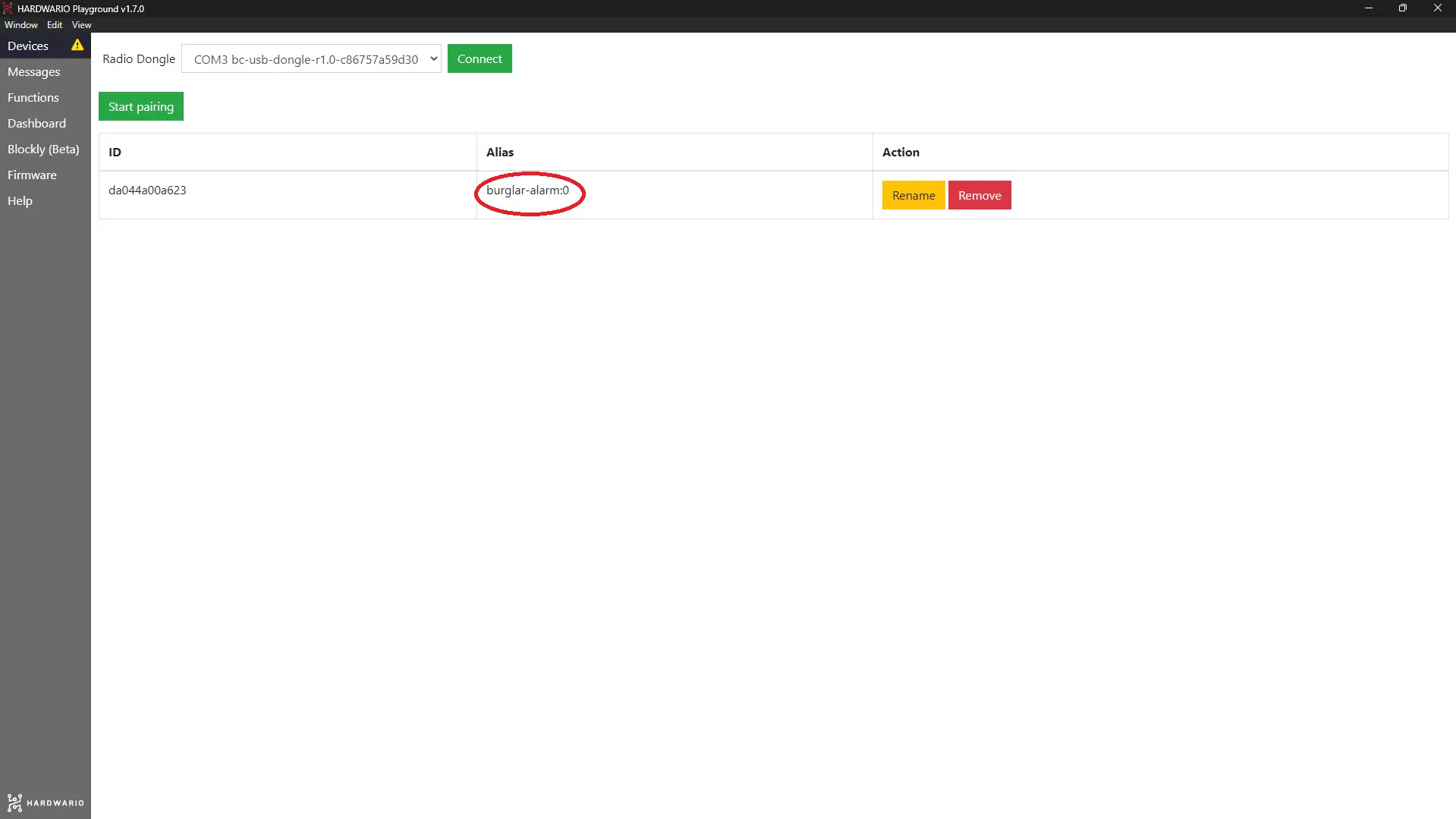
❓ Did you know? In English, a burglar is a sort of thief. For example, Bilbo Baggins from the Hobbit was a thief. He stole from the dragon's treasury! 🐉
Prepare Blynk IoT for notifications
Your box connects to your smartphone thanks to the Blynk IoT app, where the alarm will arrive as a push notification. 📱
-
If you don't have one yet, create an account in Blynk IoT. See this guide for how to set up your account, a device template, and a device — you'll need all three. You can also reuse a template from a previous project.
-
In Blynk IoT, a push notification isn't placed on the phone screen like a widget — it's sent as an Event defined on your template. On the template detail, open the Events tab and add a new event (for example, name it
thiefand give it the message you want to receive, such as "Someone's in your room"). Then turn on Notifications for that event so Blynk delivers it to your phone. The guide walks through the template settings. -
You also want to arm and disarm the alarm from your phone so it doesn't bleep when you are home. 🔕 Add a Datastream on the same template (a virtual pin) and place a switch widget on it in the app — the switch sends
1(armed) or0(disarmed). You'll read this value back in Node-RED in a moment. -
Download the Blynk IoT app on your phone from the App Store or Google Play and sign in with the same account. Make sure notifications are allowed for the app so the alarm can pop up. 🚨
Read the arming switch in Node-RED
- In Playground, click the Functions tab where the Node-RED programming desktop is.🤖
- Start programming and jump right in. The first node will contain a small javascript code. Place it on the desktop using the ** Function node** from under the section of the same name.
Double-click on it and type the node name in the Label field: Int parser.
Subsequently, copy the following simple javascript code into the Function field:
msg.payload = parseInt(msg.payload); return msg;
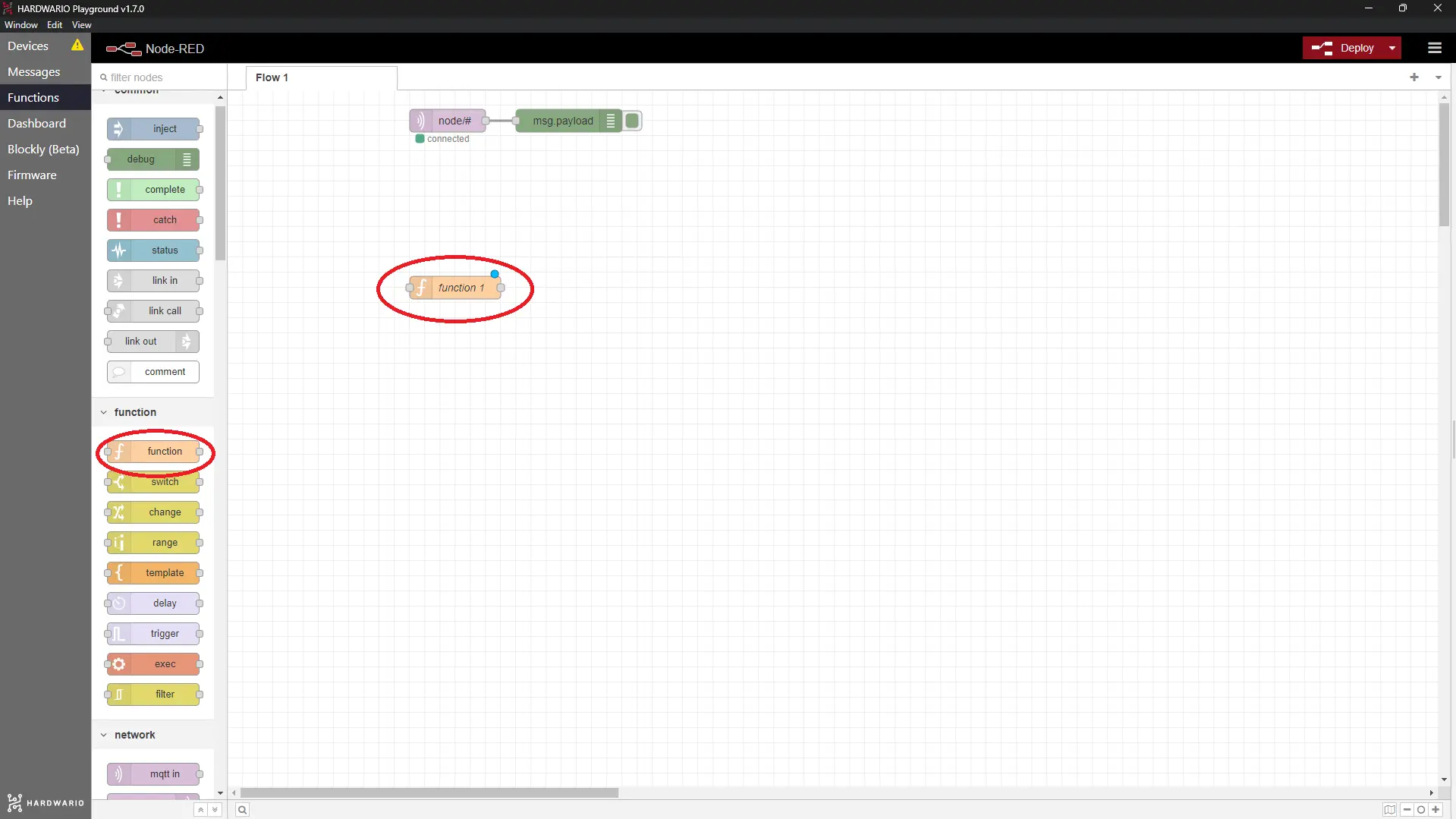
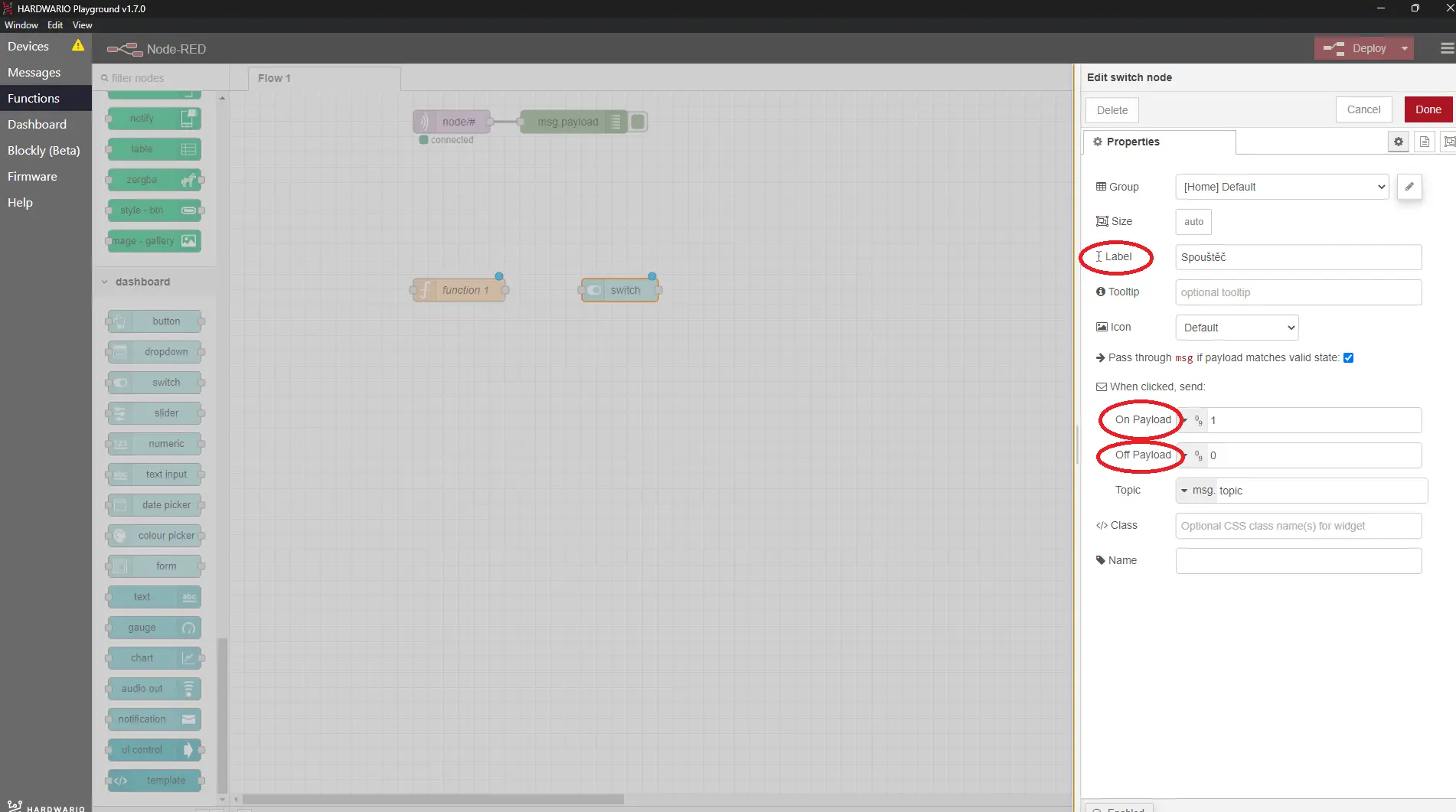
- Now add a node with which you can turn the thief monitoring on and off. This is to keep the phone from bleeping when you are home. 🔕 Do it using the Switch node under the Dashboard section.
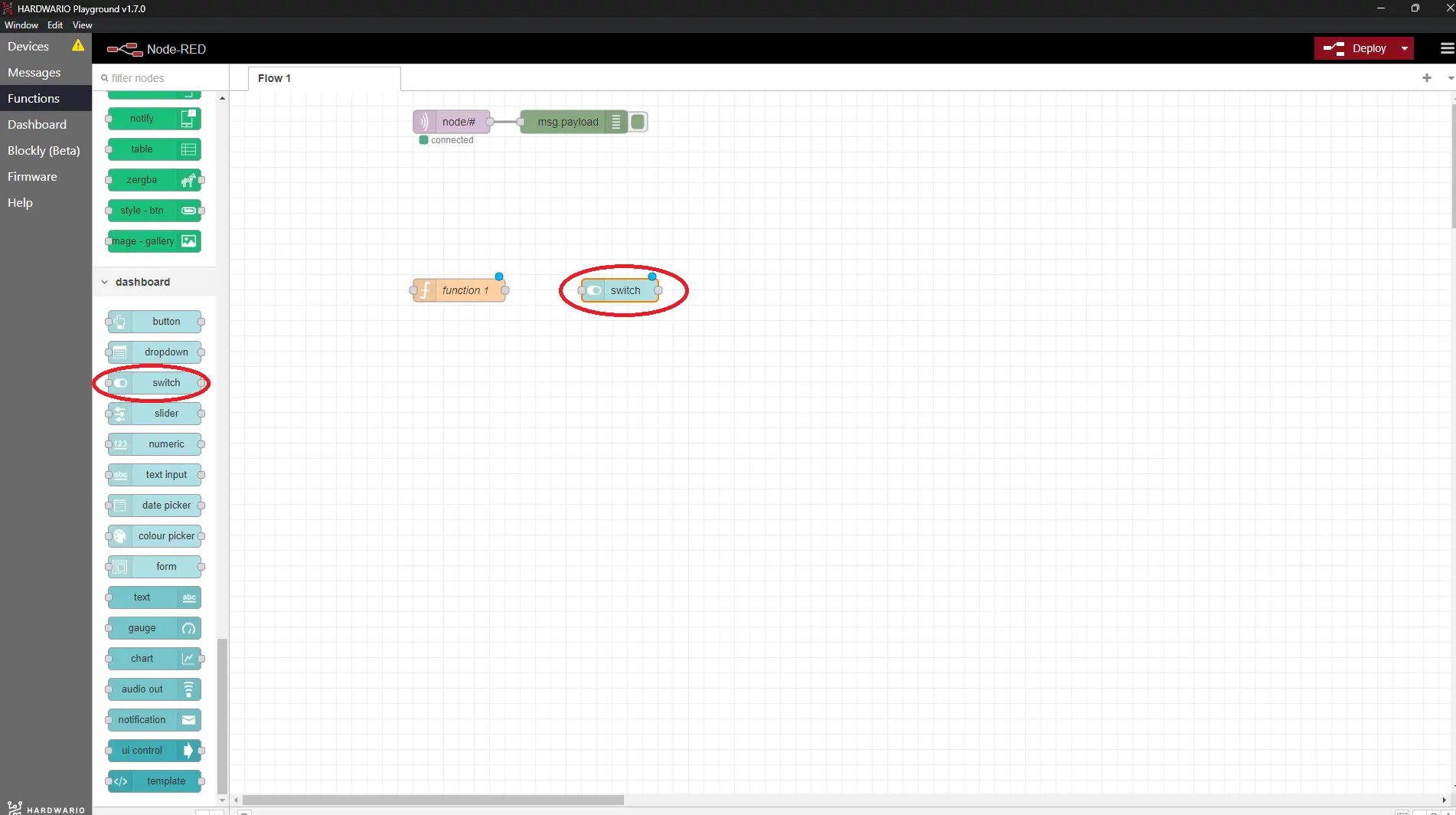
- Double-click on the node and change its Label to Trigger. Then adjust On Payload and Off Payload to 1 and 0 (as shown in the screenshot).
Confirm with the Done button.
-
You also want to arm the alarm from your phone. Add a node from the Blynk IoT section that reads a datastream (the read / input node) and point it at the virtual pin of the arming switch you created on the template.
-
Double-click it to open it. On the right you'll see a small pencil. Click it and a new window opens. In the Url field enter
blynk.cloud, and into the Auth Token and Template ID fields copy the values from the device detail in the Blynk IoT web app on your computer. Confirm with the Add button. (You'll reuse this same connection for every Blynk IoT node in this project.) -
Behind both the Dashboard switch and the Blynk IoT read node, place a javascript Function node. With it, the project remembers whether the alarm is currently armed — set either from your computer (Dashboard) or from your phone (Blynk IoT).
In the Name line, fill in the Notification setting status and copy the following code into the Function field:
if(msg.payload == "1") { flow.set("alarmOn", 1); } else { flow.set("alarmOn", 0); } return msg;
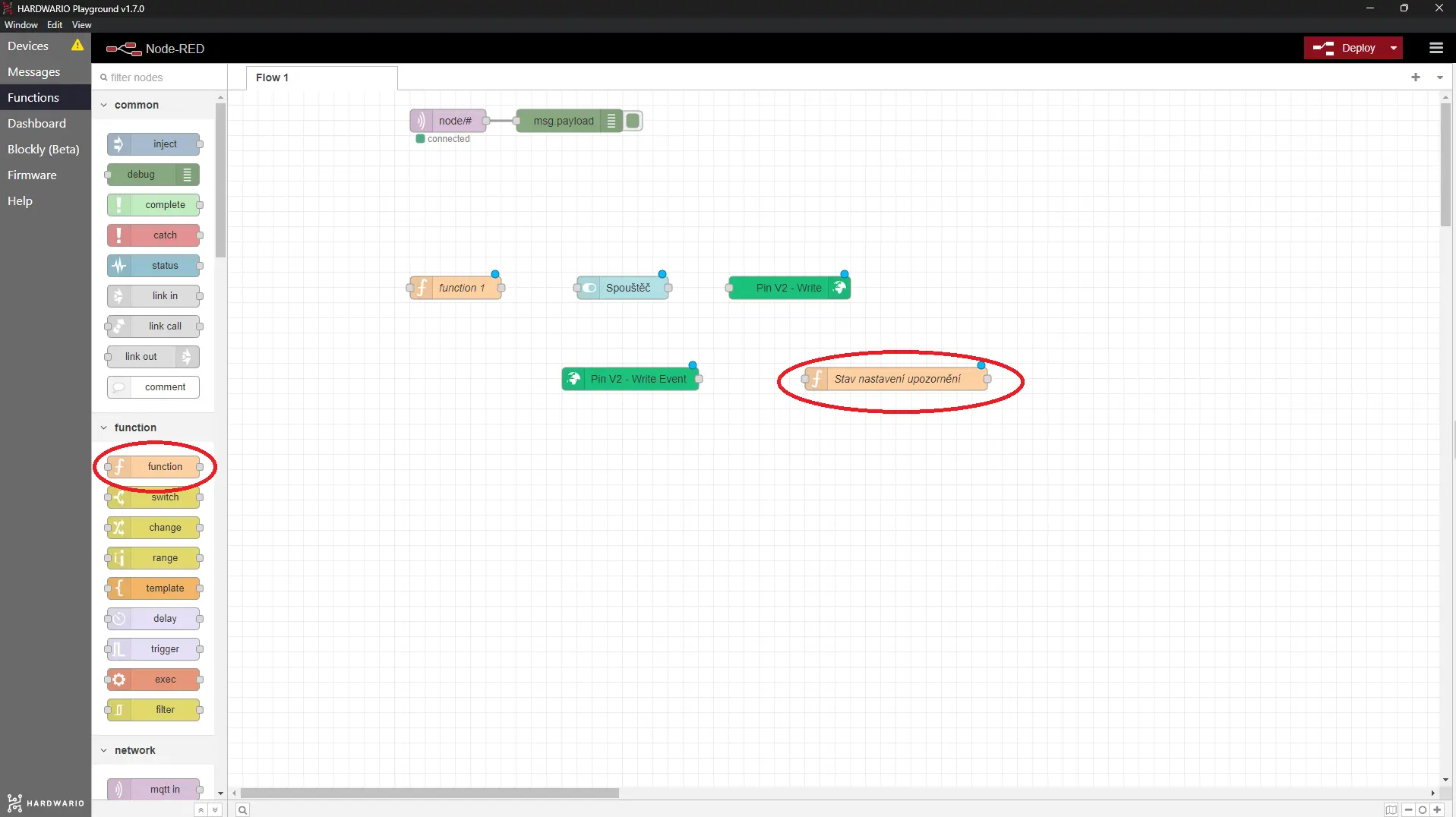
- Now connect the whole flow. Don't go just yet though. You still need to set up two more miniflows.
Program the main sensor
- The whole project works on the principle of a motion sensor – when an intruder or thief enters your room, the box notices it and activates the alarm.
By measuring the ambient temperature, the alarm can change its status to keep itself in a low power mode in order to not drain the batteries in the box too much.🔋
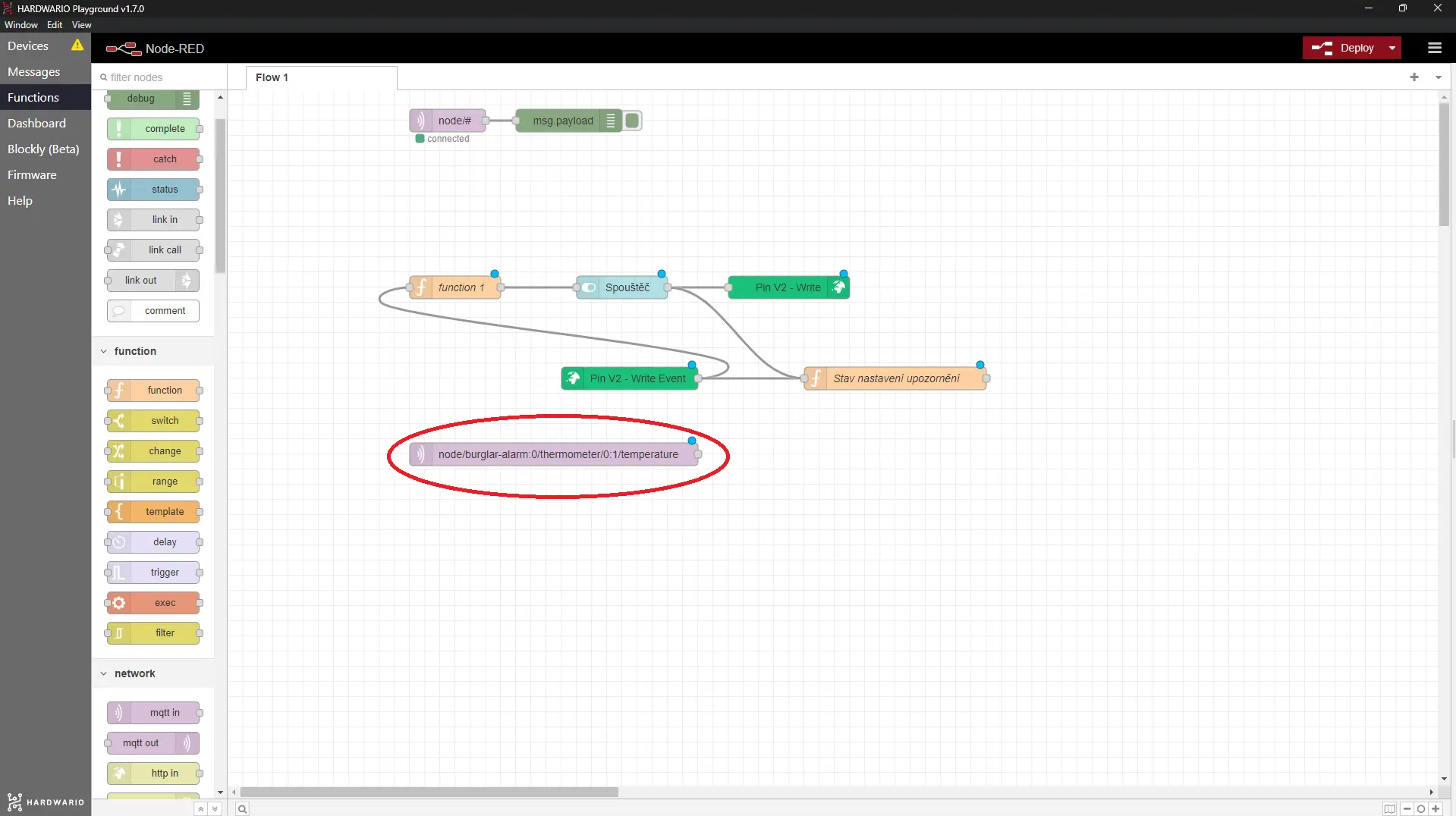
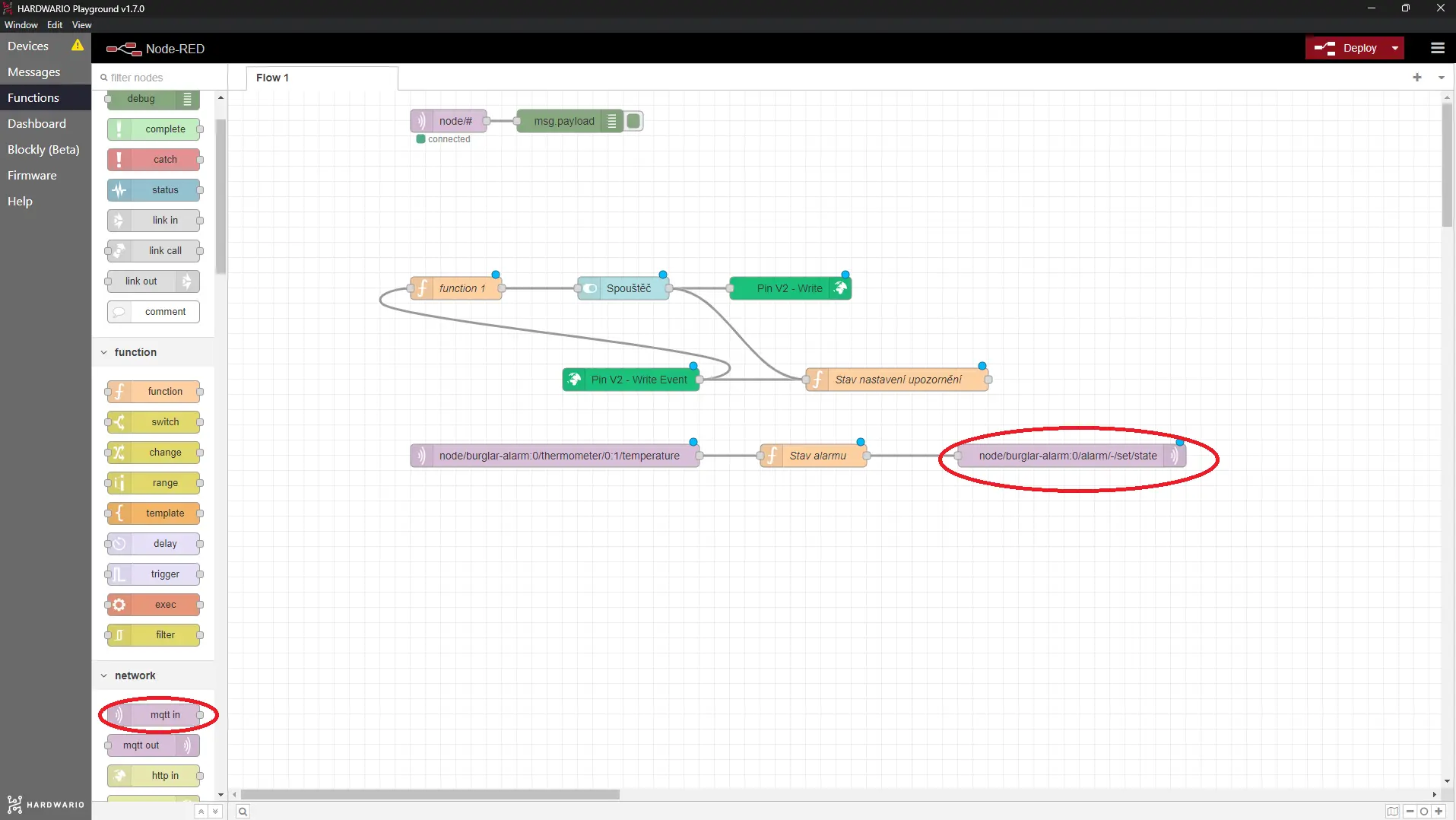
In the next flow, start with the good old MQTT node from under the Input section. In the node, set the temperature measurement as Topic:
node/burglar-alarm:0/thermometer/0:1/temperature
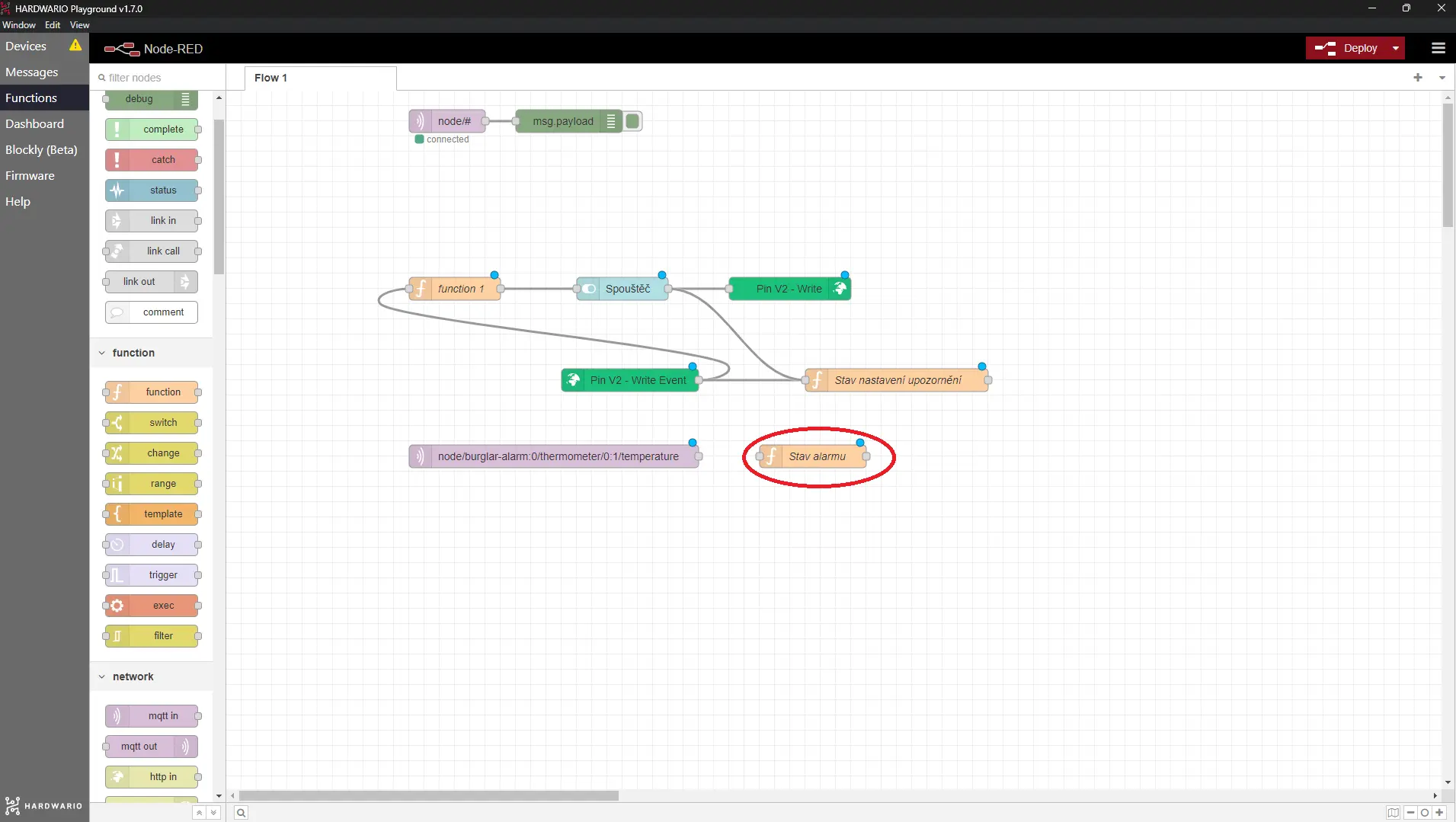
- Place another Function node right behind it. In the Name field, write the Alarm Status and use the following code:
msg.payload = flow.get("alarmOn"); return msg;
Due to this node, the sensor will only be active if you trigger it by a button in Blynk or on a computer.
- For the best bit of all, place the MQTT node from under the
Output section onto the desktop (watch it ❗).
In the node, set node/burglar-alarm:0/alarm/-/set/state as the Topic, through which the sensor sends its status to the alarm. If the switch in Blynk or Dashboard is turned on, the alarm is activated. 👮
- Subsequently connect these three elements together.
Set up your message
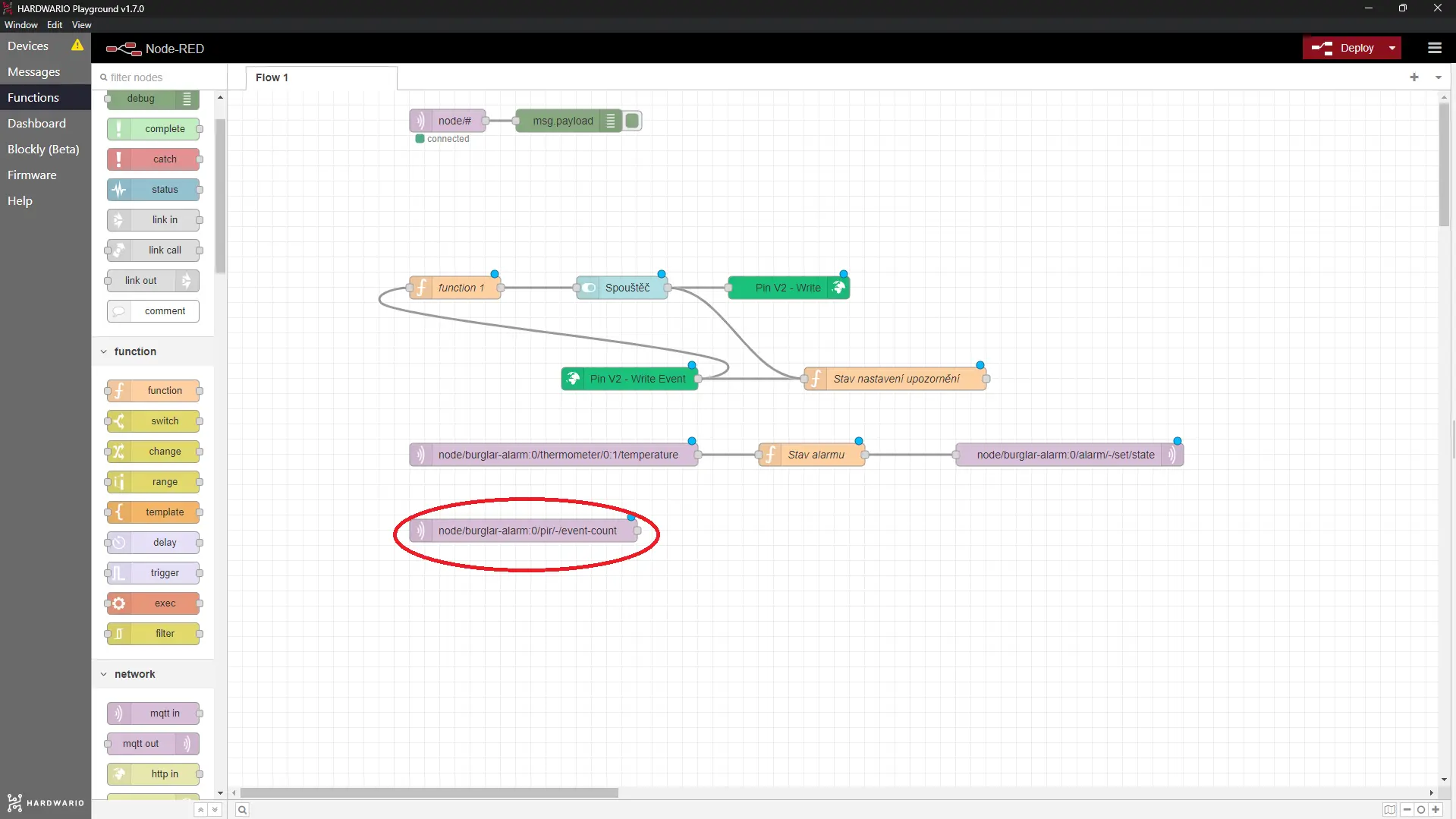
- In the last miniflow, you set up the message that is sent to your mobile when the alarm detects someone. 📩
Place the MQTT node from under the Input section onto your desktop. In the node, set the Topic as node/burglar-alarm:0/pir/-/event-count. This means that the node will be activated if it is active and someone passes by it. Simply, a smart motion sensor.
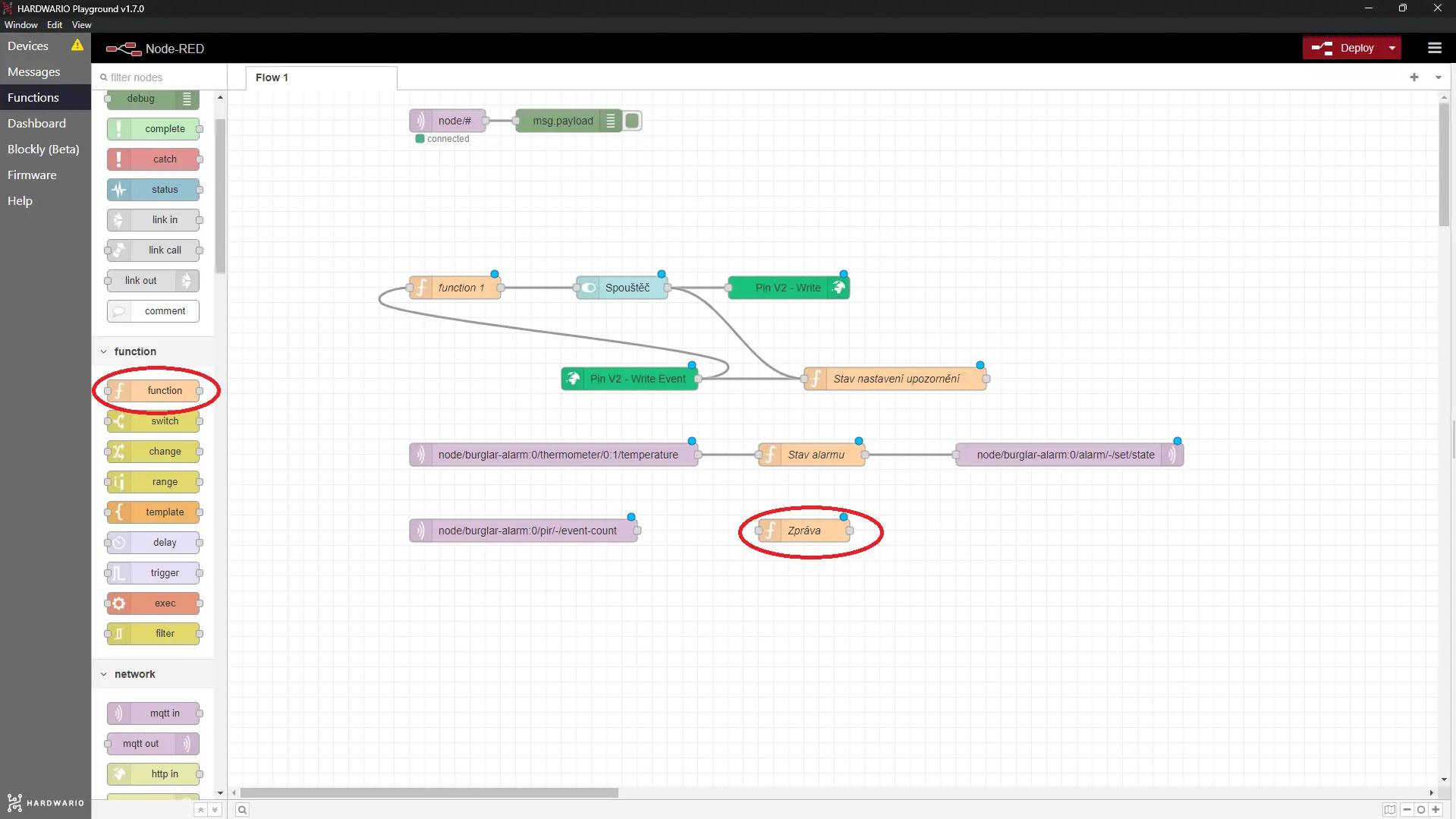
- A short javascript code should follow it, namely a Function node. As the Name set Message with this code right here:
msg.payload = "Someone's in your room" return msg;
Our tip: Feel free to rewrite the message in the code, but remember that Blynk does not read hooks (háčky) and accent marks (čárky). Otherwise it´s double Dutch! 🤷
-
Finally, place a node from the Blynk IoT section that can fire your event (the log event node). It reuses the connection you set up earlier (Url
blynk.cloud, Auth Token + Template ID), so you don't need the pencil again. Double-click it and set it to fire the Event you created on the template (its code, e.g.thief). This is what turns the detected motion into the push notification on your phone. -
Connect these elements so the motion ➡️ becomes your message ➡️ that fires the Blynk IoT event ➡️ which arrives on your mobile. 👾 Finally, press the red Deploy button.
Ready, steady… go!
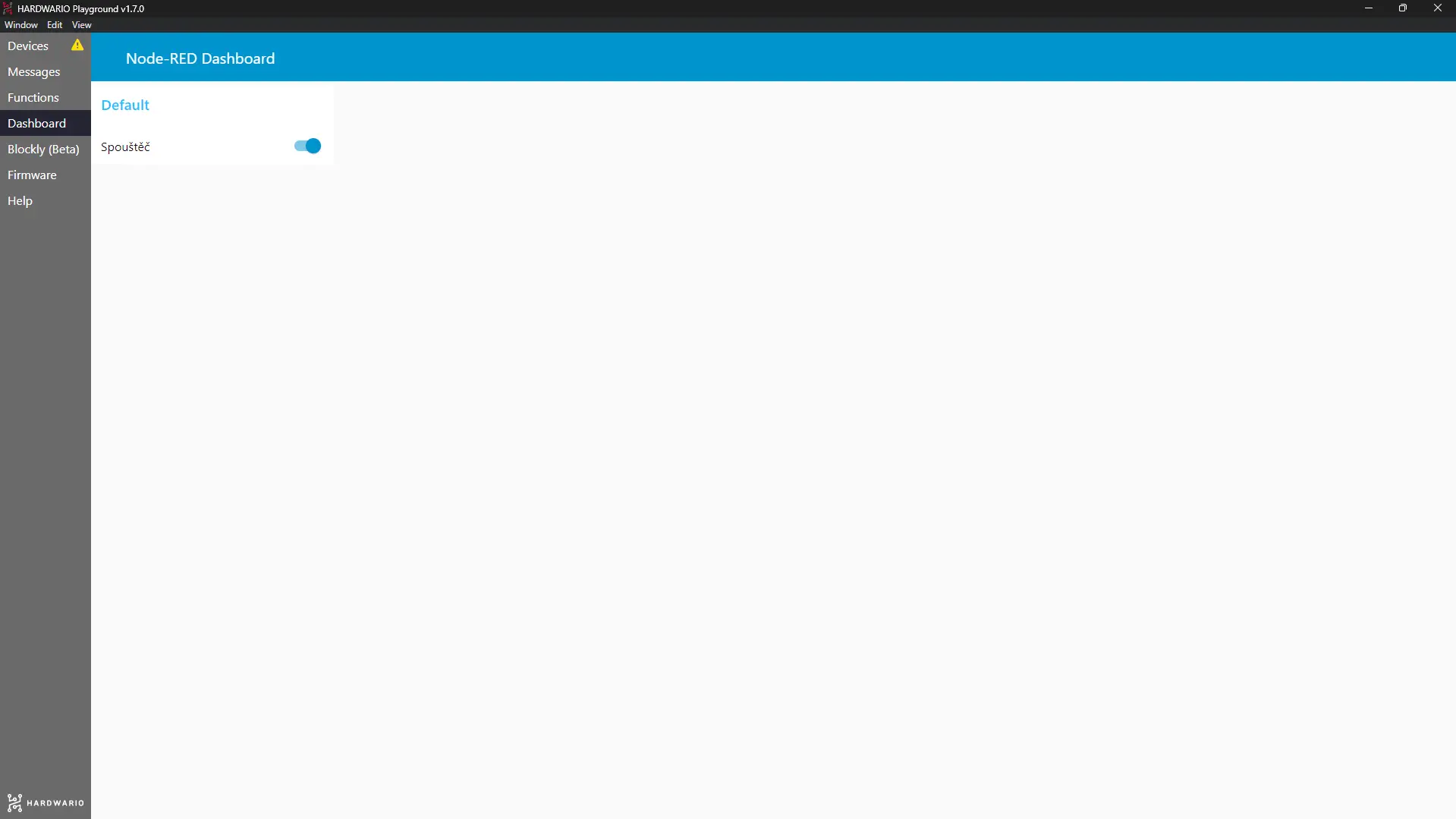
- When you want to trigger the alarm, set the switch on your computer (in the Dashboard tab) or on your mobile. Both buttons work together, so you can set either one or the other.
- Place your box near the door. When the box detects movement, it will send a notification to your mobile.
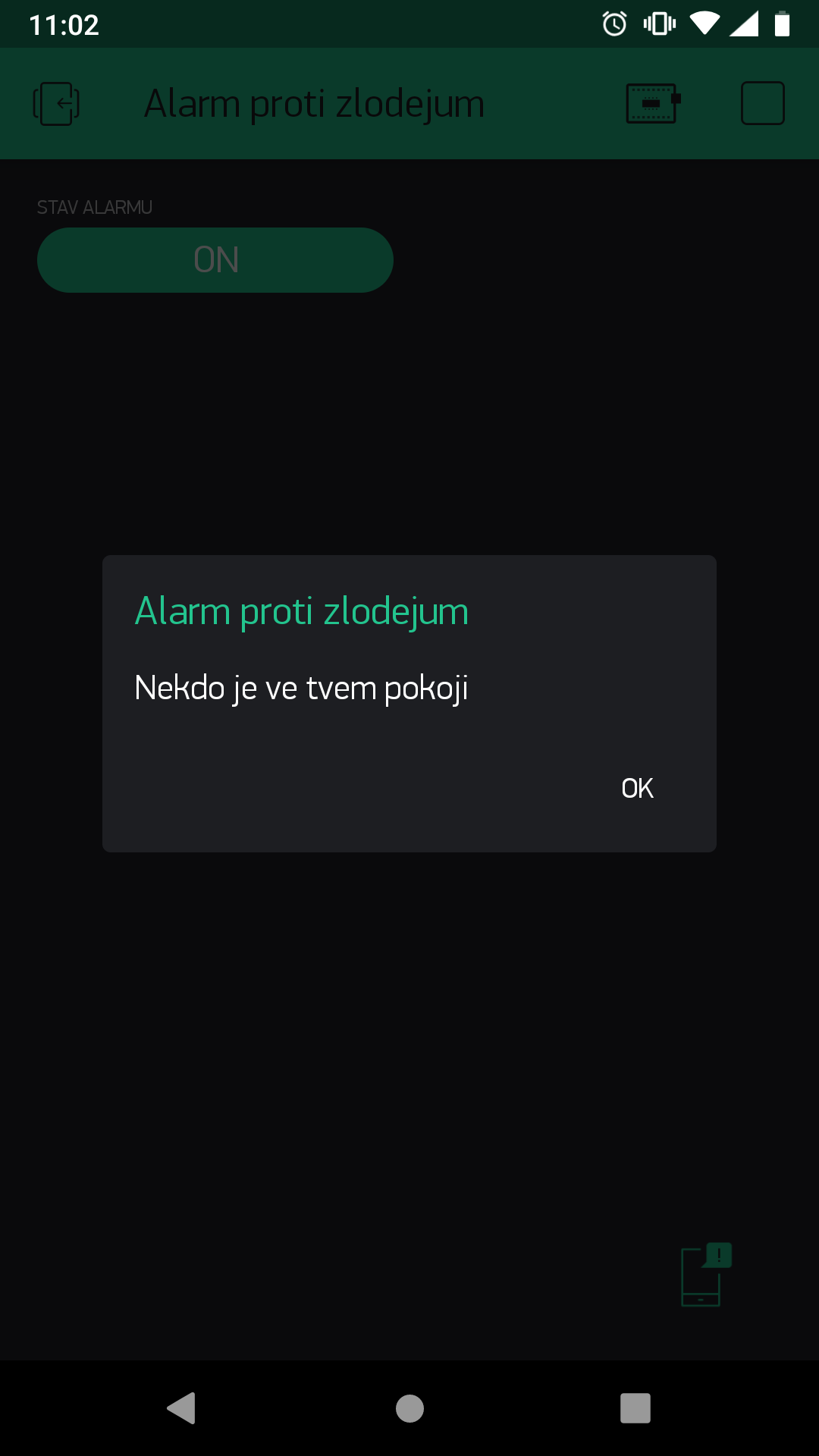
Thieves beware! The law is here! 😱