Catch the mist
Introduction
You know this for sure. In the fridge, you keep the last piece of cake from your birthday party, but when you finally get to it… it's gone. And your greedy sibling has chocolate all over her chin. Stop her with the smart box! 🎂
In this project, you will learn to make a fridge opening detector. 👈
All you need is the box with button and the USB dongle in the basic HARDWARIO Start set.
Download new firmware
-
If you haven't done it yet, put together the Start set.
-
Upload a special firmware to Core Module - bcf-radio-x-axis-detector (you will find it among other firmware in the Playground). Thanks to this firmware, the box will become sensitive to movement.👌
-
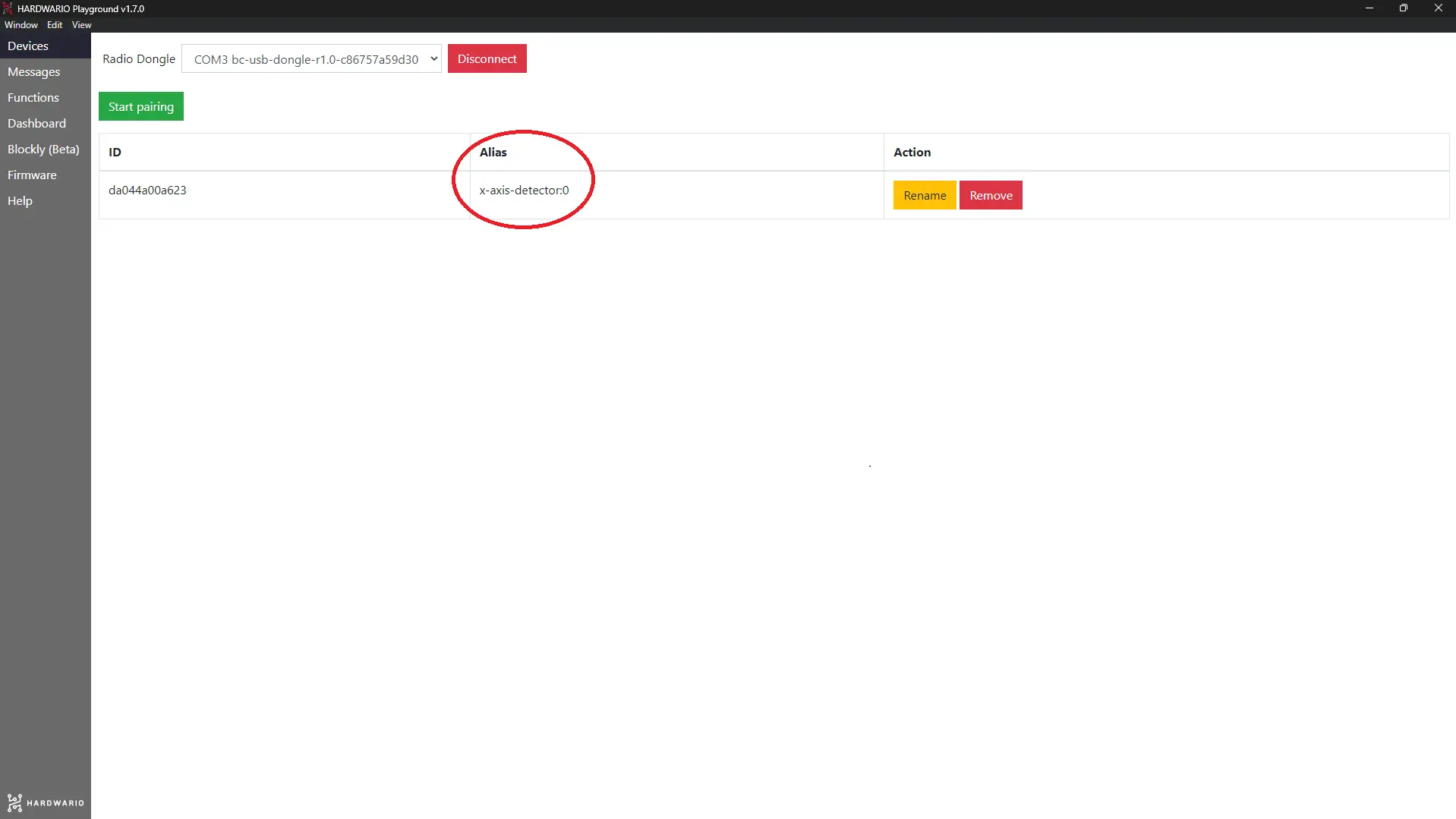
Pair the Core Module with the USB Dongle. Right after pairing it, you will notice that your Core Module has changed Alias to x-axis-detector.
Get it started in the Node-RED
- In the Playground, click on the Functions tab, where is the programming desktop Node-RED.
- Start as always: first place the MQTT node from the Input section on the desktop.
node/x-axis-detector:0/accelerometer/-/event-count
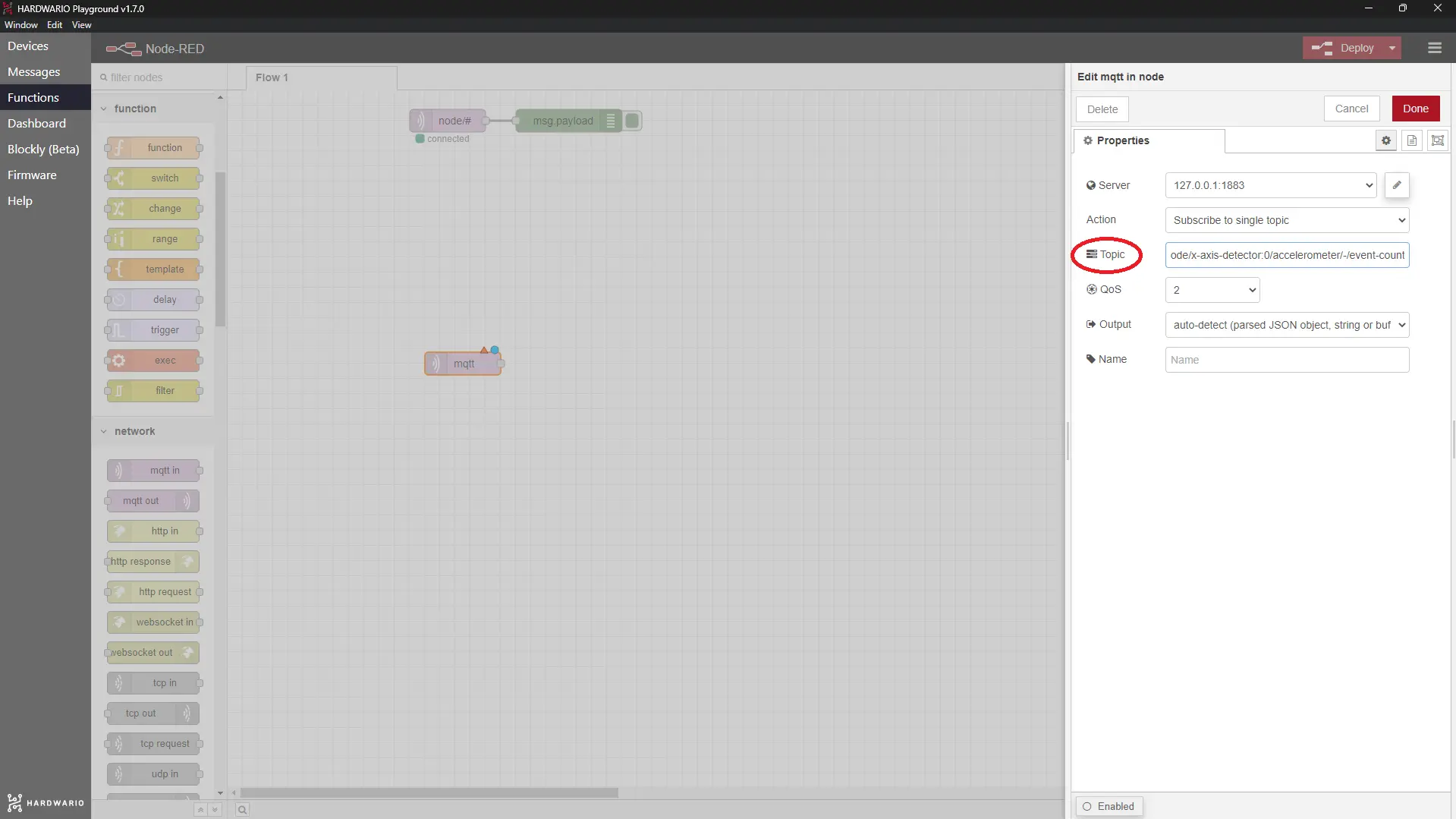
Confirm it with the Done button.
-
Now, upload there a small javascript. 🙌 First, place the Function node from the section of the same name on the desktop...
-
...and then double-click on this node. Copy the following code to the Function field. This code will count how many times the fridge opened:
var count = flow.get("count") || 0;
count++;
flow.set("count", count);
msg.payload = count;
return msg;
Name the node in the Label field, e.g. Counter.
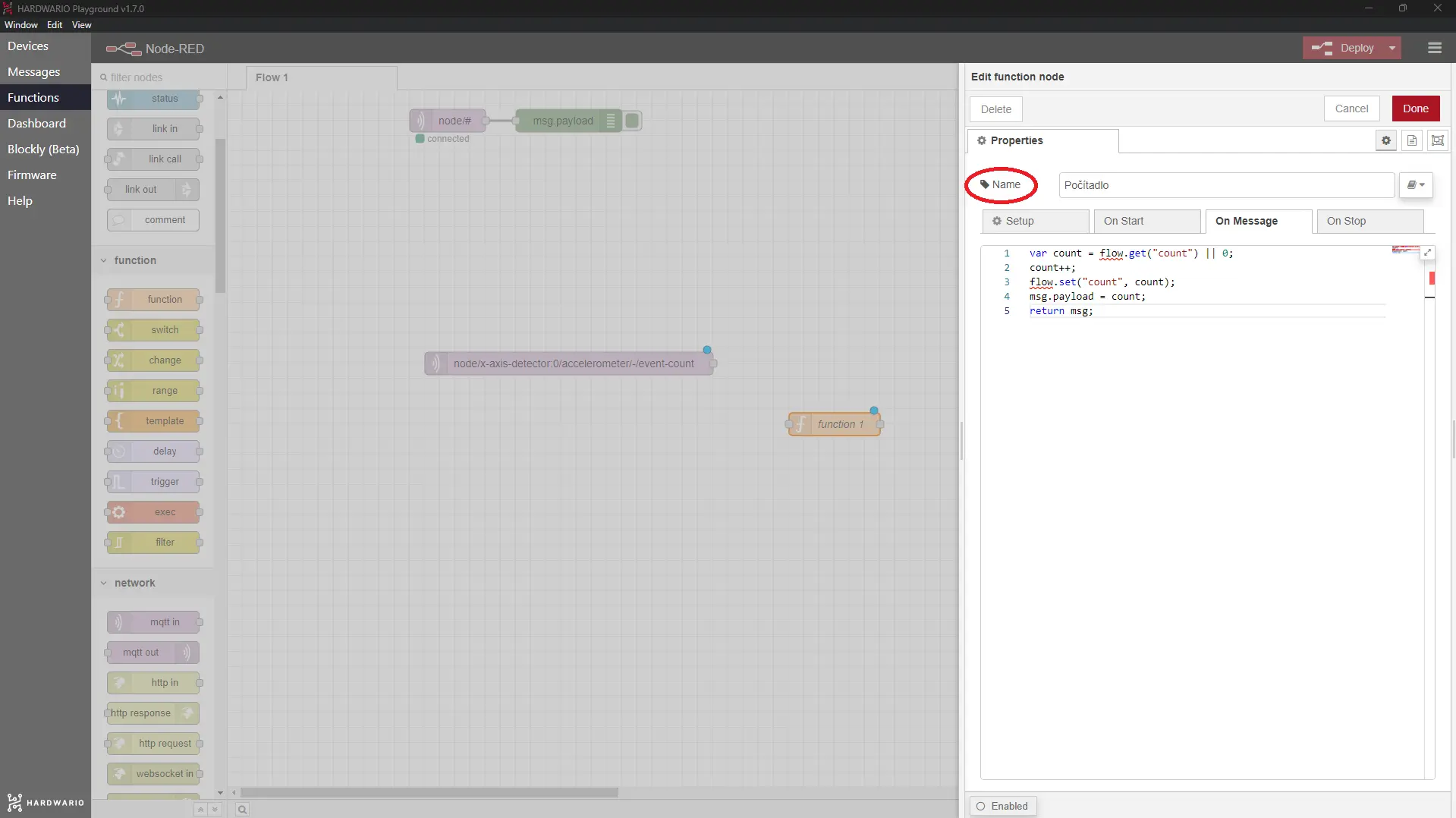
Confirm it the the Done button.
-
Next to this node, place the last one - the Text node from the Dashboard section.
-
Inside the node, change its Label to a text you want to see while it’s counting. It could be, for example, Open fridge.
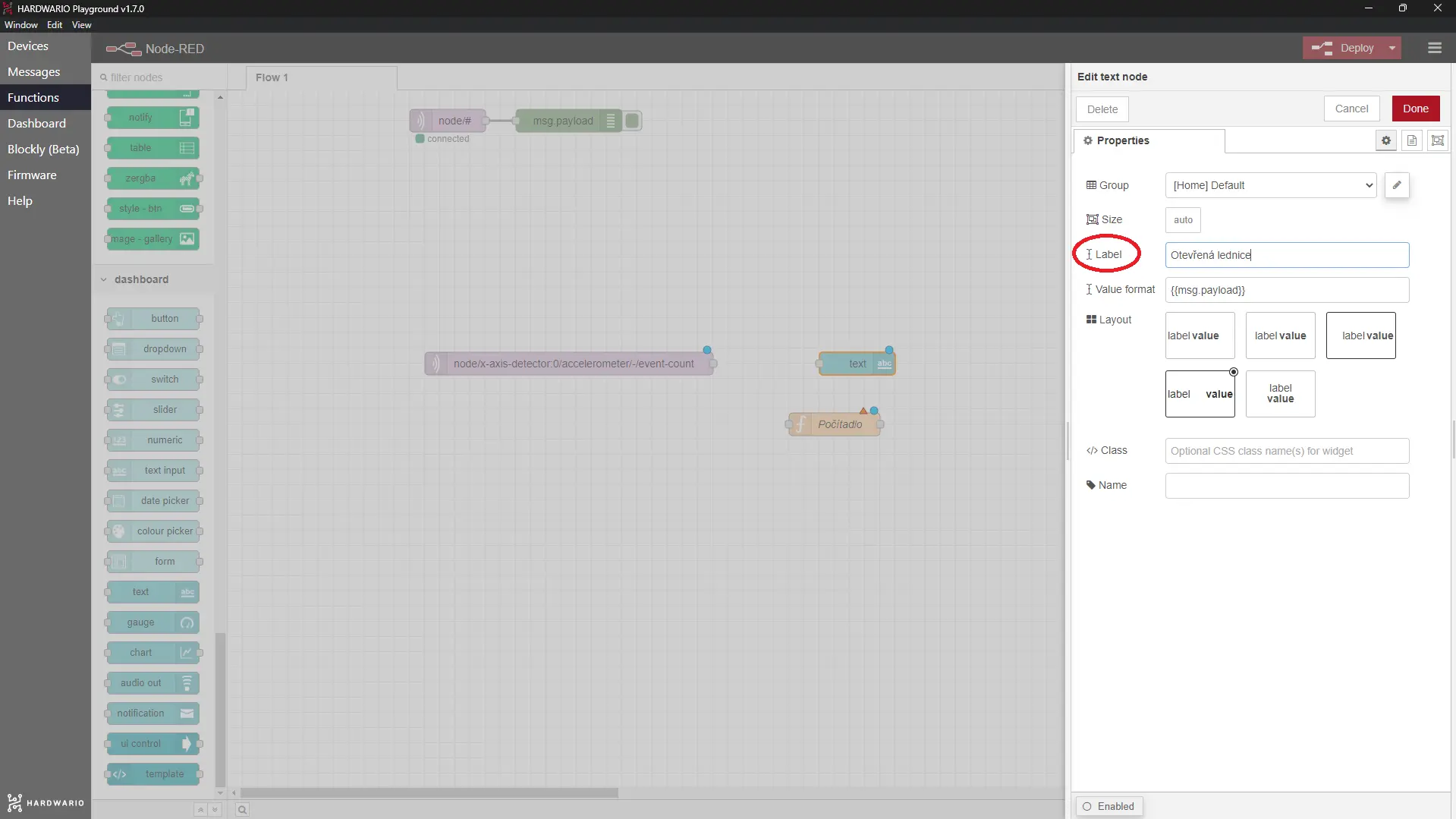
Confirm it with the Done button.
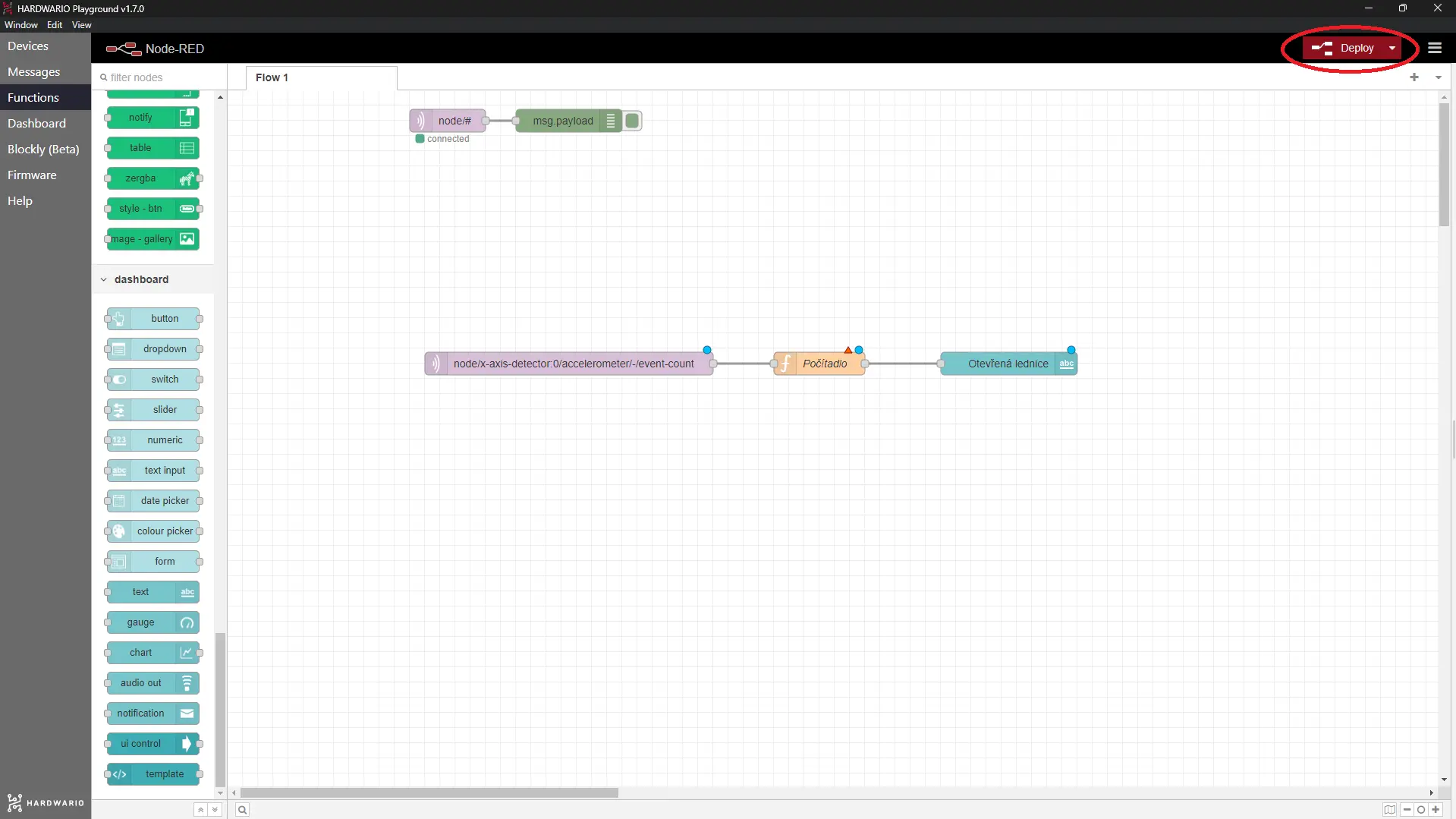
- Connect all three nodes, just as you can see in the picture. In the top-right corner, remember to click on the good old Deploy button which will start up the entire flow.
And… action!
- Let’s make the little trap work. Put a cake or any other lure in the fridge. 🍰
- Place the box horizontally into the door of the fridge.
- When someone opens the door, the box will send you a notification to the Dashboard tab.

- Run to subdue the wicked villain! 👮
- And now enjoy your sweet victory. 💘