Button for parents
Introduction
You know the feeling. You are deep into playing games or listening to music at full blast so when your mum calls you to dinner, you have no clue. Let’s make a smart button for your parents to be able to alert you over the mobile without screaming their head off.
In this project you will learn how to use the button to send a message to a mobile from anywhere in the house. 👌
You will need the box with a button and the USB dongle. So you will be fine with just the basic HARDWARIO set, the Starter Kit. If it´s the first time you are holding the Starter set box in your hands.
Get it started in Node-RED
- Put together the Starter set and pair it. For the Core Module, you need the radio push button firmware. If you don’t know how to download the firmware or what it even is, you can find out more here.
- Click on the Functions tab in the Playground. You will find there the Node-RED programming desktop. Here you can preset your box so it does anything you want. If you open the programme for the first time: clear the desktop and delete all the preset nods with the Delete button.
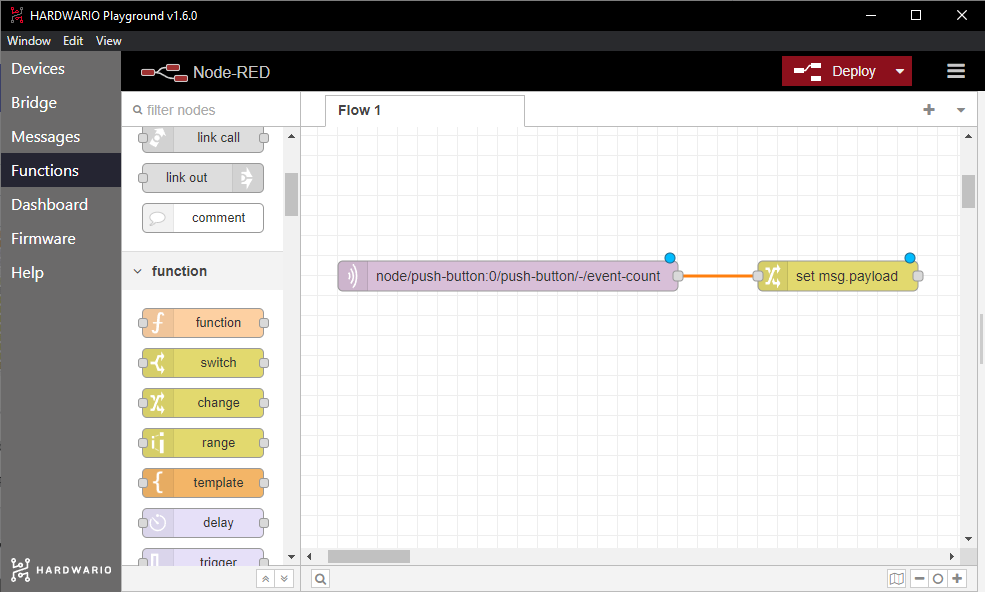
- Let's program now. 🤞 Place the light purple cell, or nod, on the Node-RED desktop first. You'll find it on the left side as MQTT in the Inputs section.
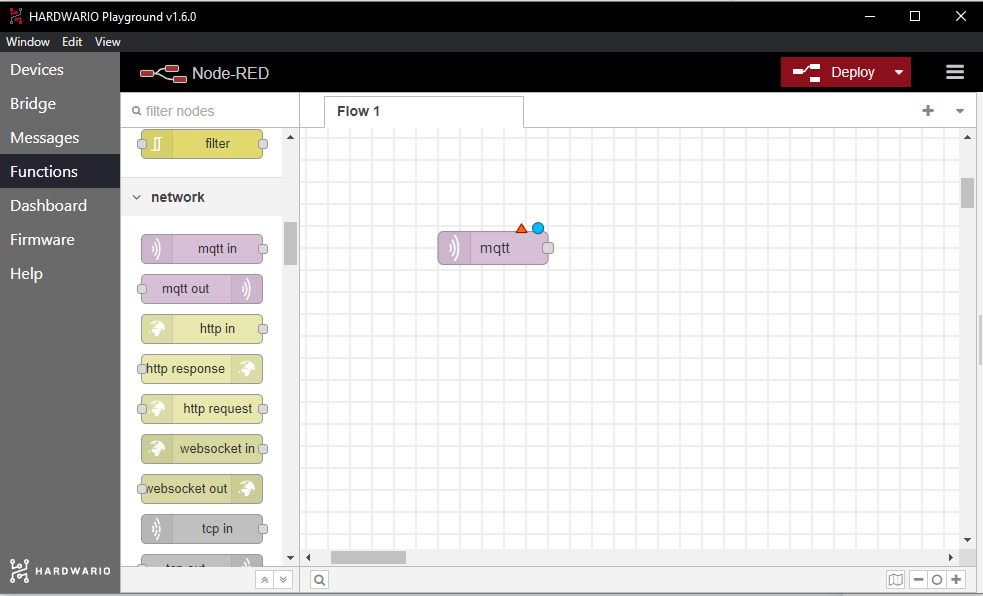
- In the node, you will set up the key feature - clicking on the button. Click on the node twice and copy this link into the Topic field:
node/push-button:0/push-button/-/event-count
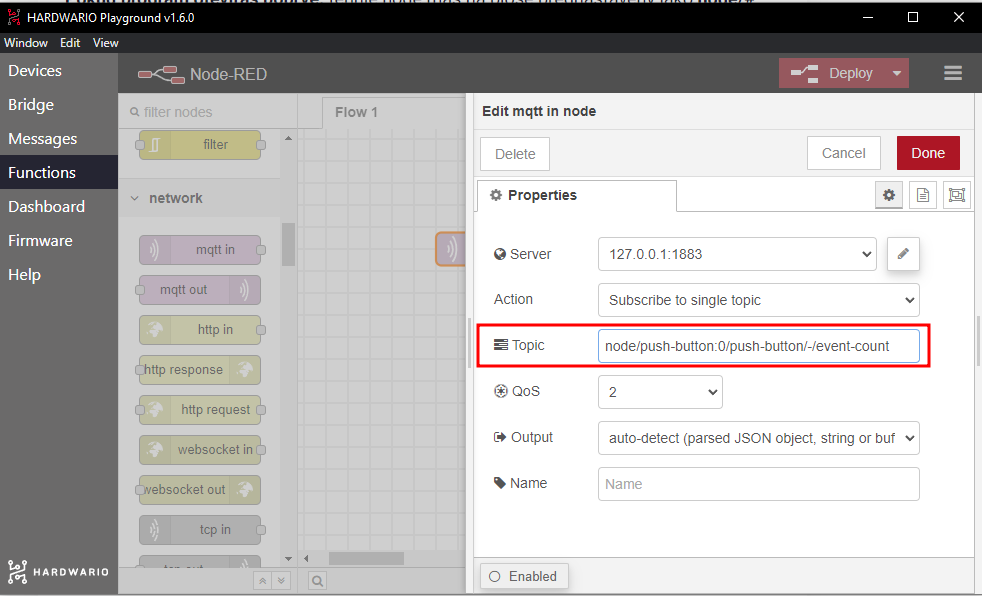
Confirm it with the Done button.
Tip: Do you see the Messages tab in the Playground? Here you see all actions, line by line. Click on the box - and ta-dah, the same thing appeared:
node/push-button:0/push-button/-/event-count
What does it mean? It means that next time you can copy lines into the Topic field from the Messages tab.
Drop there your own message
- The message can be also set up here in the Node-RED. Place the yellow node called Change from the Functions section anywhere next to the light purple MQTT input.
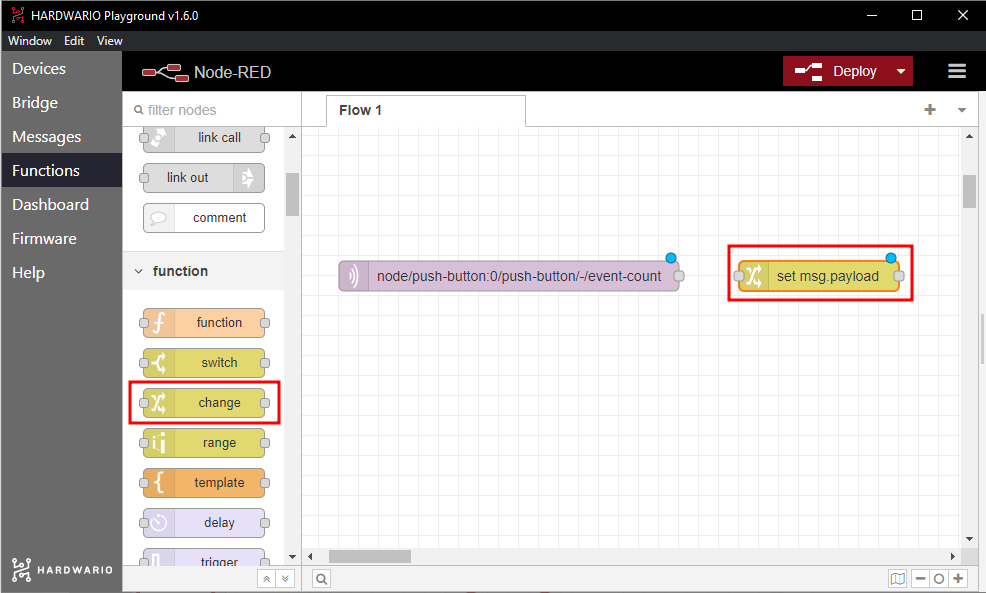
- This Change nod alters the action. For example, it can send a message. Go wild and set up your own. A little inspiration:
- Grub!
- Feeding time
- BFill your belly with real mana
- My health potion has been cooked
You can do it by clicking the node twice and writing the message in the second line of the Rules field.
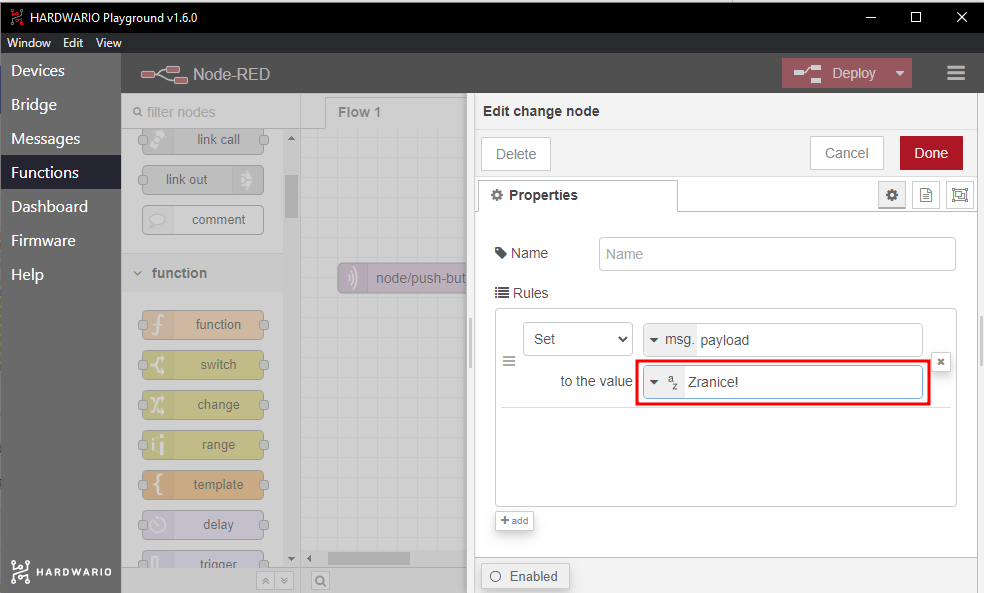
Confirm it with the Done button.
- On the edge of each node you can see a small grey ball. When you click on it, hold it and move the mouse to the side, you will pull out a string from the node. That's how the nodes connect. Try it out. Connect both nodes by dragging the mouse from one cell to the other. Easy peasy. 🙆
Prepare Blynk IoT for notifications
Your box with the button will be connected with a smartphone thanks to the Blynk IoT app, where the button press will arrive as a push notification. And that´s pretty cool. 😎
-
If you don't have one yet, create an account in Blynk IoT. See this guide for how to set up your account, a device template, and a device — you'll need all three. You can also reuse a template from a previous project.
-
In Blynk IoT, a push notification isn't placed on the phone screen like a widget — it's sent as an Event defined on your template. On the template detail, open the Events tab and add a new event (for example, name it
buttonand give it the message you want to receive). Then turn on Notifications for that event so Blynk delivers it to your phone. The guide walks through the template settings. -
Download the Blynk IoT app on your phone from the App Store or Google Play and sign in with the same account. Make sure notifications are allowed for the app so the message can pop up. 📱
Connect your mobile with the box
-
Go back to your computer. On the Node-RED canvas, add a node from the Blynk IoT section that can trigger your event (the log event node) after the Change node with your message.
-
Double-click the node to open it. On the right you'll see a small pencil. Click it and a new window opens. In the Url field enter
blynk.cloud, and into the Auth Token and Template ID fields copy the values from the device detail in the Blynk web app on your computer. Confirm with the Add button. -
Set the node to fire the Event you created (the event code, e.g.
button). This is what turns the button press into the push notification. Confirm with the Done button. -
Connect the nodes so the click on the box ➡️ becomes your message ➡️ that fires the Blynk IoT event ➡️ which arrives on your mobile. 👾 Then click the red Deploy button in the top right. 🚨
Action!
- Push the button and ...magic happens. 🎇 The message displays on your mobile! 🙌
- Give the button to your mum. Isn't she amazed? Family peace is restored before dinner starts. 🤓