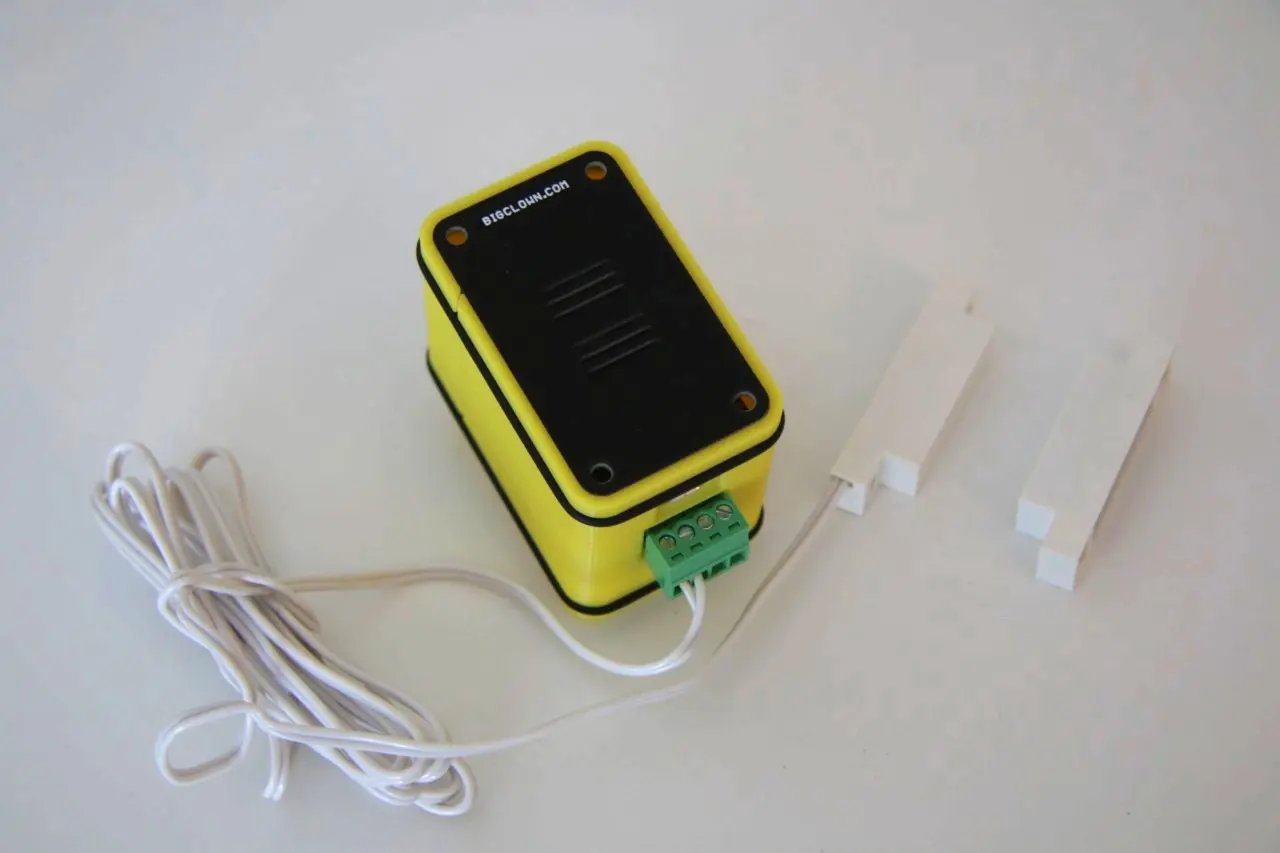
Radio Door Sensor
Radio Door Sensor will notify you to your phone anytime someone opens the door, window or cookie jar! It is also usable as a notification when you forget to close garage or gate in the evening.
It can be equiped with magnet for easy attach enclosure and works for many years on batteries. Really easy installation!

Project Intro Video
Requirements
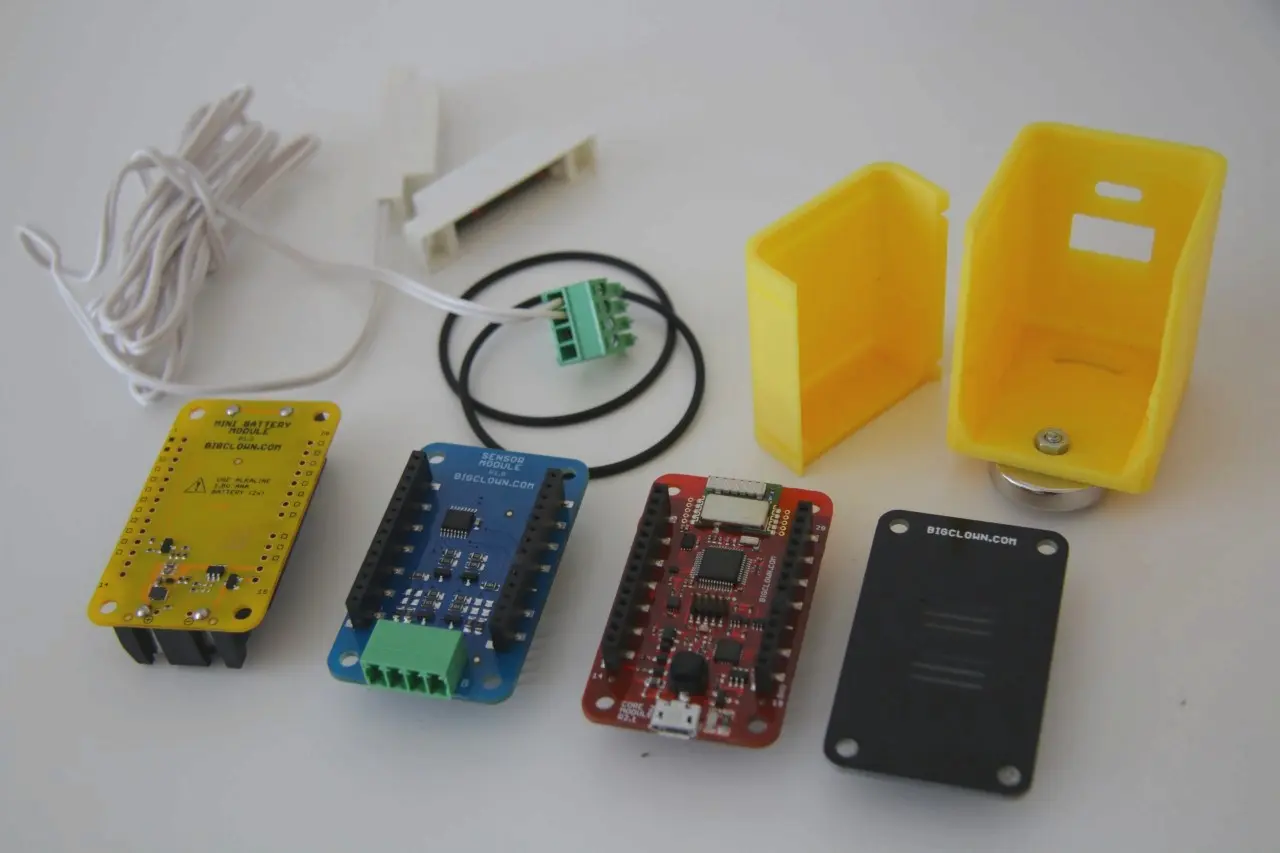
- Radio Dongle
- Core Module
- Battery Module
- Sensor Module
- Magnetic Switch (for screw SA-201-A, self-adhesive SA-203)
- You will need Windows, Linux or macOS computer.
You can also connect Radio Dongle to the Raspberry Pi or other single board computer. Please see Raspberry Pi Installation document.
Download HARDWARIO Playground
Download the latest HARDWARIO Playground for your operating system. After download run the Playground application.
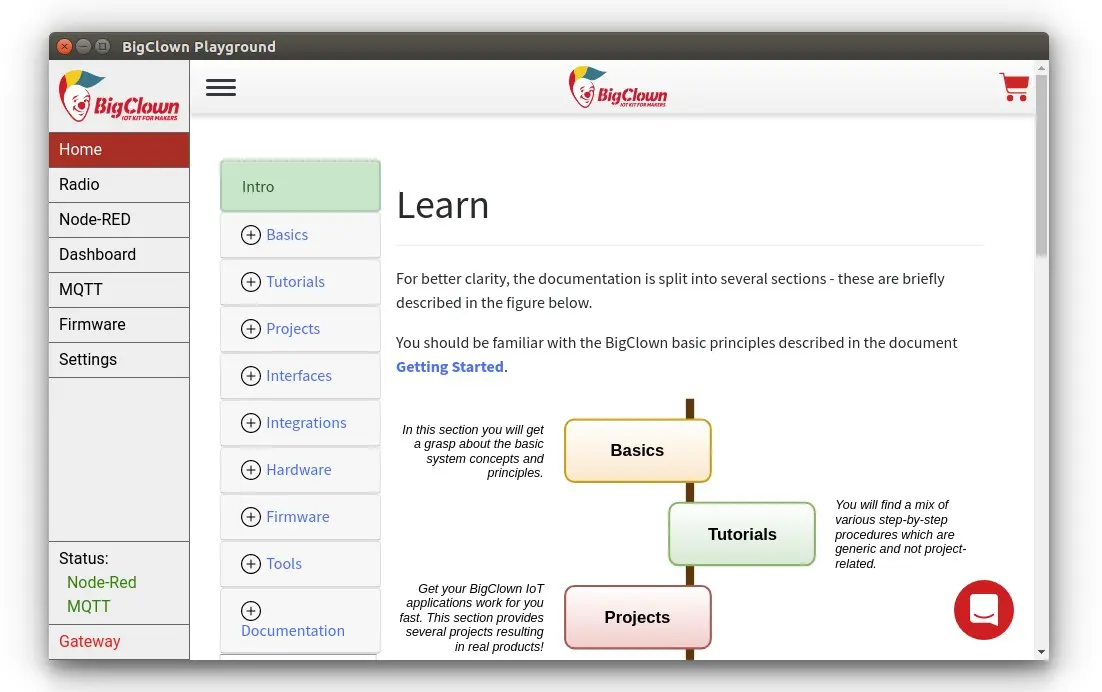
Now we need to make sure that modules use the latest firmware. You need to flash your Radio Dongle and the remote node Core Module.
Flash Door Sensor firmware
Step 1: Connect
Connect just the Door Sensor to the USB of your computer.
Step 2: Flash firmware
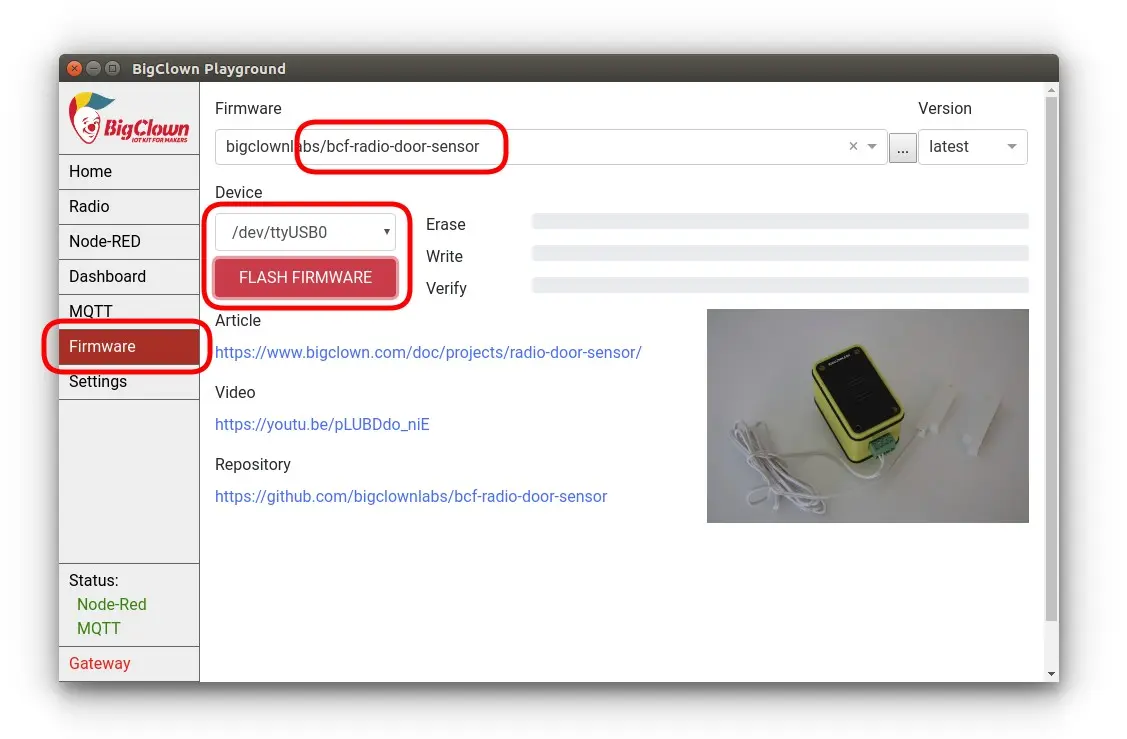
In Playground go to Firmware tab, select the firmware bigclownlabs/bcf-radio-door-sensor, choose the device's serial port in Device and click FLASH FIRMWARE.
Step 3: Disconnect
Disconnect Door Sensor from your computer. Disconnect the batteries and keep the Door Sensor unpowered for pairing process later.
Flash Radio Dongle firmware
Step 1: Connect
Connect just the Radio Dongle to the USB of your computer.
Step 2: Flash
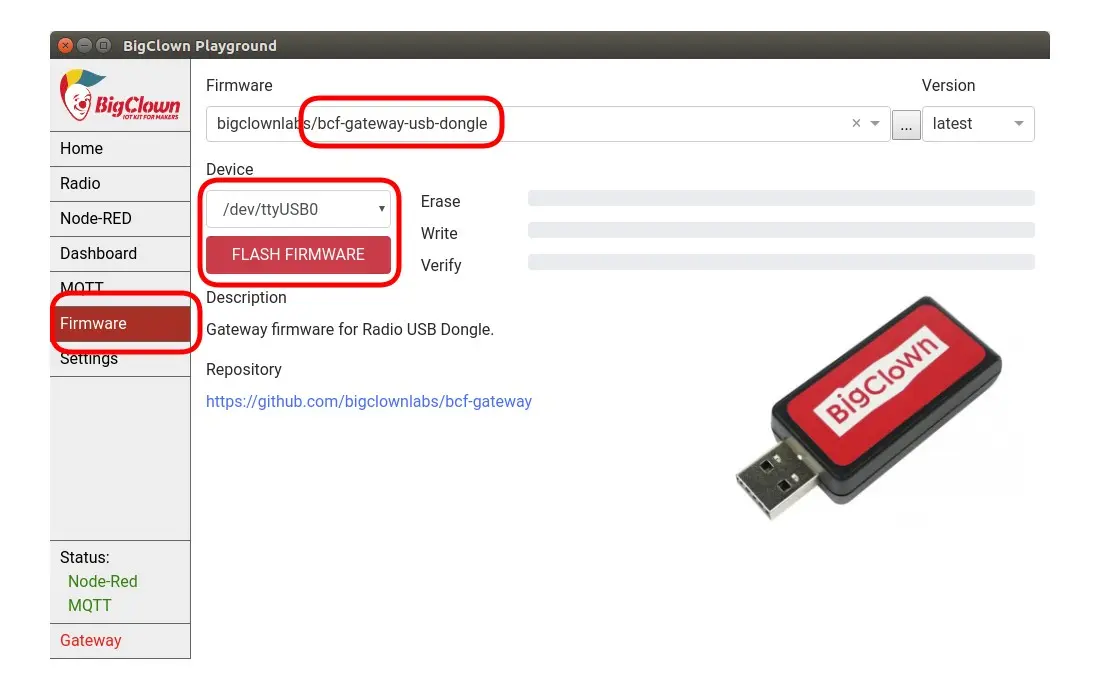
In Playground go to Firmware tab, select the firmware bigclownlabs/bcf-gateway-usb-dongle, choose the device's serial port in Device and click FLASH FIRMWARE.
Step 3: Keep connected
Keep Radio Dongle connected to your computer.
Start the gateway
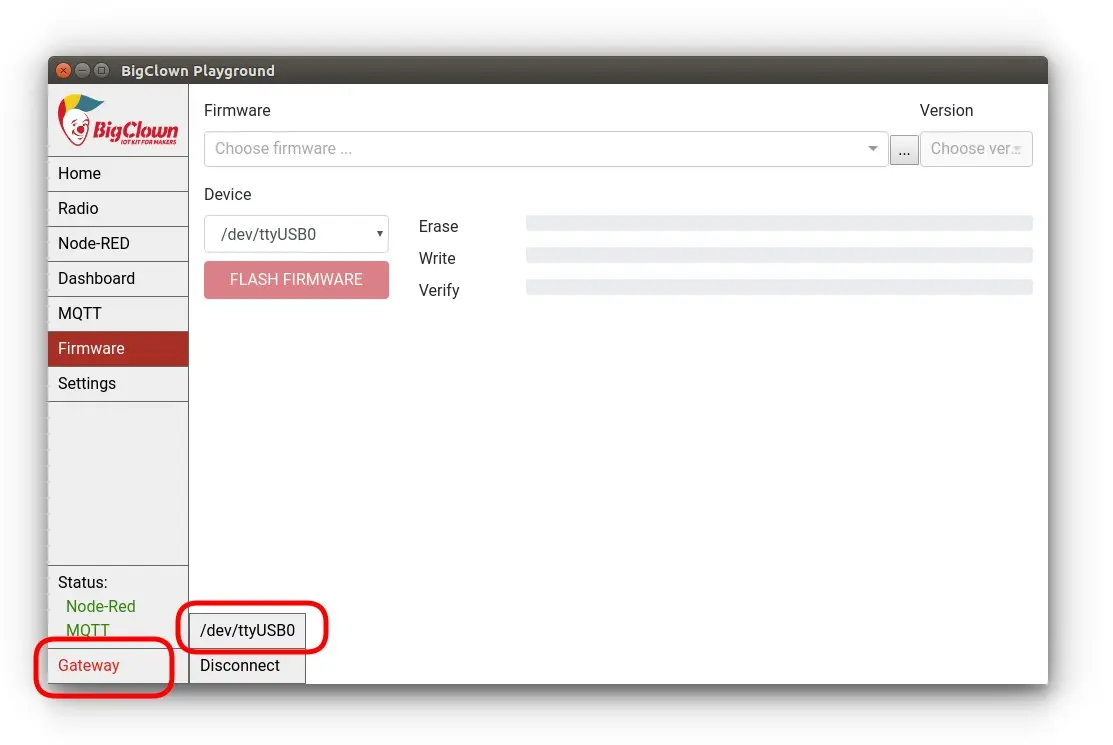
In the bottom left corner, click on Gateway and select device's serial port. The Gatewaytext should change to green.
Pair the Radio Door Sensor
Step 1: Start pairing
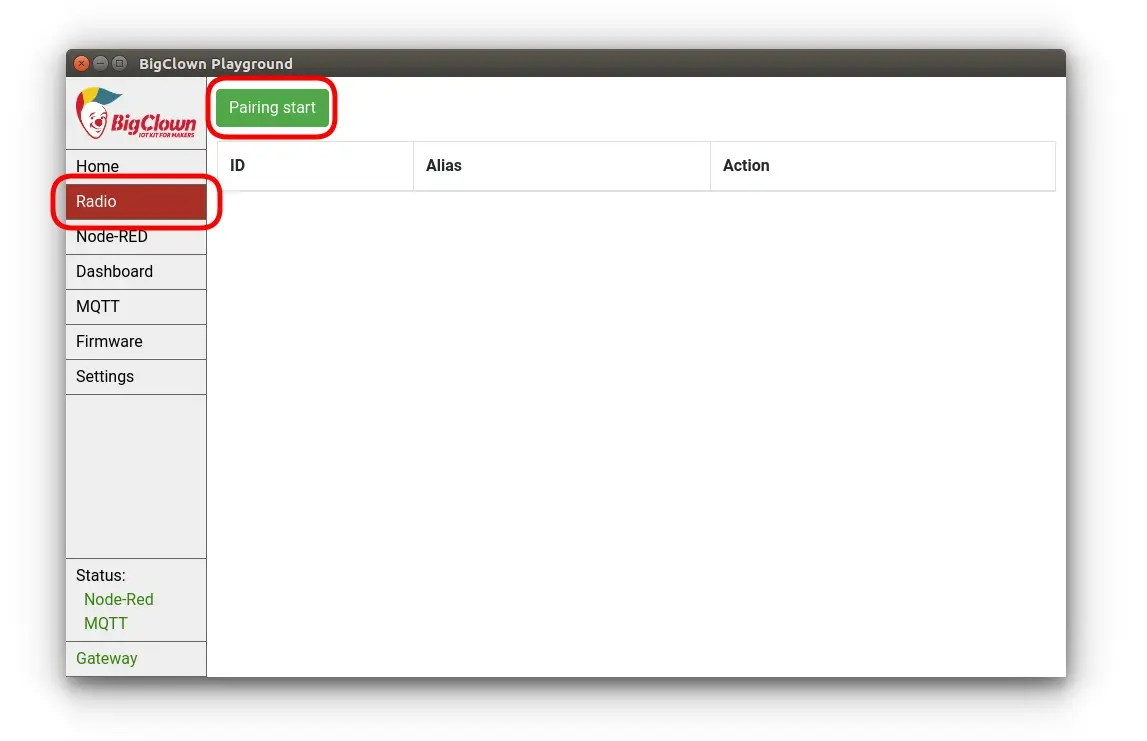
In the Radio tab click on the Pairing start button.
Step 2: Turn Door Sensor into pairing mode
Now insert the batteries to the Door Sensor. The pairing command is send every time you put batteries to the remote module.
Step 3: Stop pairing
Stop the pairing by clicking Pairing stop.
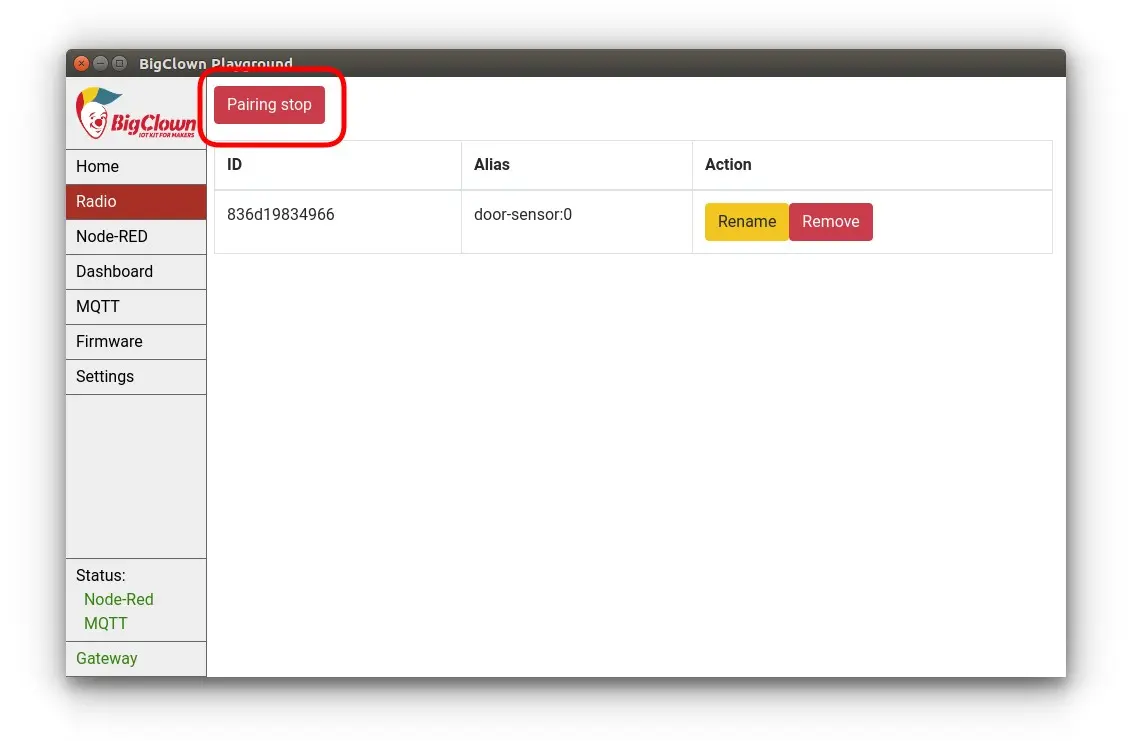
Test the Door Sensor
Step 1: Switch to MQTT tab and subscribe to # topic.
Step 2: Now put the magnet to and away from the sensor, you should see MQTT messages in the top window.
Step 3: Other messages are button press and temperature change. Try it!
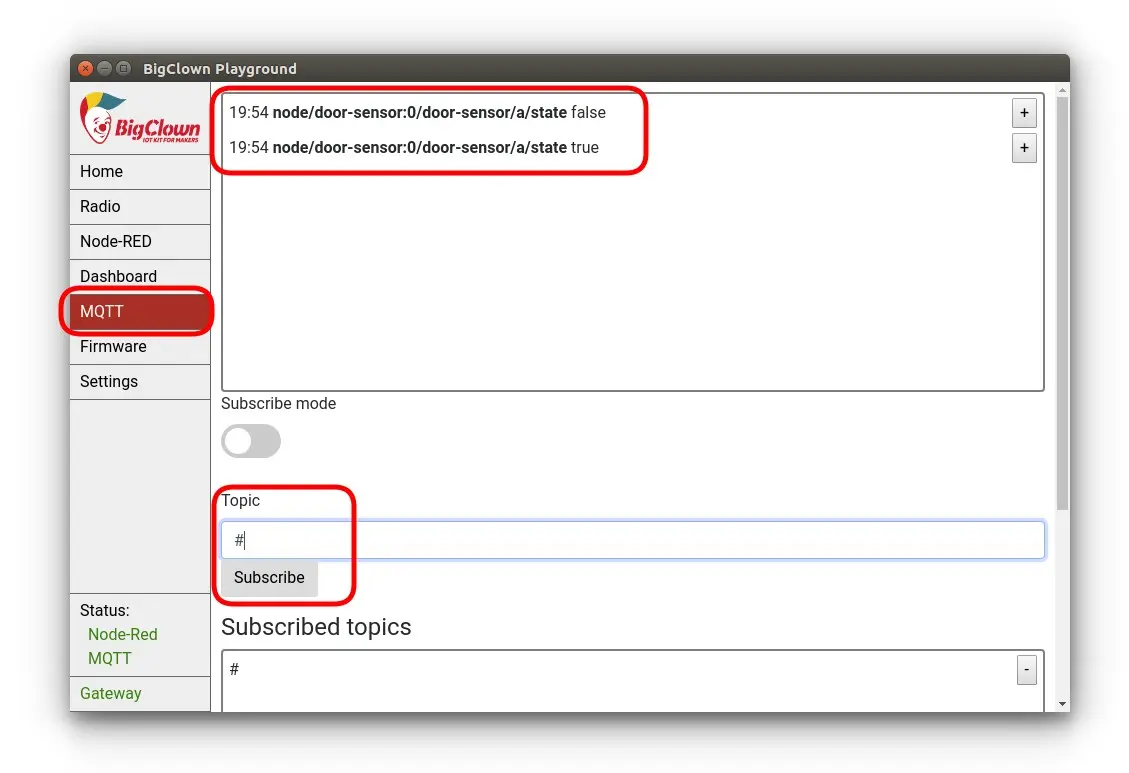
Perfect! You have created radio network which is receiving events and measured temperature.
IFTTT integration
In this section, we will create an Applet in the IFTTT service. The Applet is a sort of event-trigger mechanism.
Step 1: Open the web-browser and go to IFTTT:
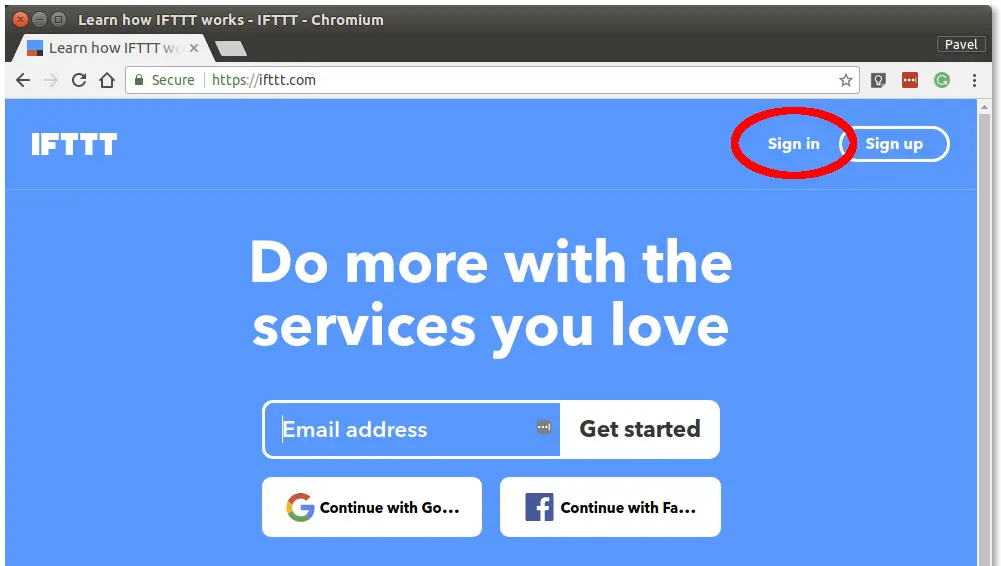
Step 2: Log in to IFTTT service. You can sign up using your Google or Facebook identity:
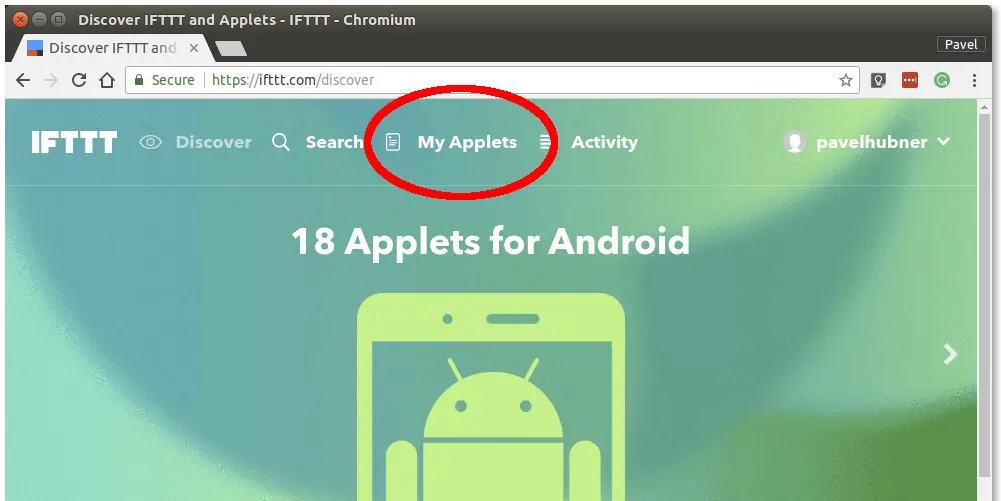
Step 3: Go to My Applets in the menu and click on the New Applet button:
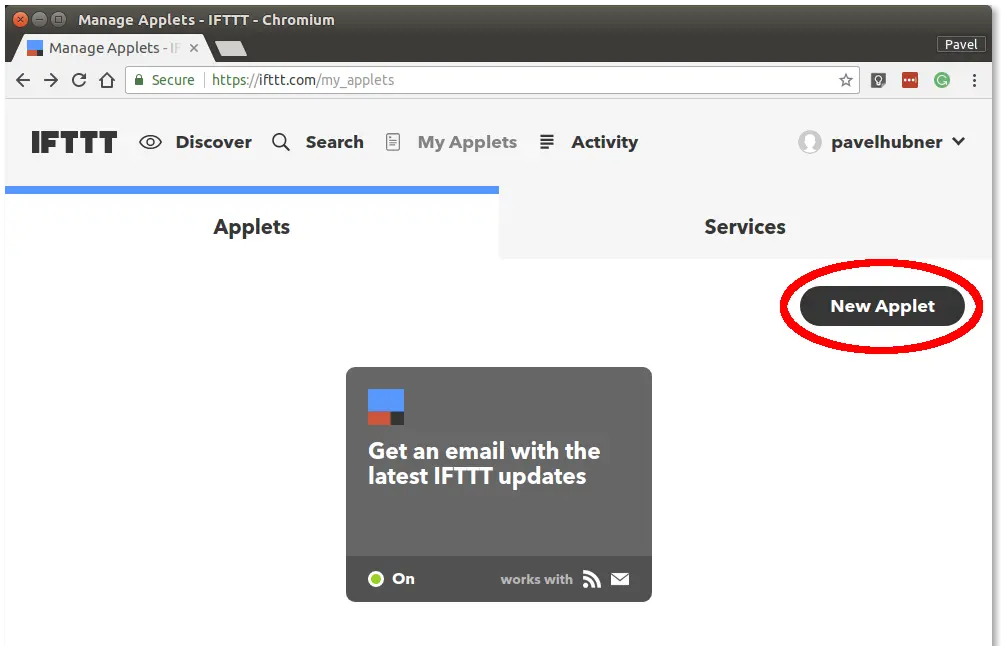
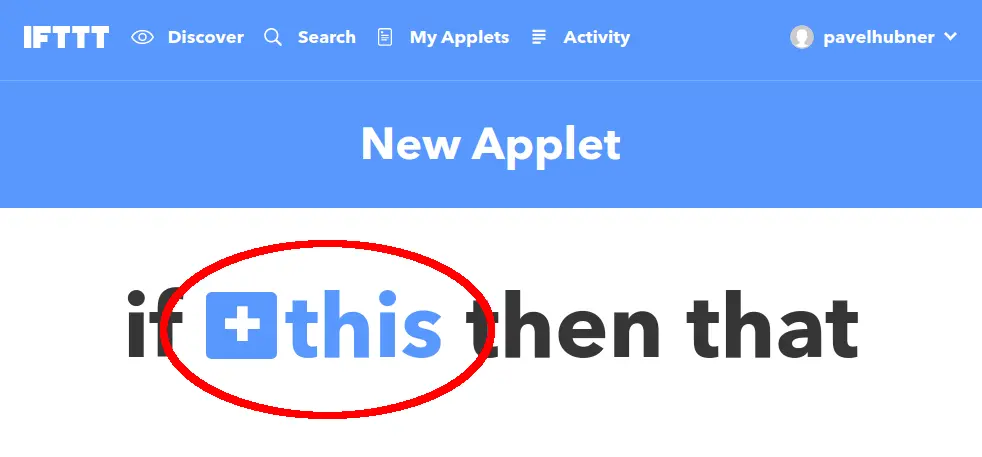
Step 4: Click on +this in the if this then that sentence:
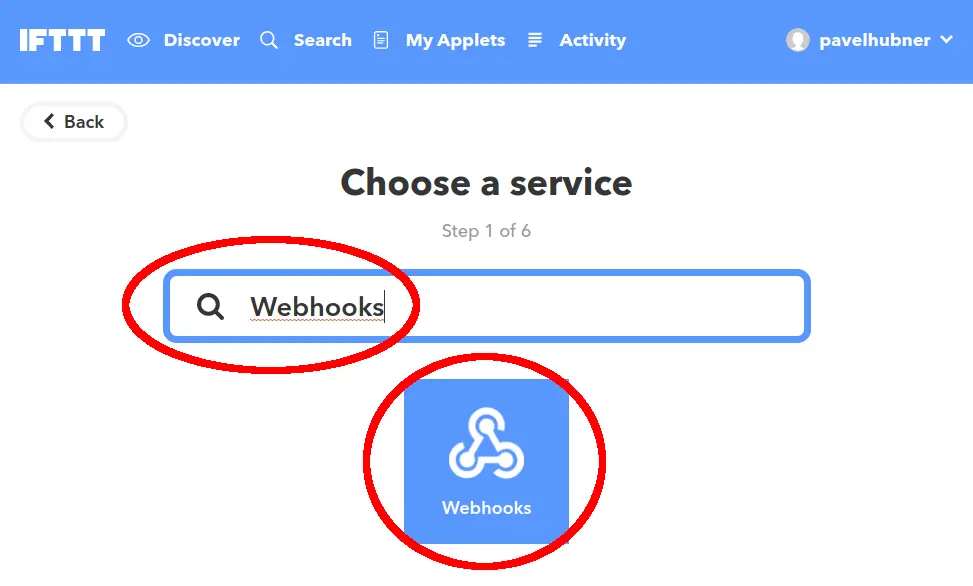
Step 5: Find a service with the name Webhooks and select it:
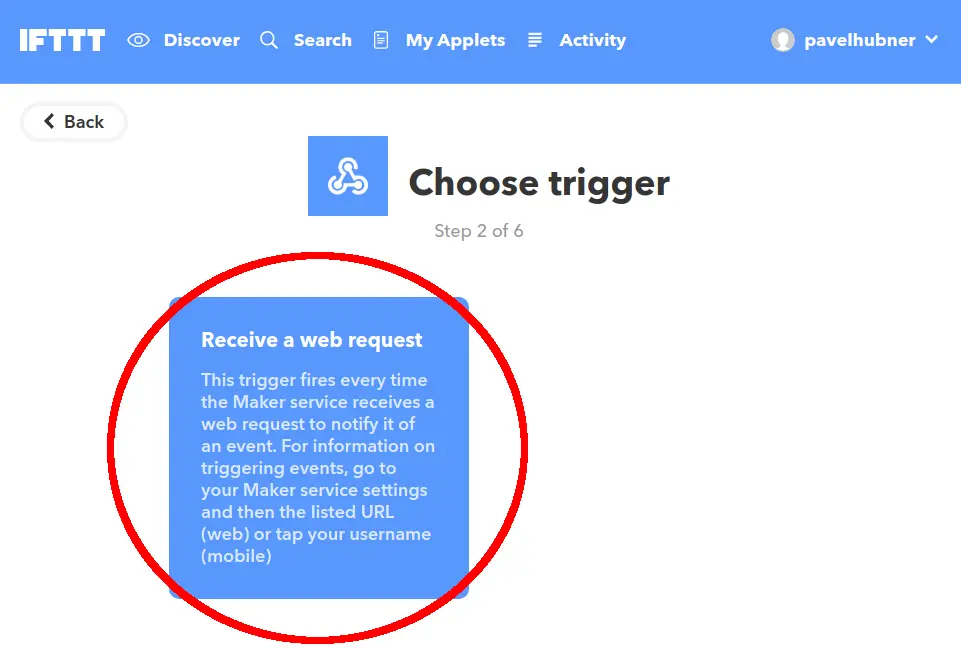
Step 6: Click on Receive a web request:
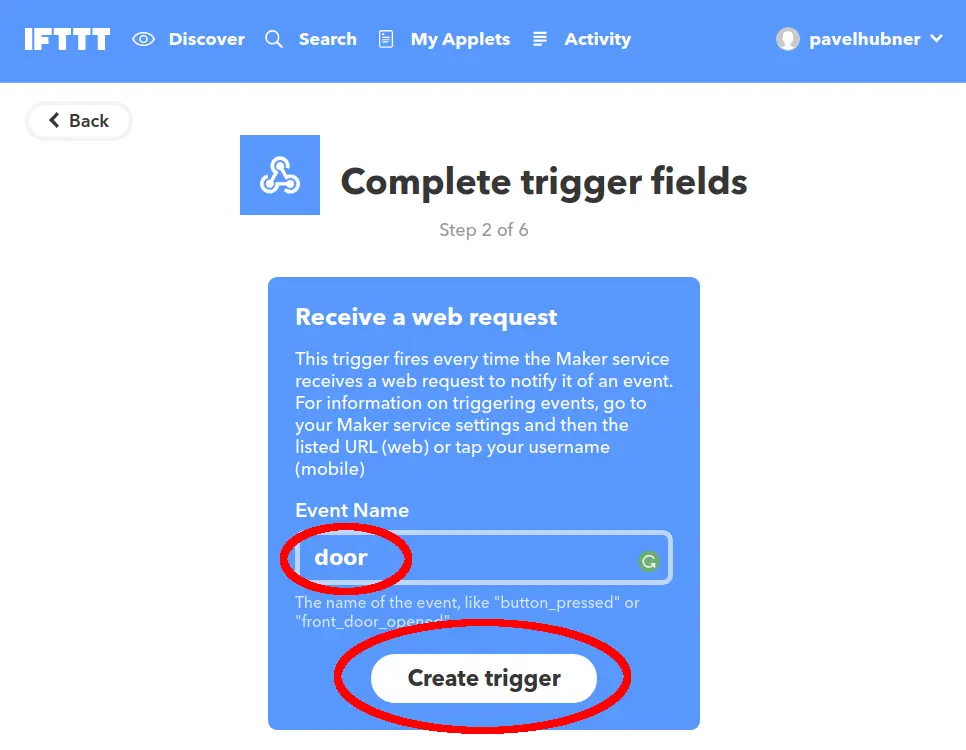
Step 7: Type door in the Event Name field and click on Create Trigger:
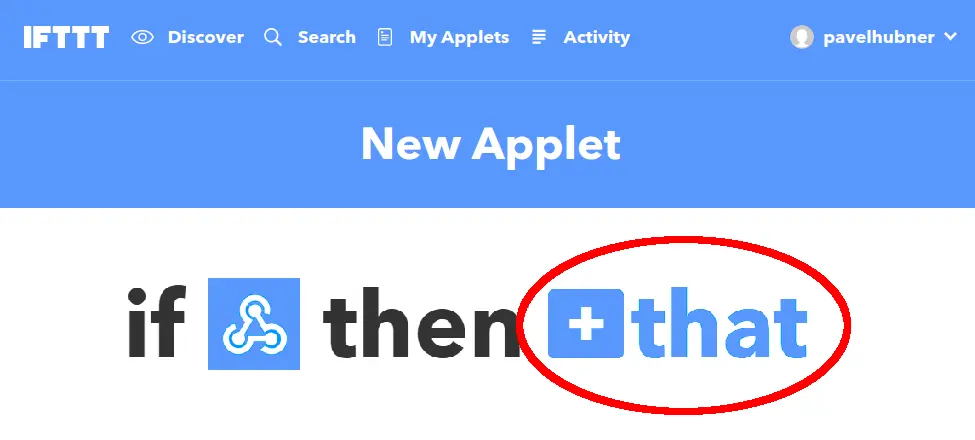
Step 8: Click on +that in the if this then that sentence:
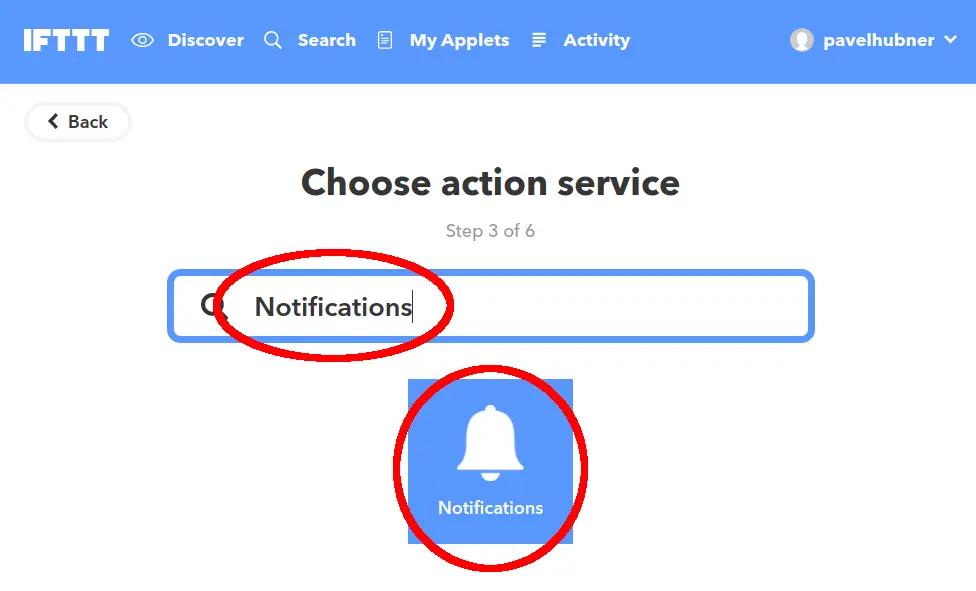
Step 9: Find action service with the name Notifications and select it:
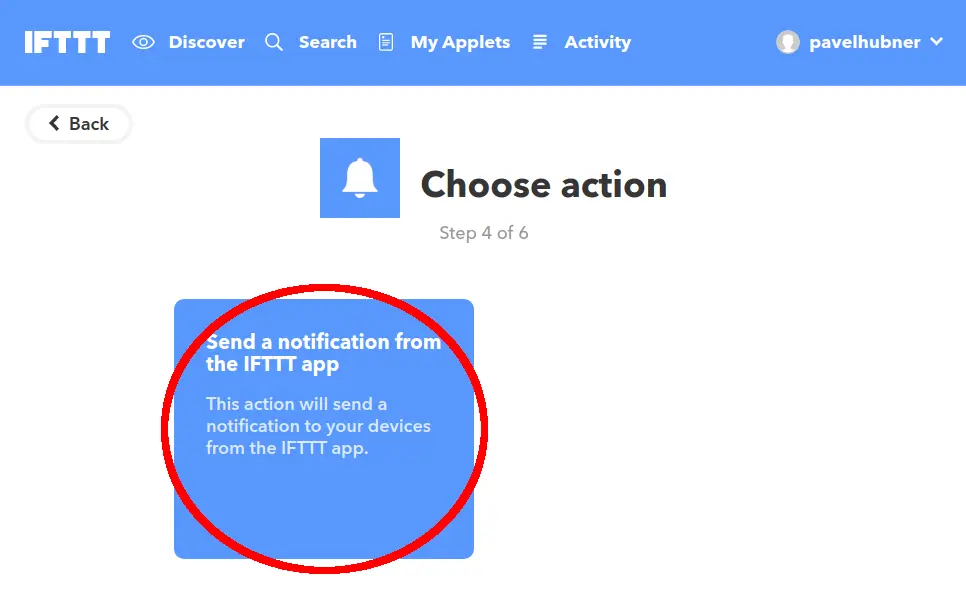
Step 10: Click on Send a notification from the IFTTT app:
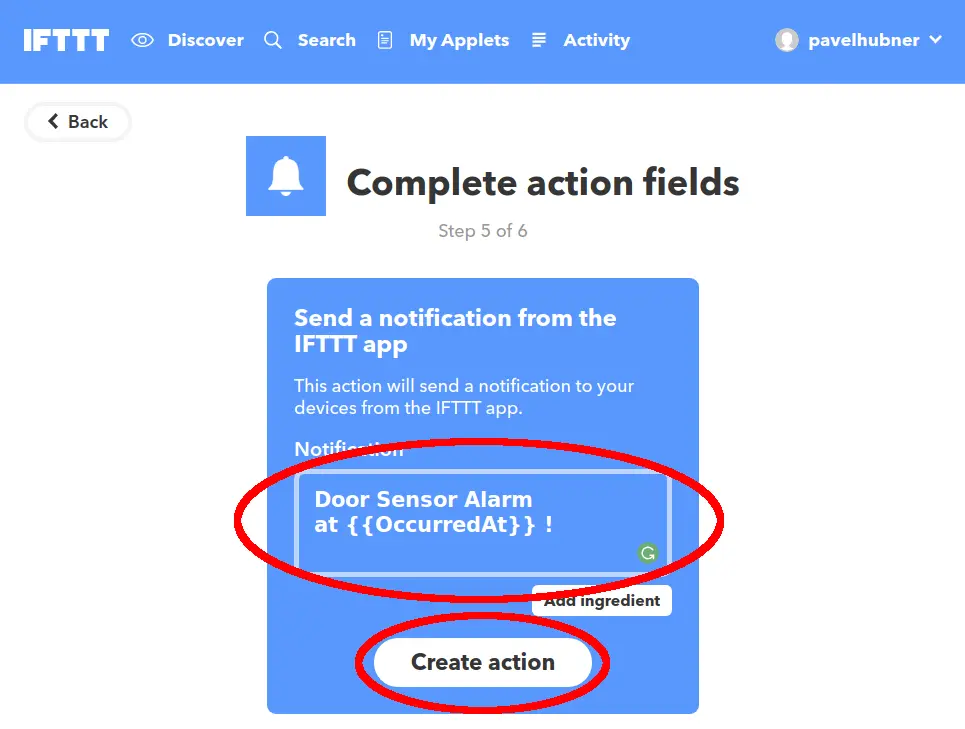
Step 11: Edit the Notification field and insert the text Door Sensor Alarm at {{OccurredAt}} ! and push the Create action button:
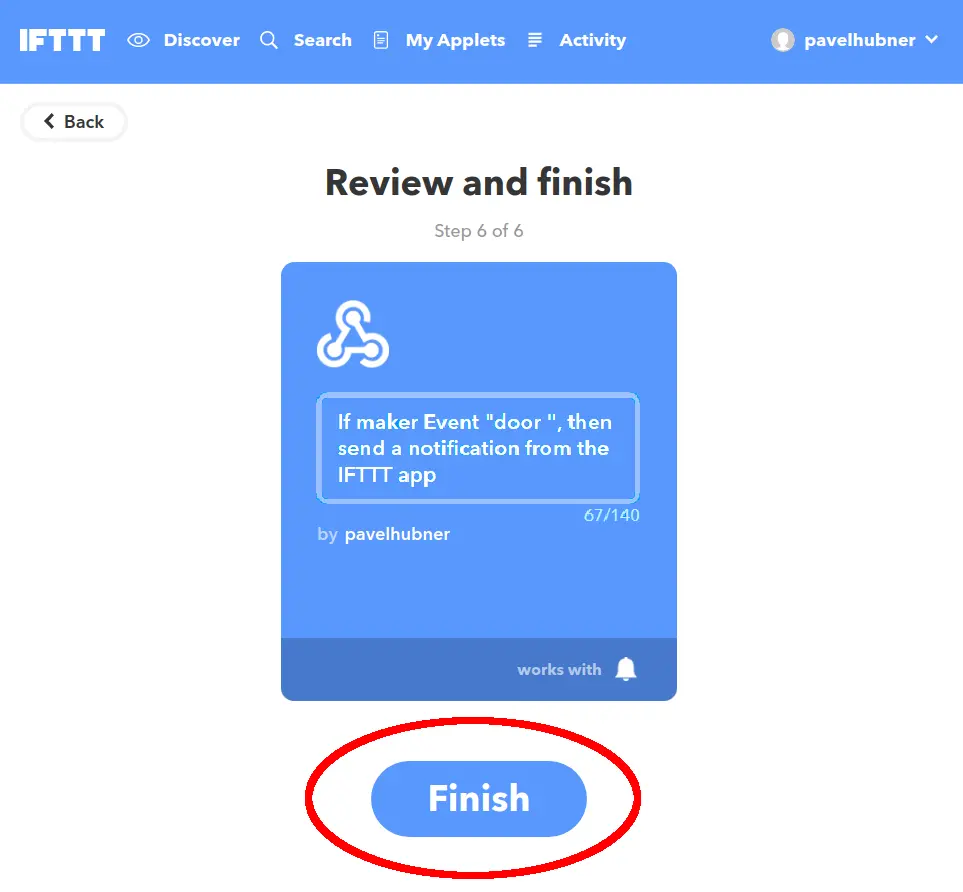
Step 12: Click on the Finish button:
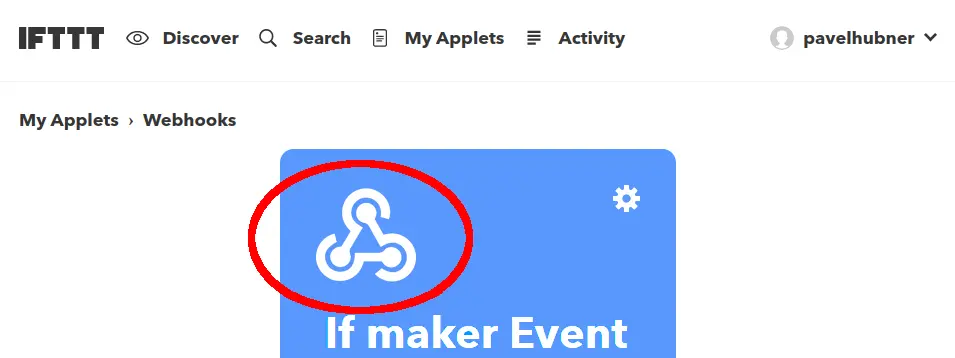
Step 13: Click on the Webhooks button:
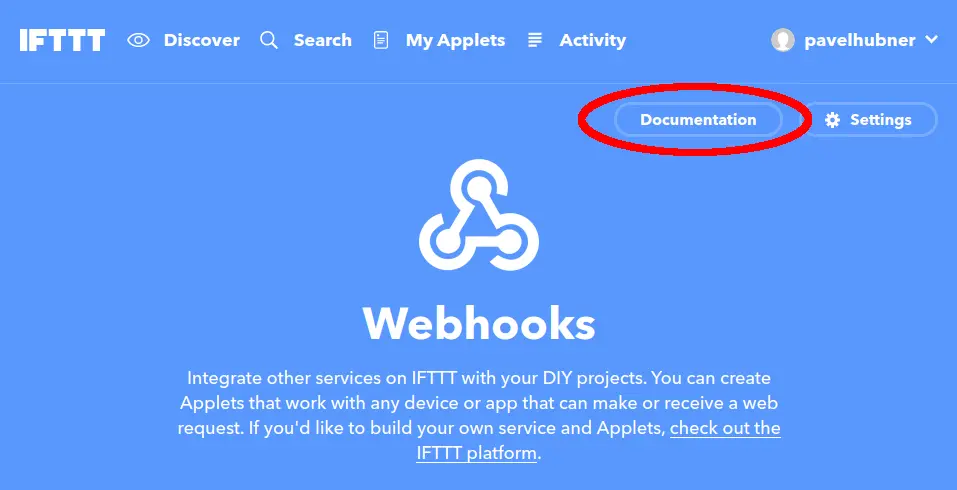
Step 14: Click on the Documentation button:
Step 15: Now you have your notification key. Keep this page open so you can copy this key to the Node-RED later:
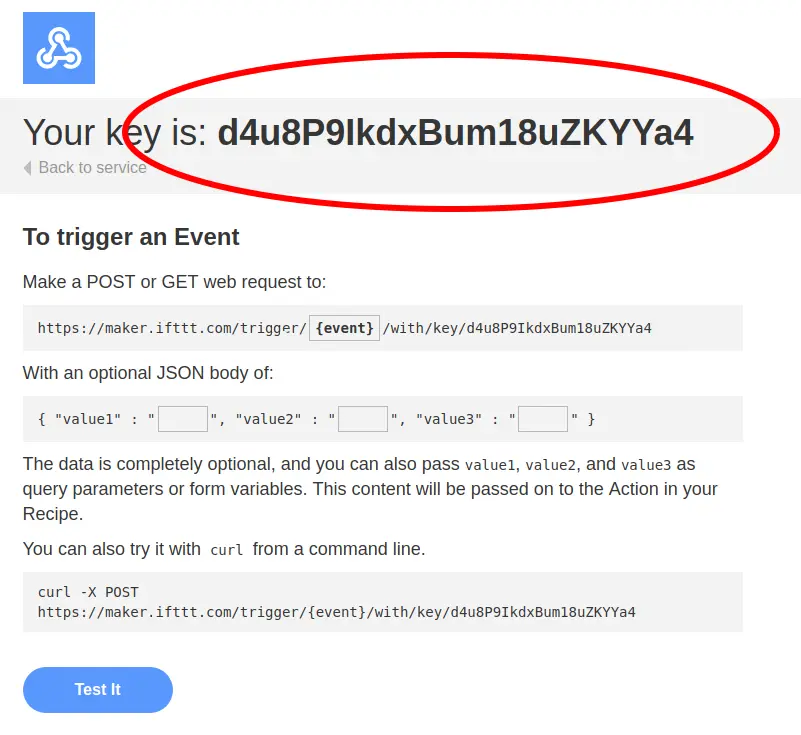
Step 16: Install the IFTTT app on your smart phone and sign in using the same account as you just used to create the applet. Allow the app to use the push notifications when asked
At this point, you've got working notification Applet in the IFTTT service.
Node-RED plug-in for IFTTT
To use IFTTT in Node-RED, we can use simple plug-in which will send notifications.
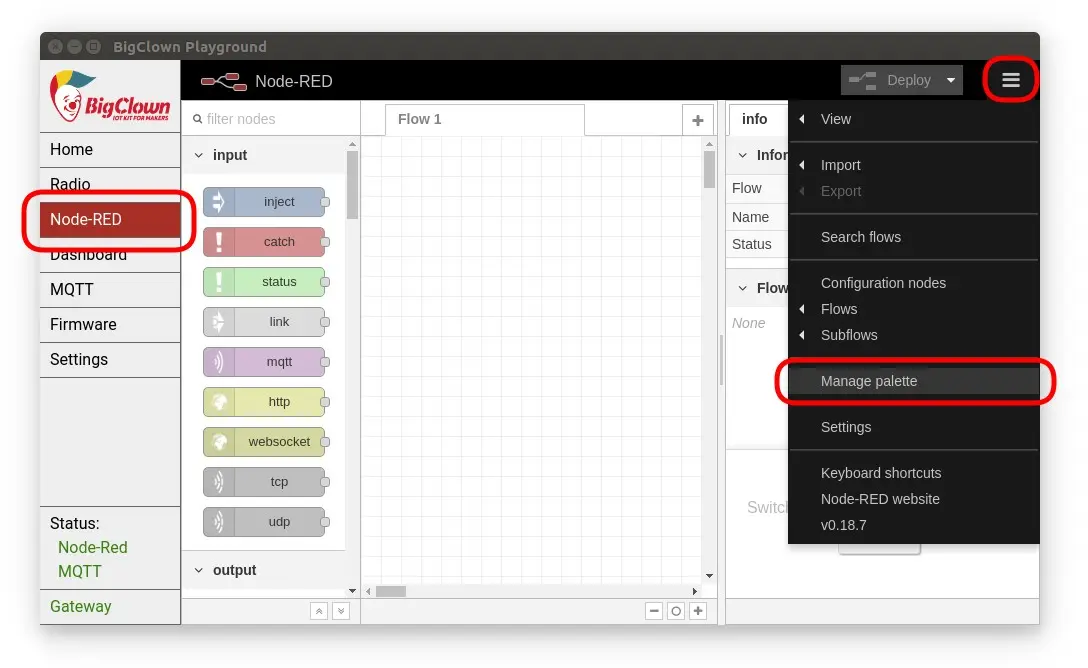
Step 1: Click on MQTT tab, then on the menu in the top right corner and select Manage palette
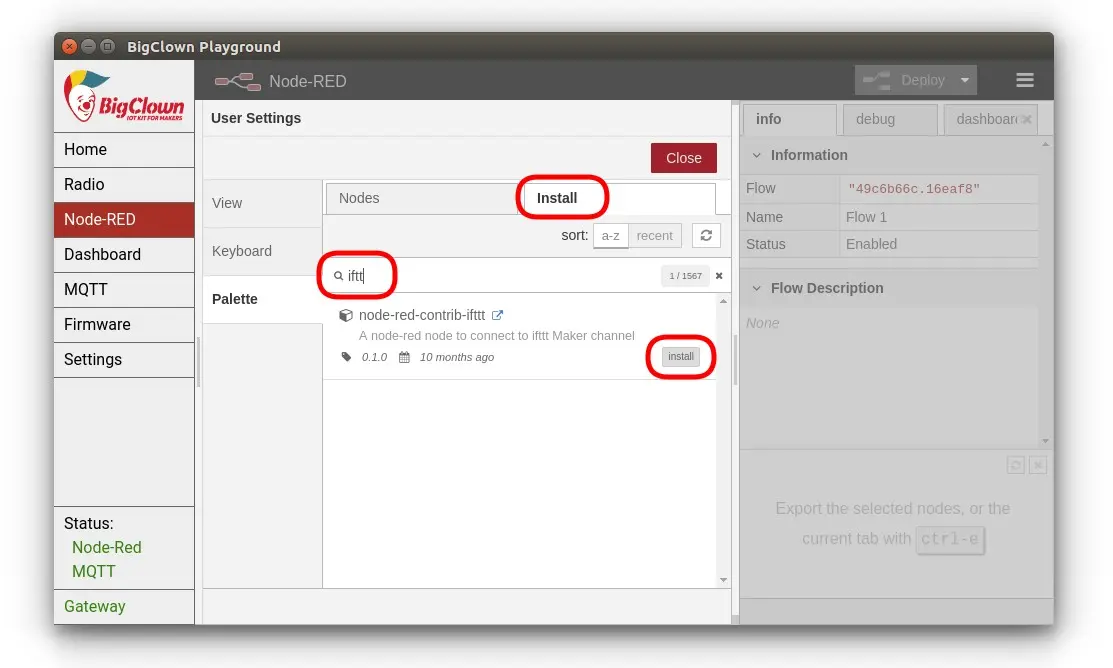
Step 2: Switch to Install tab, search for ifttt and click on the install button. In the pop-up window, click again on Install:
Step 3: After installation you see confirmation that new nodes has beed addded to the Node-RED:

Perfect! Node-RED plugin for IFTTT will allow to send notification directly to you phone.
Import Node-RED notification flow
Step 1: Copy the text below to the clipboard:
[{"id":"5ca15197.aef91","type":"mqtt in","z":"49c6b66c.16eaf8","name":"","topic":"node/door-sensor:0/door-sensor/a/state","qos":"2","broker":"67b8de4a.029d3","x":210,"y":100,"wires":[["ccd36bb4.eccae8"]]},{"id":"ccd36bb4.eccae8","type":"switch","z":"49c6b66c.16eaf8","name":"","property":"payload","propertyType":"msg","rules":[{"t":"eq","v":"false","vt":"str"}],"checkall":"true","repair":false,"outputs":1,"x":210,"y":220,"wires":[["6cb9da01.6abab4"]]},{"id":"6cb9da01.6abab4","type":"ifttt out","z":"49c6b66c.16eaf8","eventName":"door","key":"","x":210,"y":320,"wires":[]},{"id":"67b8de4a.029d3","type":"mqtt-broker","z":"","broker":"127.0.0.1","port":"1883","clientid":"","usetls":false,"compatmode":true,"keepalive":"60","cleansession":true,"birthTopic":"","birthQos":"0","birthPayload":"","willTopic":"","willQos":"0","willPayload":""}]
Step 2: Click on the top right menu, then select Import and Clipboard:
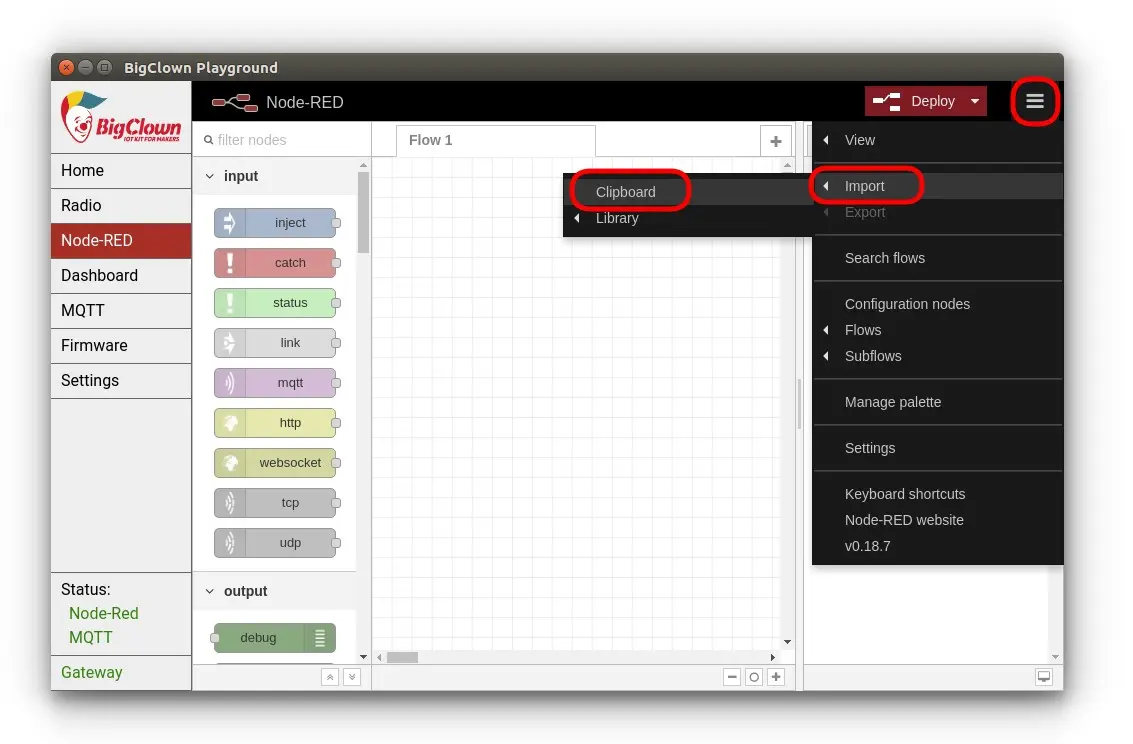
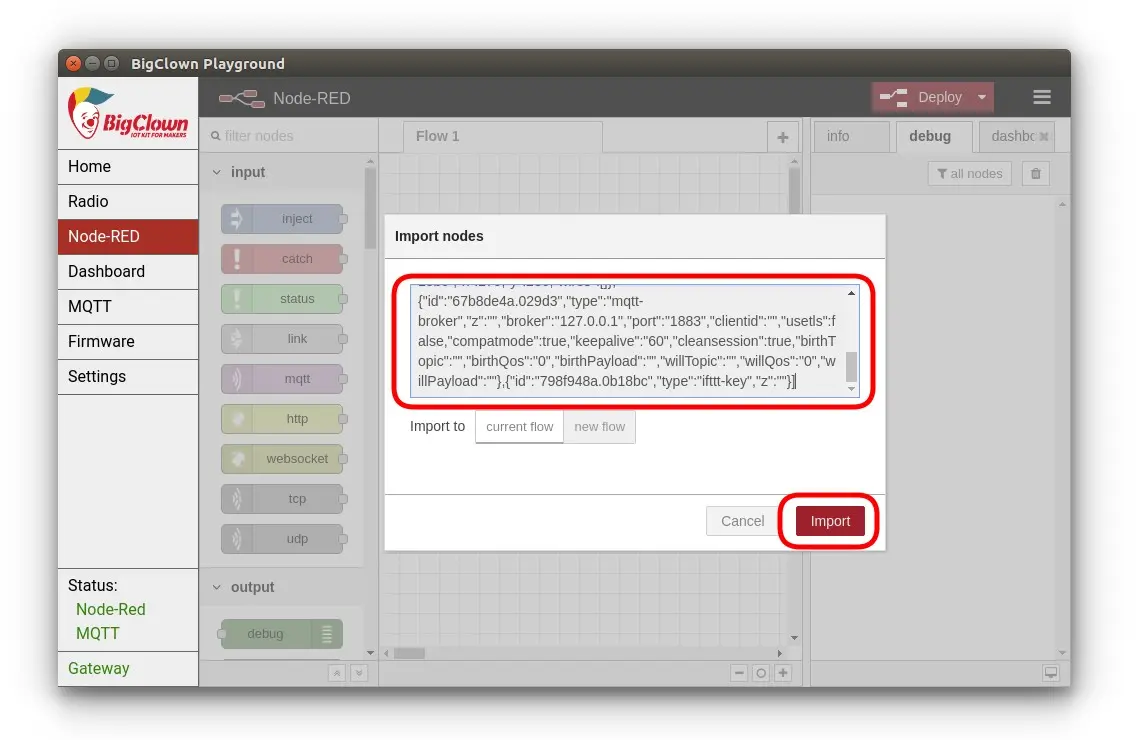
Step 3: Paste the text from clipboard to the textbox and press Import:
Set IFTTT key
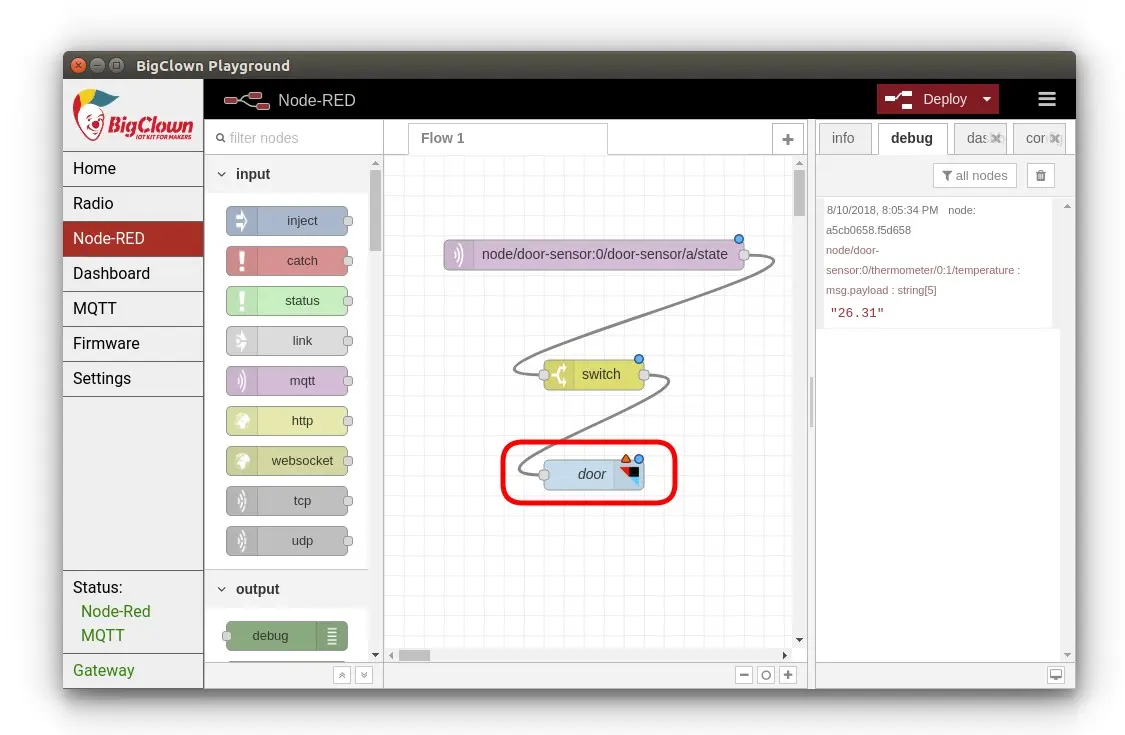
Step 1: You have imported the flow. Now you need to fill in your own IFTTT key. Double click on the IFTTT node:
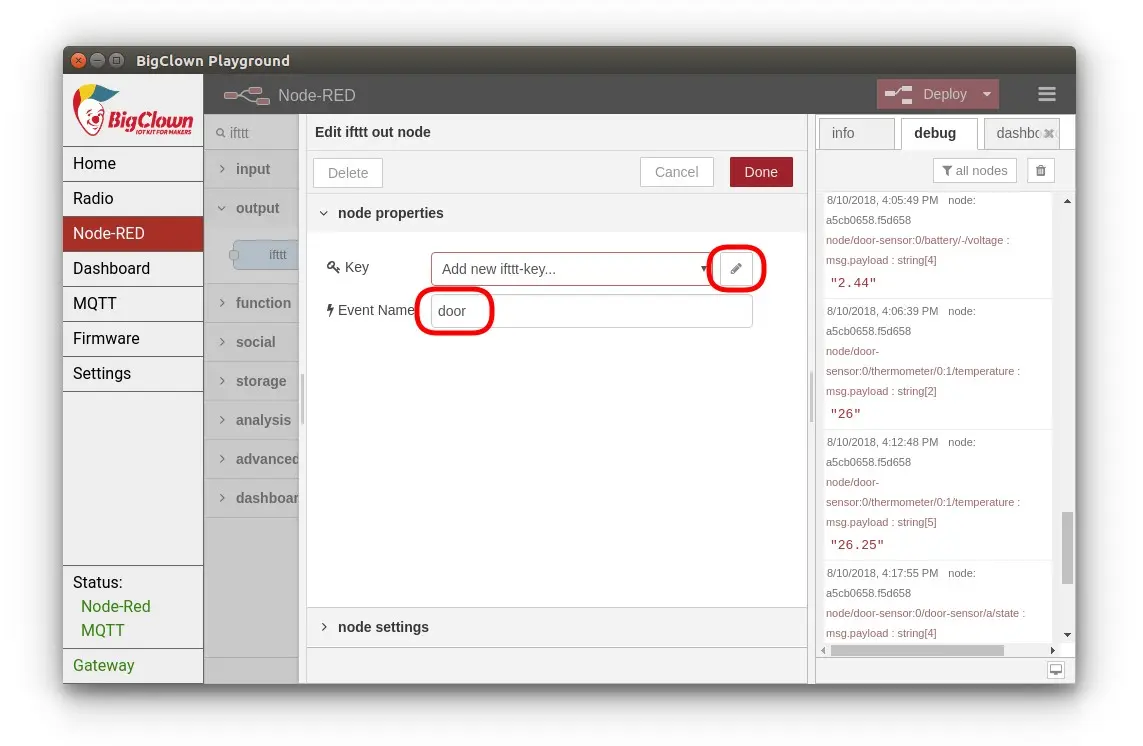
Step 2: Click on a pencil symbol and copy and paste the key from the last step of IFTTT integration chapter. Check that the Event name is set to the door event. Then click Done:
Run and test your flow!
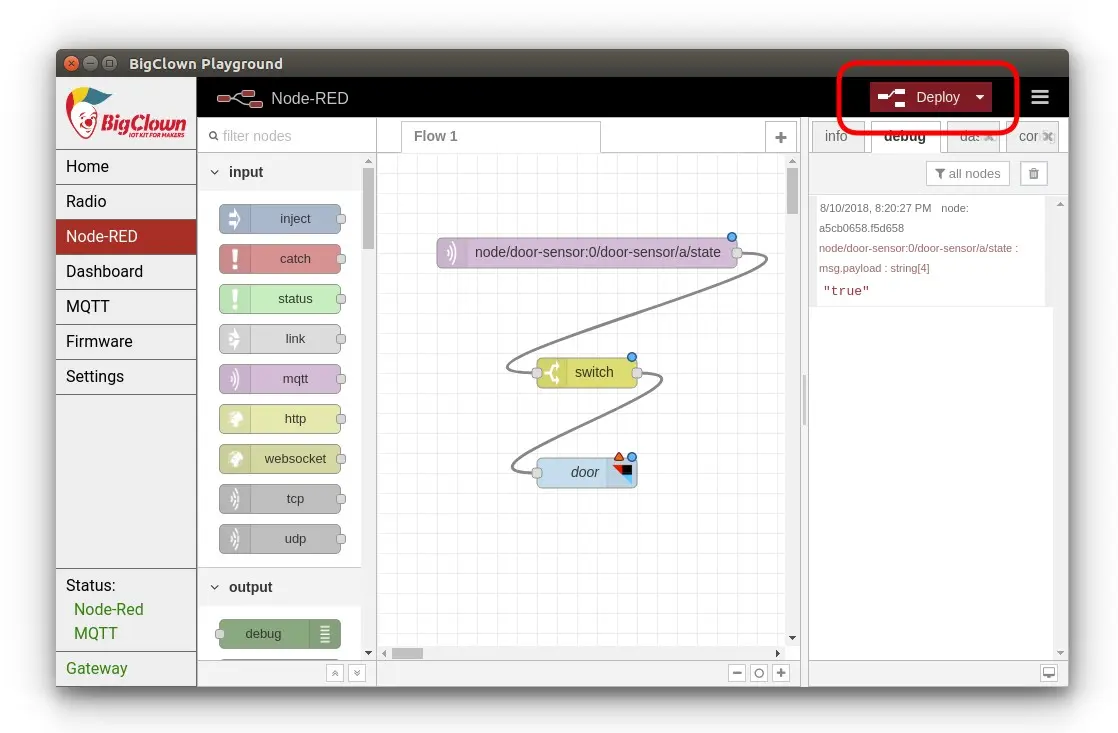
Step 1: Everytime you change the flow, you have to click on the Deploy button in the right top corner. Please do that now:
Step 2: Now put the magnet near the magnetic sensor and away on your Radio Door Sensor. You should get IFTTT notification in a few seconds later!
You should see "true" and "false" messages in the right debug tab and during false there will be a Sent! green flag near the IFTTT node for a while.
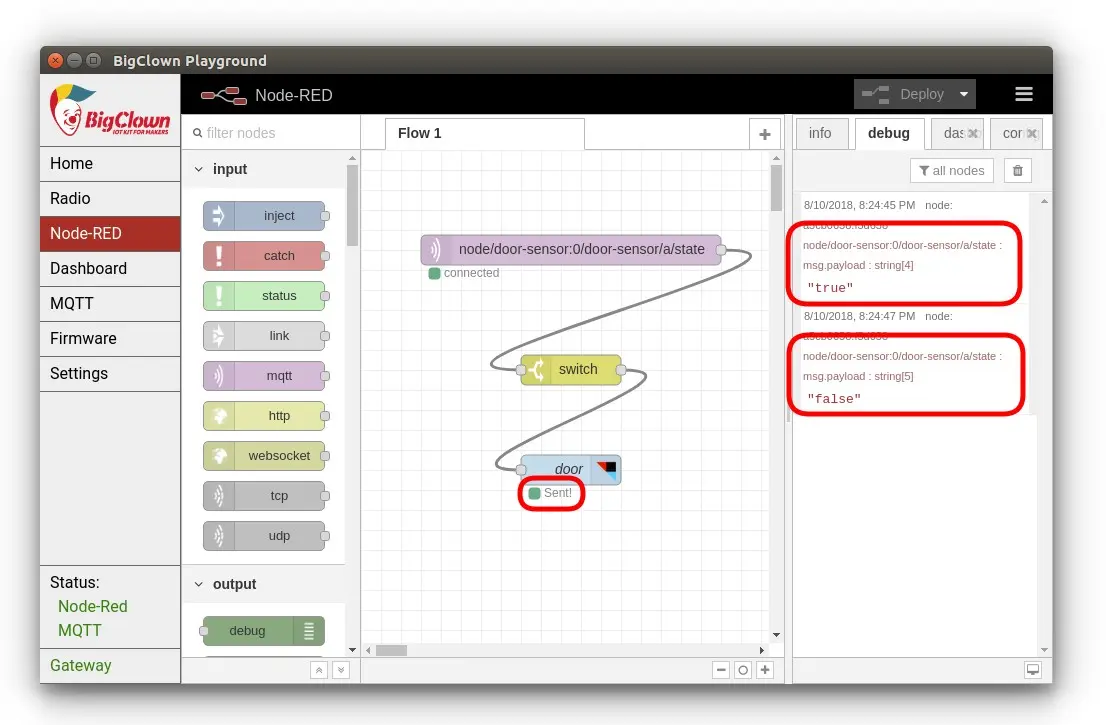
If you would like be notified on "true" messages instead of false, just open the switch node and change the false text in the rules to true.
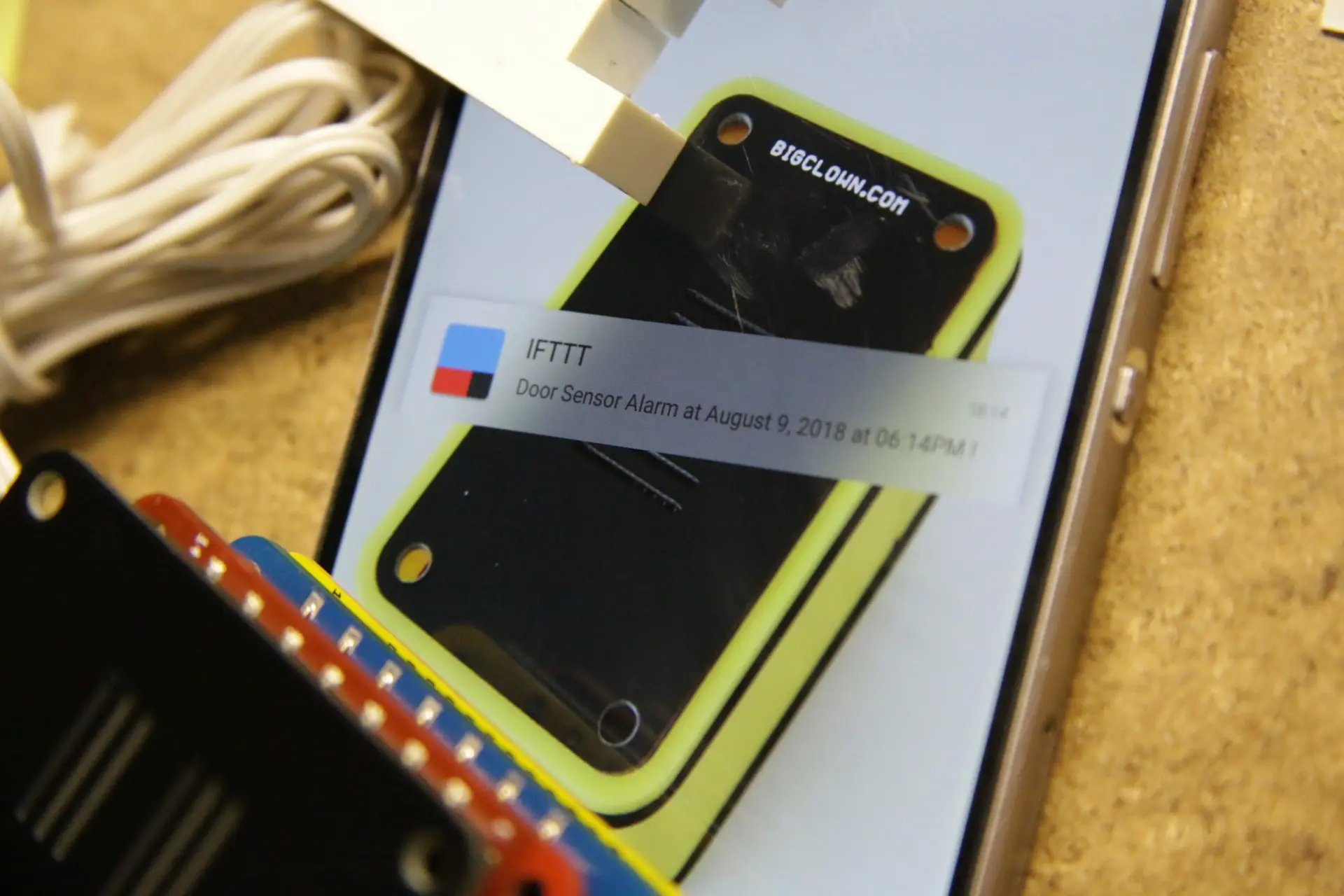
Now find the right spot for the Radio Door Sensor and enjoy the notifications you get!
More functionality
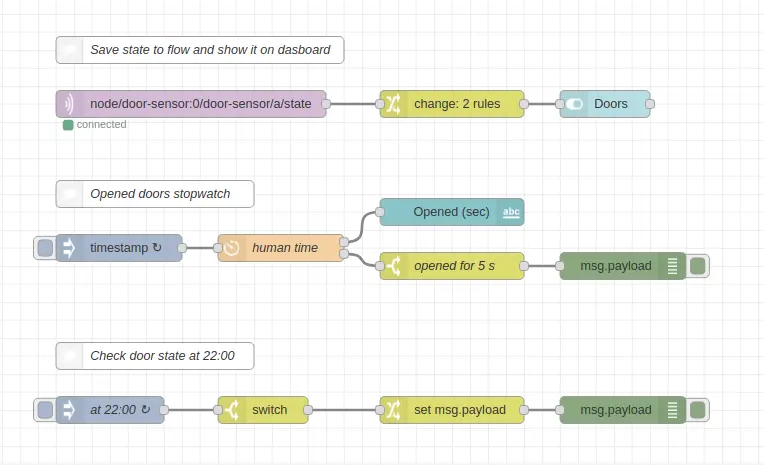
Import this flow to Node-RED that will be able to:
- Show current door state with a graphical padlock
- Display the stopwatch for opened doors. Also get an event after the doors are opened for set amount of seconds
- Check the state of the door at the set time and generate event
[{"id":"6f038501.0d3aec","type":"mqtt in","z":"84faeffa.c3a93","name":"","topic":"node/door-sensor:0/door-sensor/a/state","qos":"2","broker":"29fba84a.b2af58","x":290,"y":260,"wires":[["27a2954e.e0ee9a"]]},{"id":"968704d7.760558","type":"ui_switch","z":"84faeffa.c3a93","name":"","label":"Doors","group":"57ff470b.93fdf8","order":0,"width":"0","height":"0","passthru":false,"decouple":"true","topic":"","style":"","onvalue":"true","onvalueType":"str","onicon":"fa-lock","oncolor":"green","offvalue":"false","offvalueType":"str","officon":"fa-unlock","offcolor":"red","x":750,"y":260,"wires":[[]]},{"id":"cd19b231.5a539","type":"inject","z":"84faeffa.c3a93","name":"","topic":"","payload":"","payloadType":"date","repeat":"1","crontab":"","once":false,"onceDelay":0.1,"x":210,"y":420,"wires":[["90766ef0.cb081"]]},{"id":"ec67f171.3a0db","type":"ui_text","z":"84faeffa.c3a93","group":"57ff470b.93fdf8","order":0,"width":0,"height":0,"name":"","label":"Opened (sec)","format":"{{msg.payload}}","layout":"row-spread","x":580,"y":380,"wires":[]},{"id":"90766ef0.cb081","type":"function","z":"84faeffa.c3a93","name":"human time","func":"var human = {payload : \"\"};\nvar seconds = {payload : 0};\n\nif(flow.get(\"state\") == \"true\")\n{\n human.payload = \"CLOSED\";\n} else\n{\n diff = parseInt((Date.now() - flow.get(\"timestamp\")));\n human.payload = new Date(diff).toString().slice(16,24);\n seconds.payload = parseInt(diff/1000);\n}\n\n\nreturn [human, seconds];","outputs":2,"noerr":0,"x":390,"y":420,"wires":[["ec67f171.3a0db"],["fa64f9a0.2e58e8"]],"outputLabels":["human time","seconds"],"icon":"node-red/timer.png"},{"id":"27a2954e.e0ee9a","type":"change","z":"84faeffa.c3a93","name":"","rules":[{"t":"set","p":"state","pt":"flow","to":"payload","tot":"msg"},{"t":"set","p":"timestamp","pt":"flow","to":"","tot":"date"}],"action":"","property":"","from":"","to":"","reg":false,"x":580,"y":260,"wires":[["968704d7.760558"]]},{"id":"3ed1d655.049fda","type":"inject","z":"84faeffa.c3a93","name":"at 22:00","topic":"","payload":"","payloadType":"date","repeat":"","crontab":"00 22 * * *","once":false,"onceDelay":0.1,"x":200,"y":600,"wires":[["66b56029.25196"]]},{"id":"66b56029.25196","type":"switch","z":"84faeffa.c3a93","name":"","property":"state","propertyType":"flow","rules":[{"t":"eq","v":"false","vt":"str"}],"checkall":"true","repair":false,"outputs":1,"x":370,"y":600,"wires":[["bf5ca77b.366198"]]},{"id":"94e19310.ac12e","type":"debug","z":"84faeffa.c3a93","name":"","active":true,"tosidebar":true,"console":false,"tostatus":false,"complete":"false","x":770,"y":600,"wires":[]},{"id":"bf5ca77b.366198","type":"change","z":"84faeffa.c3a93","name":"","rules":[{"t":"set","p":"payload","pt":"msg","to":"Door opened at night","tot":"str"}],"action":"","property":"","from":"","to":"","reg":false,"x":580,"y":600,"wires":[["94e19310.ac12e"]]},{"id":"fa64f9a0.2e58e8","type":"switch","z":"84faeffa.c3a93","name":"opened for 5 s","property":"payload","propertyType":"msg","rules":[{"t":"eq","v":"5","vt":"num"}],"checkall":"true","repair":false,"outputs":1,"x":580,"y":440,"wires":[["e3ba7f50.53703"]]},{"id":"e3ba7f50.53703","type":"debug","z":"84faeffa.c3a93","name":"","active":true,"tosidebar":true,"console":false,"tostatus":false,"complete":"false","x":770,"y":440,"wires":[]},{"id":"cd9712a1.91c45","type":"comment","z":"84faeffa.c3a93","name":"Save state to flow and show it on dasboard","info":"","x":300,"y":200,"wires":[]},{"id":"21a591a0.10411e","type":"comment","z":"84faeffa.c3a93","name":"Opened doors stopwatch","info":"","x":250,"y":360,"wires":[]},{"id":"6752875e.0092b8","type":"comment","z":"84faeffa.c3a93","name":"Check door state at 22:00","info":"","x":250,"y":540,"wires":[]},{"id":"29fba84a.b2af58","type":"mqtt-broker","z":"","broker":"127.0.0.1","port":"1883","clientid":"","usetls":false,"compatmode":true,"keepalive":"60","cleansession":true,"birthTopic":"","birthQos":"0","birthPayload":"","willTopic":"","willQos":"0","willPayload":""},{"id":"57ff470b.93fdf8","type":"ui_group","z":"","name":"Default","tab":"11207769.c31889","disp":true,"width":"6","collapse":false},{"id":"11207769.c31889","type":"ui_tab","z":"","name":"Home","icon":"dashboard"}]