Radio VOC sensor
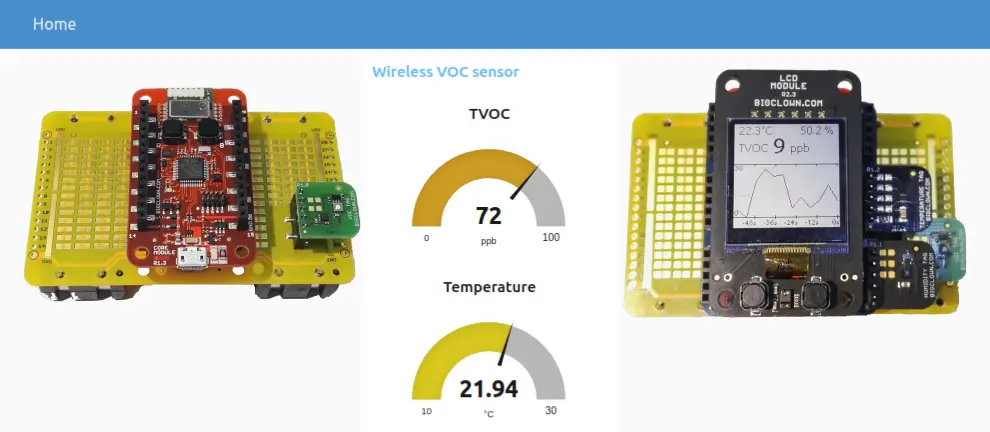
This document will guide you through the Radio VOC sensor project. You will be able to see dashboard with TVOC, temperature and humidity in Node-RED.
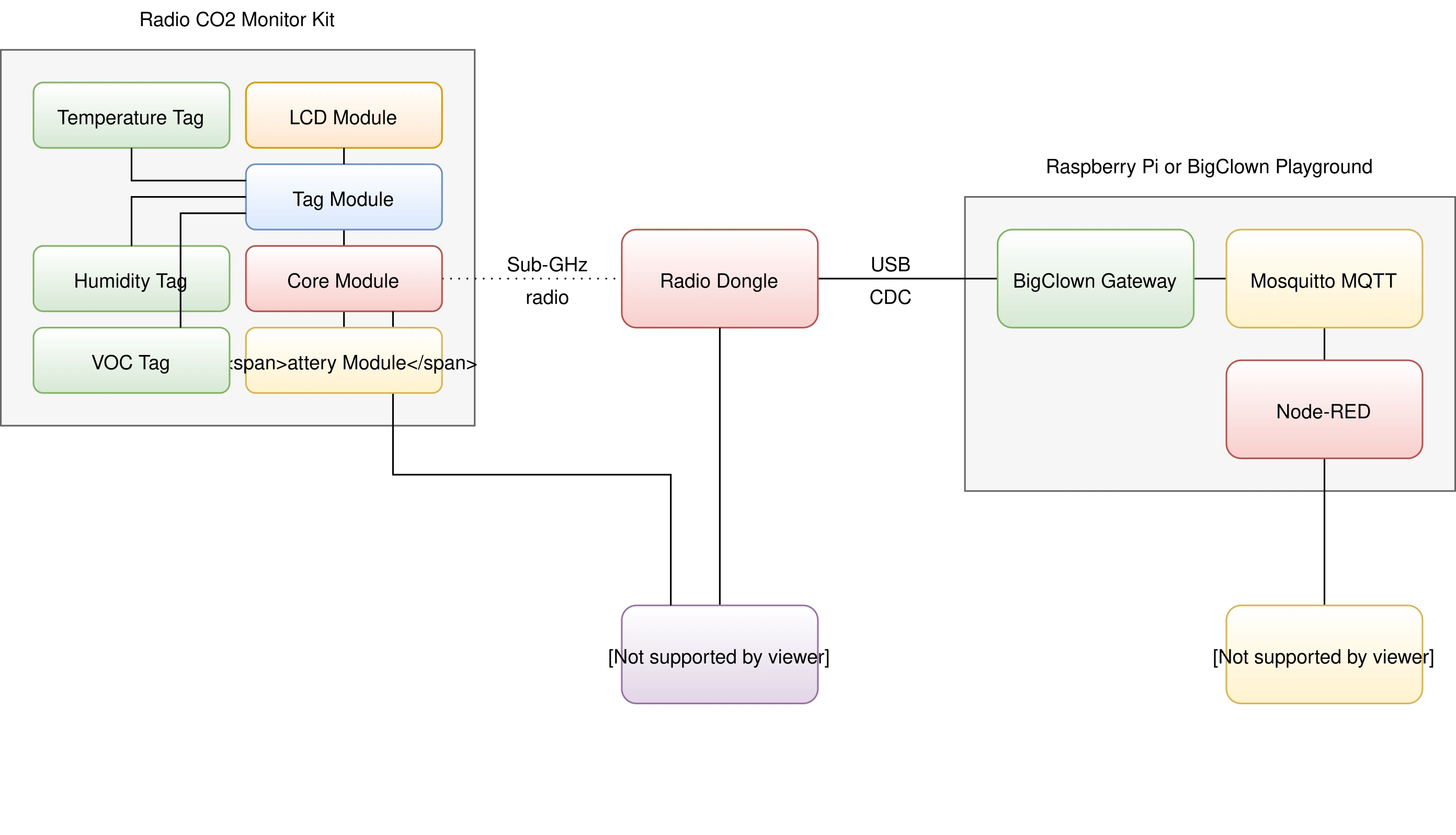
Block Concept
Requirements
-
Necessary components
- 1x Core Module
- 1x VOC Tag
- 1x Battery Module
- 1x Radio Dongle
-
Optional components
- 1x LCD Module
- 1x Tag Module
- 1x Temperature Tag
- 1x Humidity Tag
-
One of these options:
- HARDWARIO Playground installed (recommended) You can find more information in the Quick Start Guide document.
- Raspberry Pi with the HARDWARIO Raspbian distribution You can find more information in the document Raspberry Pi Installation.
- HARDWARIO Toolchain installed You can find more information in the document Toolchain Setup.
Firmware Upload
In this procedure we will use the HARDWARIO Playground to upload firmware to the Core Module.
Step 1: Connect the Micro USB cable to the Core Module and your computer
Step 2: Firmware upload
Run the HARDWARIO Playground. In the Firmware tab choose and upload the bcf-radio-voc-sensor firmware to the Core Module:
Flashing Core Module R1 & R2 For differences of flashing older Core Module 1 and newer Core Module 2 please read Core Module R1 and R2 comparison in the Hardware section
Step 3: Remove the Micro USB cable from the Core Module and your computer
At this point your firmware is successfully uploaded
Hardware Assembling
Minimal hardware
Here is the minimal assembly for VOC sensor.
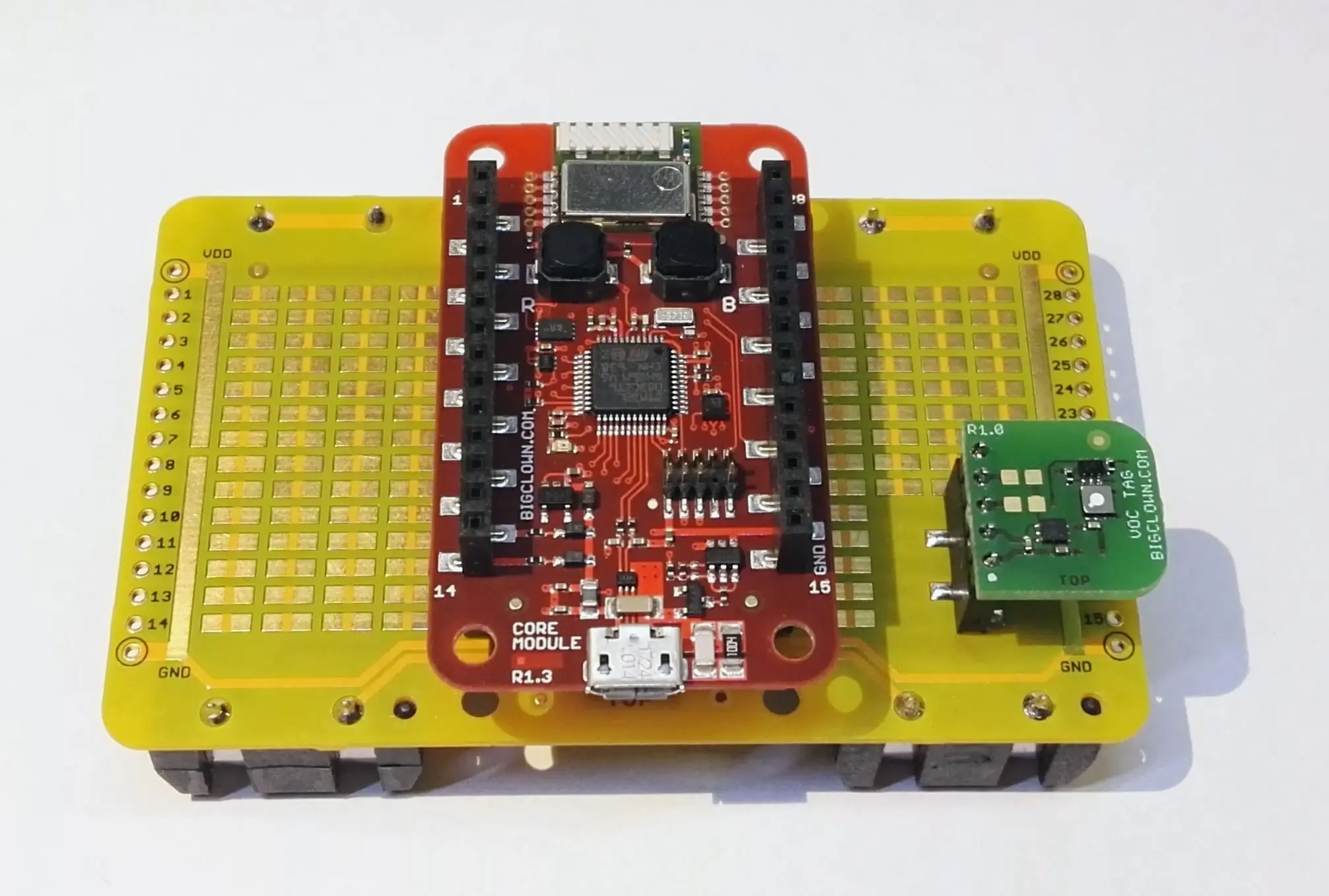
Step 1: Start with the Battery Module
Make sure the Battery Module does not have batteries inserted yet
Step 2: Plug the VOC Tag on top of the Battery Module
Step 3: Plug the Core Module on top of the Battery Module
Full hardware
The firmware also supports LCD Module, Tag Module, Temperature Tag and Humidity Tag. All values are displayed with nice graph on the display and are also send over HARDWARIO radio network to the Radio Dongle.
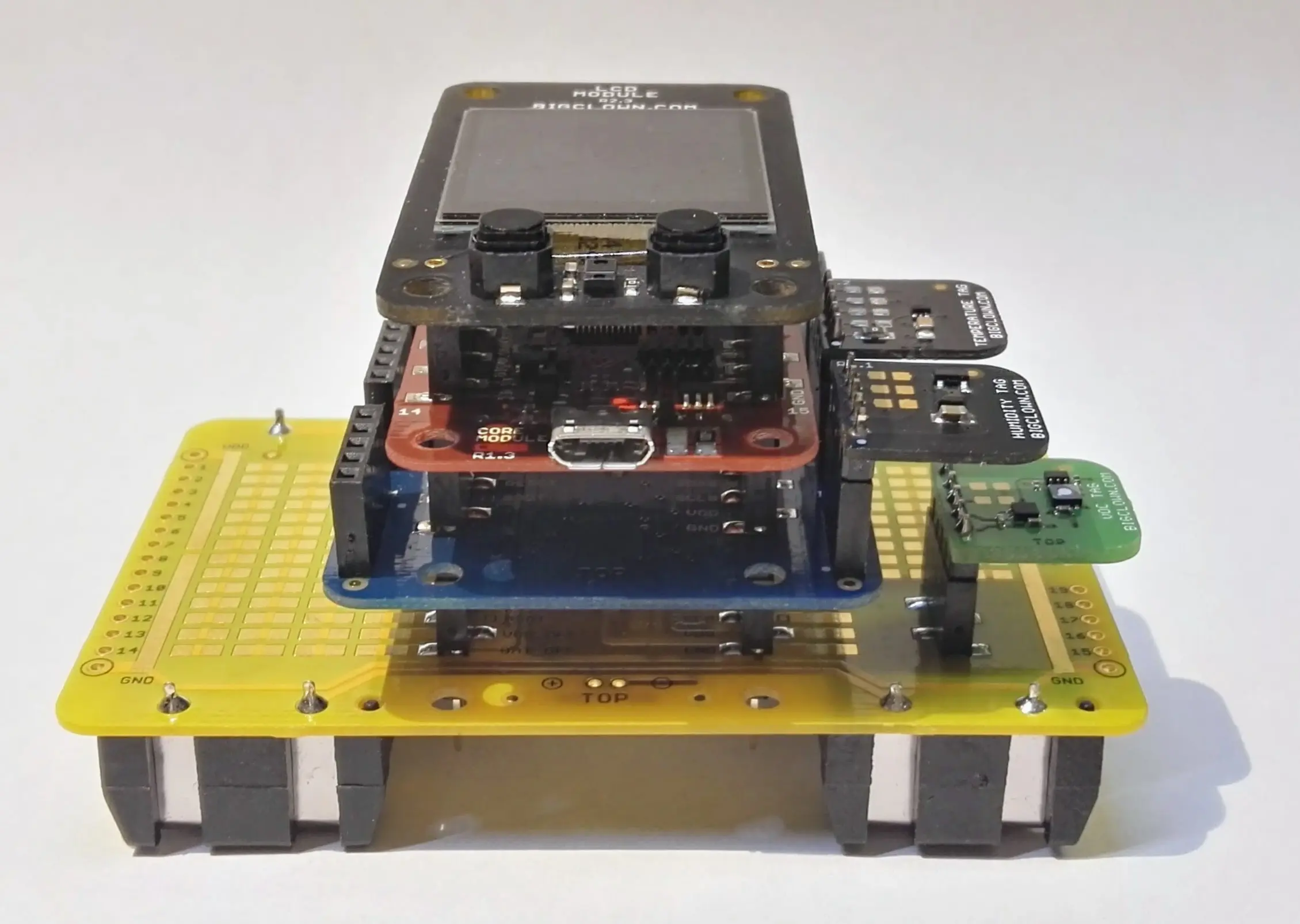
Step 1: Start with the Battery Module
Make sure the Battery Module does not have batteries inserted yet.
Step 2: Plug the VOC Tag on top of the Battery Module
Step 3: Plug the Tag Module on top of the Battery Module
Step 4: Plug the Temperature Tag and Humidity Tag into a socket on the Tag Module
Step 5: Plug the Core Module on top of the TAG Module
Step 6: Plug the LCD Module on top of the Core Module
Playground Bootstrap
If you are using the new HARDWARIO Playground, then use the Functions tab instead of using http://localhost:1880/. Also the pairing process is now done in Devices tab. For communication test use the Messages tab.
Step 1: Open Node-RED in your web browser
Step 2: You should see the empty workspace with Flow 1
Step 3: Insert the following snippet in the flow (using Menu >> Import) and click in Flow 1 tab:
[{"id":"2fc604fc.3b6abc","type":"inject","z":"dfc861b.b2a02a","name":"List all gateways","topic":"gateway/all/info/get","payload":"","payloadType":"str","repeat":"","crontab":"","once":false,"x":560,"y":460,"wires":[["a2c10833.24d5d8"]]},{"id":"1e4502b8.2f63fd","type":"inject","z":"dfc861b.b2a02a","name":"Start node pairing","topic":"gateway/usb-dongle/pairing-mode/start","payload":"","payloadType":"str","repeat":"","crontab":"","once":false,"x":570,"y":580,"wires":[["795ff5a7.8e266c"]]},{"id":"3d844ce2.932864","type":"inject","z":"dfc861b.b2a02a","name":"Stop node pairing","topic":"gateway/usb-dongle/pairing-mode/stop","payload":"","payloadType":"str","repeat":"","crontab":"","once":false,"x":560,"y":640,"wires":[["5967c452.c838bc"]]},{"id":"f202b253.2705b","type":"inject","z":"dfc861b.b2a02a","name":"List paired nodes","topic":"gateway/usb-dongle/nodes/get","payload":"","payloadType":"str","repeat":"","crontab":"","once":false,"x":560,"y":520,"wires":[["f0aca138.0b2c3"]]},{"id":"349f02fd.890f6e","type":"inject","z":"dfc861b.b2a02a","name":"Unpair all nodes","topic":"gateway/usb-dongle/nodes/purge","payload":"","payloadType":"str","repeat":"","crontab":"","once":false,"x":560,"y":700,"wires":[["2f1c5bb6.53d6f4"]]},{"id":"cf61d75d.4ad8f8","type":"mqtt in","z":"dfc861b.b2a02a","name":"","topic":"#","qos":"2","broker":"67b8de4a.029d3","x":530,"y":400,"wires":[["a5cb0658.f5d658"]]},{"id":"a5cb0658.f5d658","type":"debug","z":"dfc861b.b2a02a","name":"","active":true,"console":"false","complete":"false","x":790,"y":400,"wires":[]},{"id":"a2c10833.24d5d8","type":"mqtt out","z":"dfc861b.b2a02a","name":"","topic":"","qos":"","retain":"","broker":"717f7c18.ba0a24","x":770,"y":460,"wires":[]},{"id":"f0aca138.0b2c3","type":"mqtt out","z":"dfc861b.b2a02a","name":"","topic":"","qos":"","retain":"","broker":"717f7c18.ba0a24","x":770,"y":520,"wires":[]},{"id":"795ff5a7.8e266c","type":"mqtt out","z":"dfc861b.b2a02a","name":"","topic":"","qos":"","retain":"","broker":"717f7c18.ba0a24","x":770,"y":580,"wires":[]},{"id":"5967c452.c838bc","type":"mqtt out","z":"dfc861b.b2a02a","name":"","topic":"","qos":"","retain":"","broker":"717f7c18.ba0a24","x":770,"y":640,"wires":[]},{"id":"2f1c5bb6.53d6f4","type":"mqtt out","z":"dfc861b.b2a02a","name":"","topic":"","qos":"","retain":"","broker":"717f7c18.ba0a24","x":770,"y":700,"wires":[]},{"id":"67b8de4a.029d3","type":"mqtt-broker","z":"","broker":"127.0.0.1","port":"1883","clientid":"","usetls":false,"compatmode":true,"keepalive":"60","cleansession":true,"willTopic":"","willQos":"0","willPayload":"","birthTopic":"","birthQos":"0","birthPayload":""},{"id":"717f7c18.ba0a24","type":"mqtt-broker","z":"","broker":"127.0.0.1","port":"1883","clientid":"","usetls":false,"compatmode":true,"keepalive":"60","cleansession":true,"willTopic":"","willQos":"0","willPayload":"","birthTopic":"","birthQos":"0","birthPayload":""}]
It will look like this:
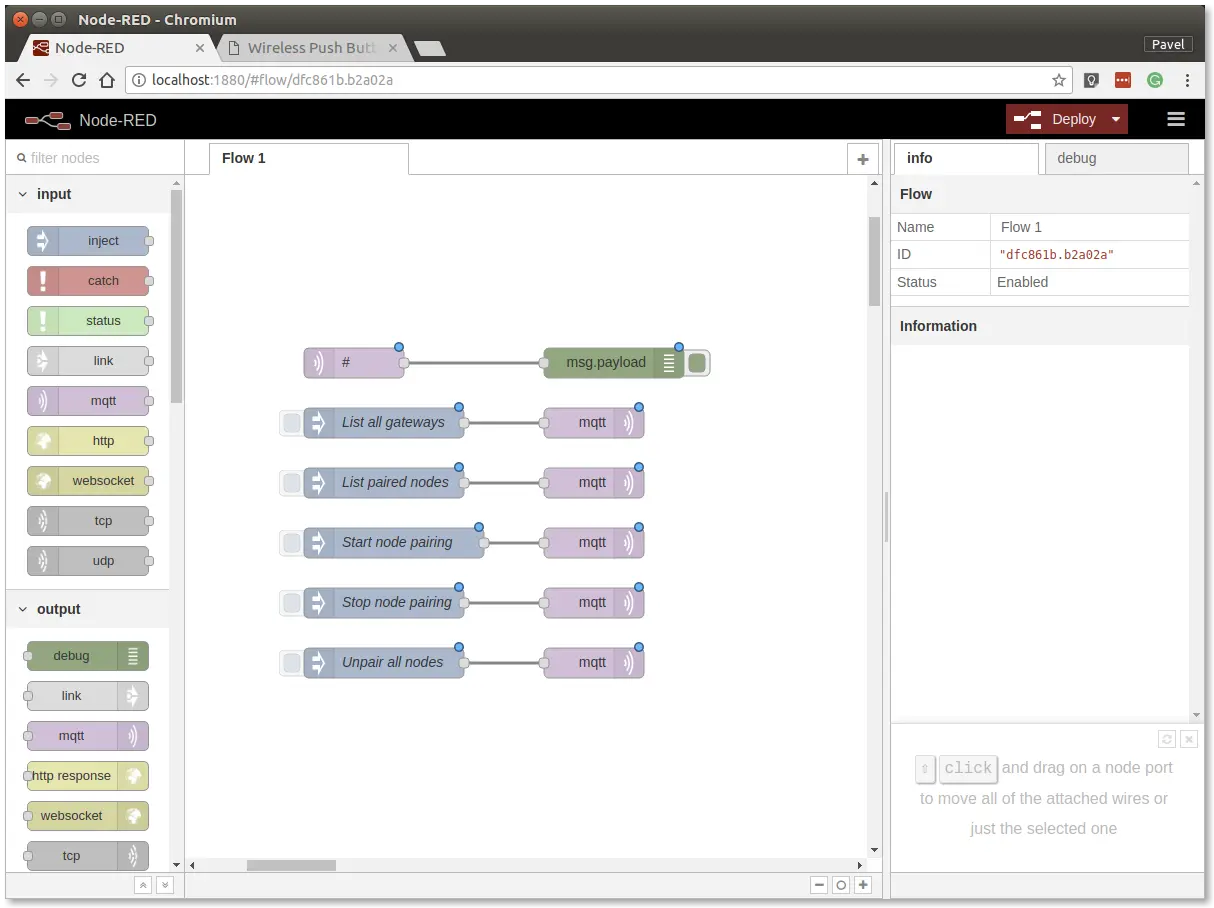
This snippet provides control buttons for gateway/radio commands. These commands are sent over the MQTT protocol.
Step 4: Deploy the flow using the Deploy button in the top-right corner
Step 5: Open the debug tab:
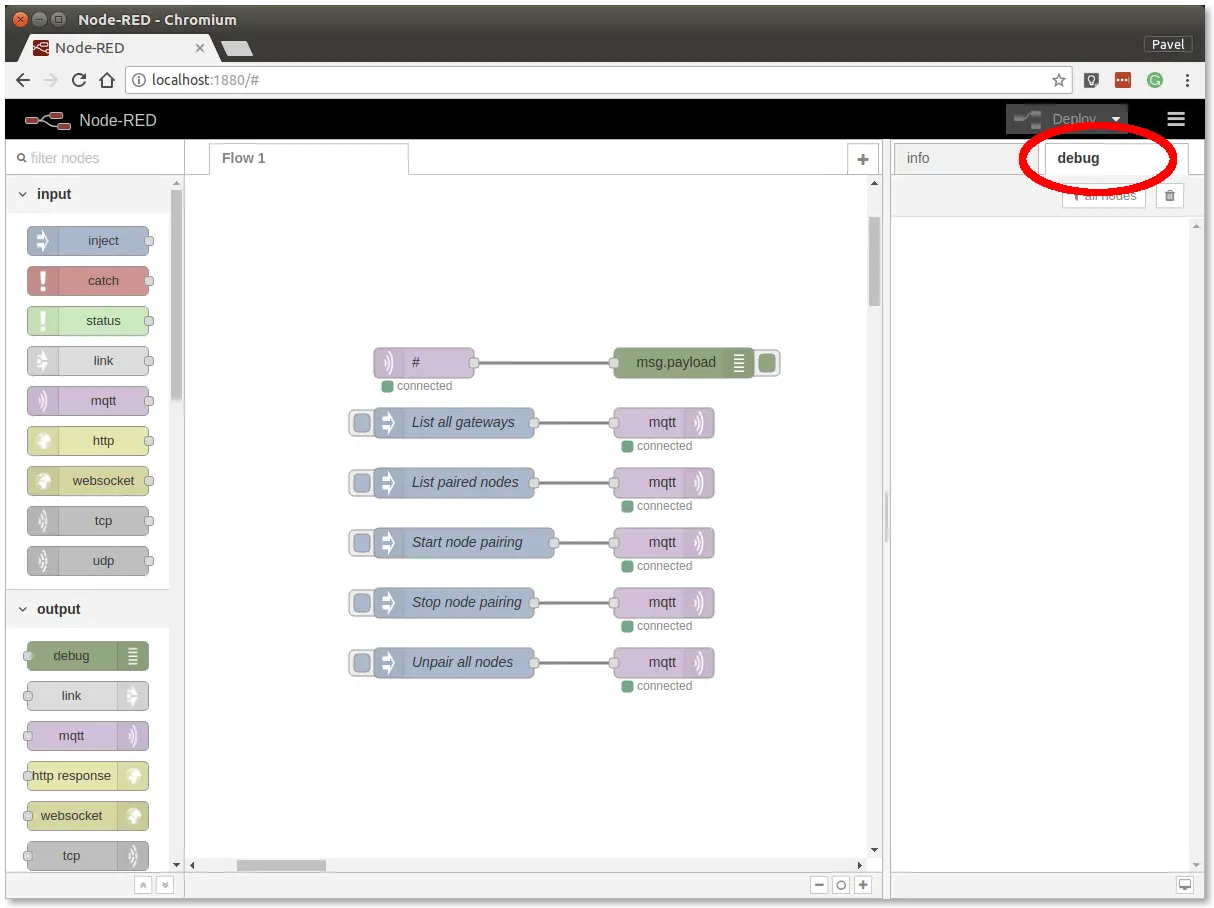
In the debug tab, you will be able to see all the MQTT messages.
Step 6: Click on the List all gateways button. You should see a response like this in the debug tab
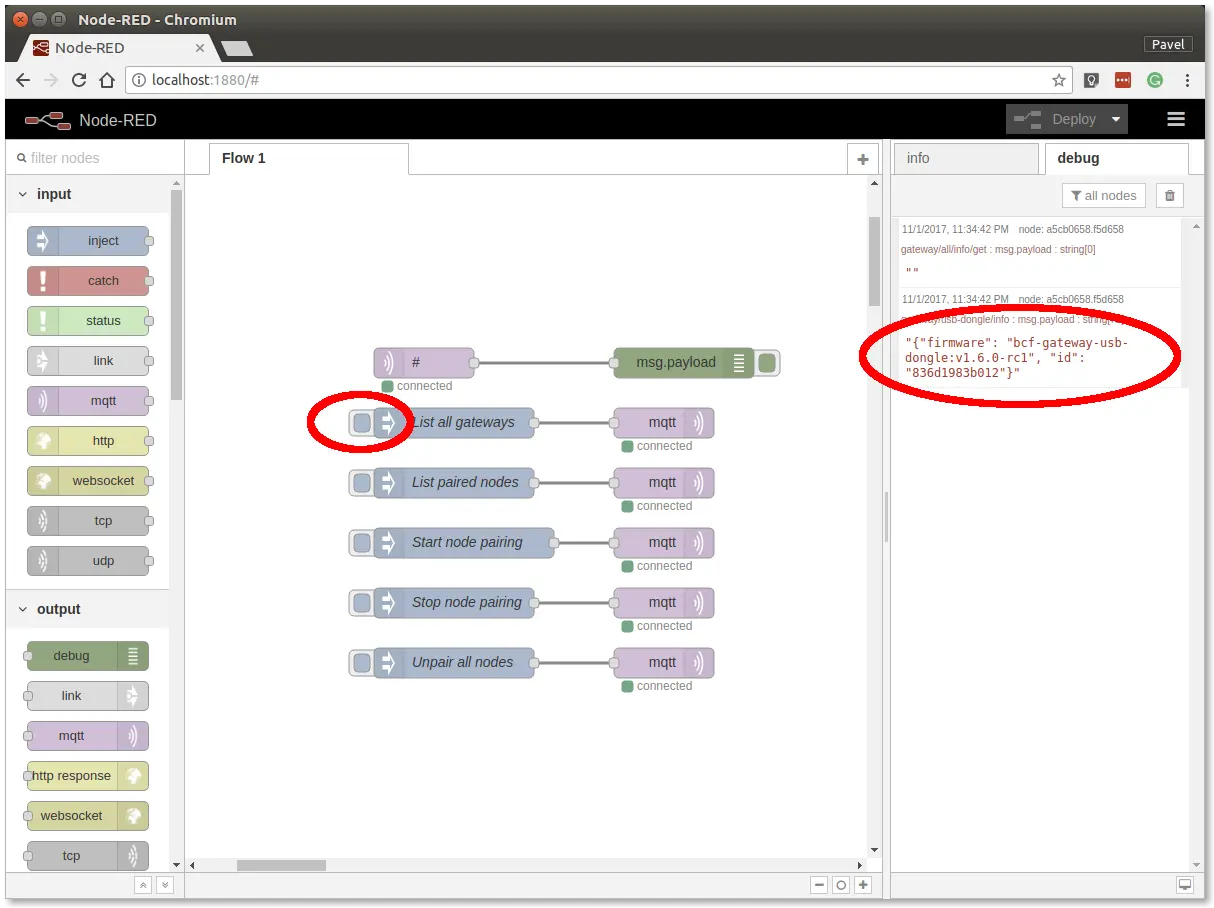
At this point, you've got working Node-RED, MQTT, HARDWARIO Radio Dongle and HARDWARIO Gateway.
Radio Pairing
In this section, we will create a radio link between the Radio Dongle and the Radio VOC sensor.
Follow these steps in Node-RED:
Step 1: Click on the Start node pairing button
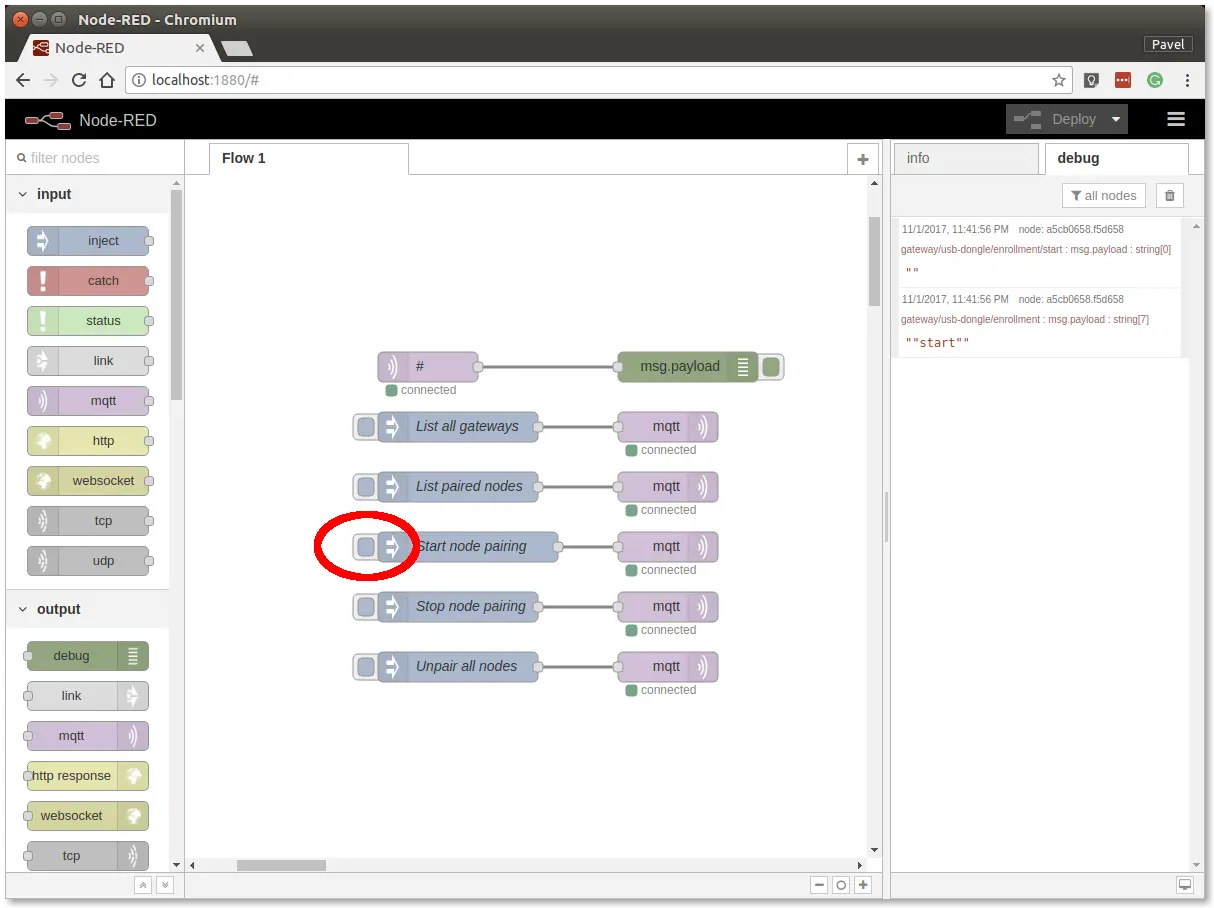
Step 2: Receive data
Insert the batteries into the Radio VOC sensor to send the pairing request (you should also see the red LED on the Core Module to be on for about 2 seconds). If you switch Node-RED to the debug tab on the right, you will see similar pairing response
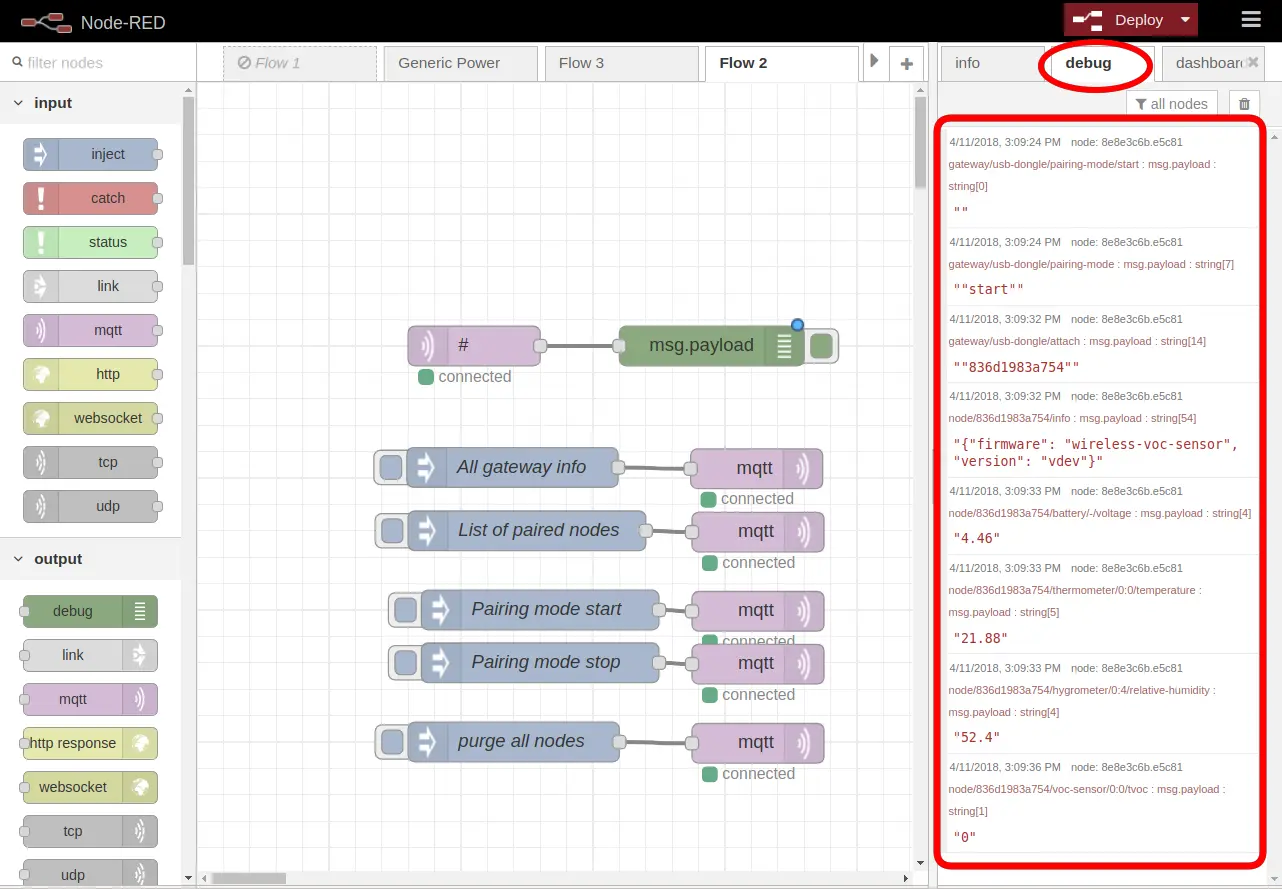
Step 3: Click on the Stop node pairing button
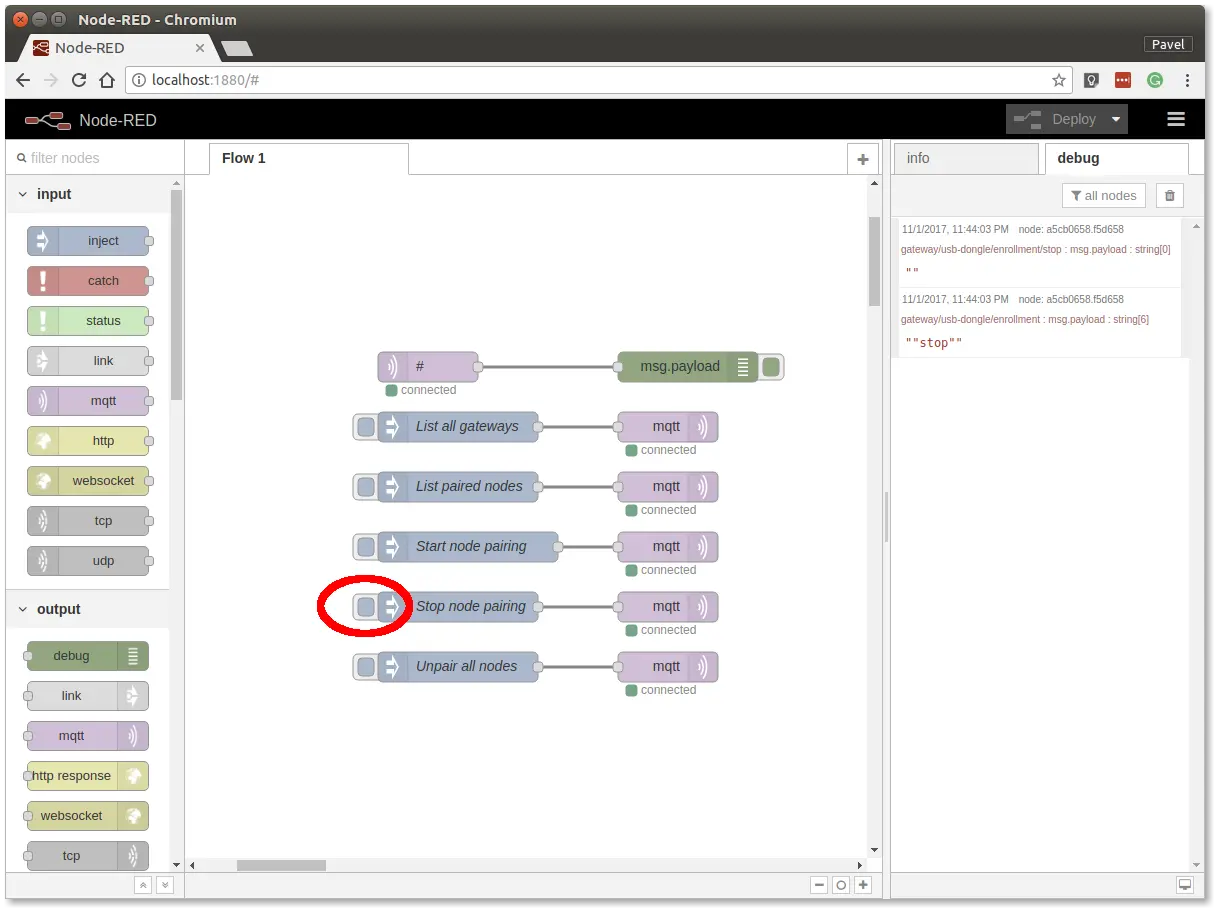
At this point, you've got established a radio link between the node (Radio VOC sensor) and the gateway (Radio Dongle).
Communication Test
Follow these steps in Node-RED:
Step 1: Switch to debug tab on the right
Step 2: Receive data
It takes up to a minute for VOC Tag to start sending correct values. Once you see other values than zero (0) in the Node-RED debug tab, you can try to breathe on the VOC sensor and you will get much higher values now.
You should then see similar messages:

At this point, you've got verified radio communication.
Dashboard Setup
Let's create a Dashboard in Node-RED that will show three gauges with values from the sensors.
You can insert the following snippet in the flow (using Menu >> Import) instead of steps below. However you have to change the MQTT topic based on your radio node address.
[{"id":"7018e288.6b887c","type":"ui_gauge","z":"ddfb24d2.43ab28","name":"","group":"d493d306.06098","order":0,"width":0,"height":0,"gtype":"gage","title":"Gauge","label":"units","format":"{{value}}","min":0,"max":"200","colors":["#00b500","#e6e600","#ca3838"],"seg1":"","seg2":"","x":610,"y":300,"wires":[]},{"id":"c6695f10.80722","type":"ui_gauge","z":"ddfb24d2.43ab28","name":"","group":"d493d306.06098","order":0,"width":0,"height":0,"gtype":"gage","title":"Gauge","label":"units","format":"{{value}}","min":"10","max":"30","colors":["#00b500","#e6e600","#ca3838"],"seg1":"","seg2":"","x":610,"y":360,"wires":[]},{"id":"70a87b55.8df274","type":"ui_gauge","z":"ddfb24d2.43ab28","name":"","group":"d493d306.06098","order":0,"width":0,"height":0,"gtype":"gage","title":"Gauge","label":"units","format":"{{value}}","min":0,"max":"100","colors":["#00b500","#e6e600","#ca3838"],"seg1":"","seg2":"","x":610,"y":420,"wires":[]},{"id":"fbc3fd9a.b2e59","type":"mqtt in","z":"ddfb24d2.43ab28","name":"","topic":"node/836d1983a754/voc-sensor/0:0/tvoc","qos":"2","broker":"83f37d33.4979e","x":220,"y":300,"wires":[["7018e288.6b887c"]]},{"id":"4745398e.bacaf8","type":"mqtt in","z":"ddfb24d2.43ab28","name":"","topic":"node/836d1983a754/hygrometer/0:4/relative-humidity","qos":"2","broker":"83f37d33.4979e","x":260,"y":420,"wires":[["70a87b55.8df274"]]},{"id":"92e3a555.616f58","type":"mqtt in","z":"ddfb24d2.43ab28","name":"","topic":"node/836d1983a754/thermometer/0:0/temperature","qos":"2","broker":"83f37d33.4979e","x":250,"y":360,"wires":[["c6695f10.80722"]]},{"id":"d493d306.06098","type":"ui_group","z":"","name":"Default","tab":"afe7e4c8.941208","disp":true,"width":"6","collapse":false},{"id":"83f37d33.4979e","type":"mqtt-broker","z":"","broker":"127.0.0.1","port":"1883","clientid":"","usetls":false,"compatmode":true,"keepalive":"60","cleansession":true,"willTopic":"","willQos":"0","willPayload":"","birthTopic":"","birthQos":"0","birthPayload":""},{"id":"afe7e4c8.941208","type":"ui_tab","z":"","name":"Home","icon":"dashboard"}]
Step 1: Insert three MQTT input blocks
Step 2: Insert three Gauge blocks from Dashboard section. You have to open each gauge and set the correct Group and Range values
Step 3: Connect each MQTT input block with Gauge block
Step 4: Set-up correct MQTT topics to the three MQTT input blocks
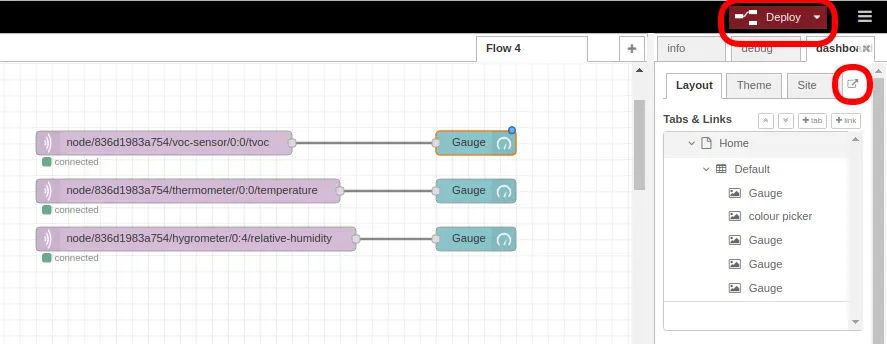
Step 5: The nodes should look like on the image below
Step 6: Click on the Deploy and in the dashboard tab click on the small square with arrow that will open Dashboard
Dashboard
You will see this dashboard with values from the Radio VOC sensor.
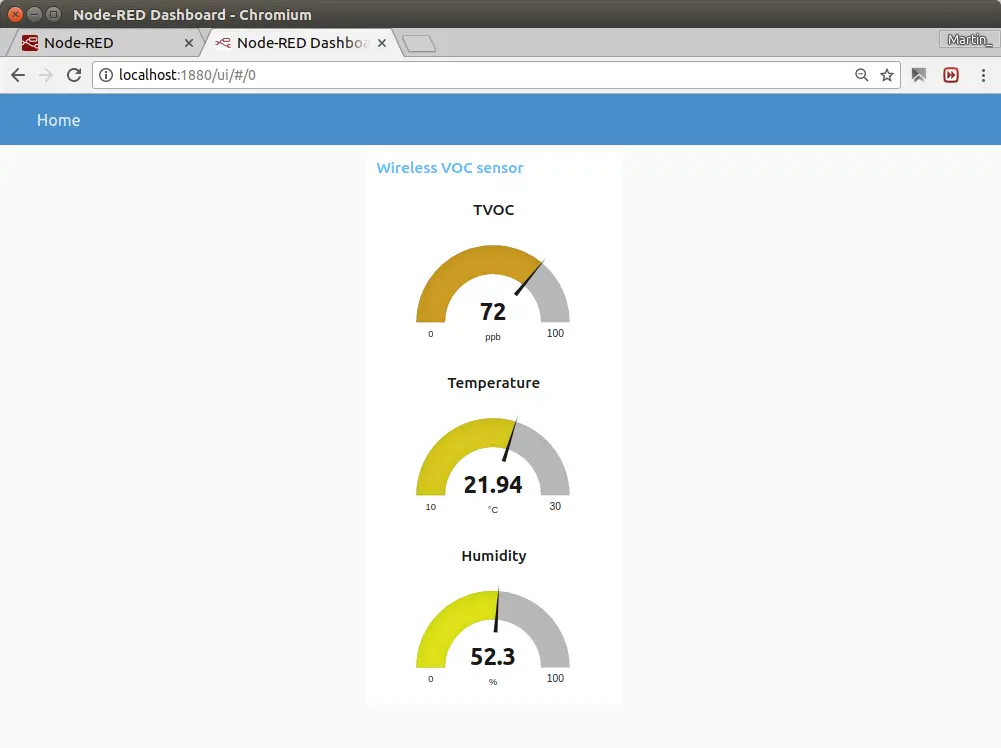
Your project is finished, congratulation!