Push The Button
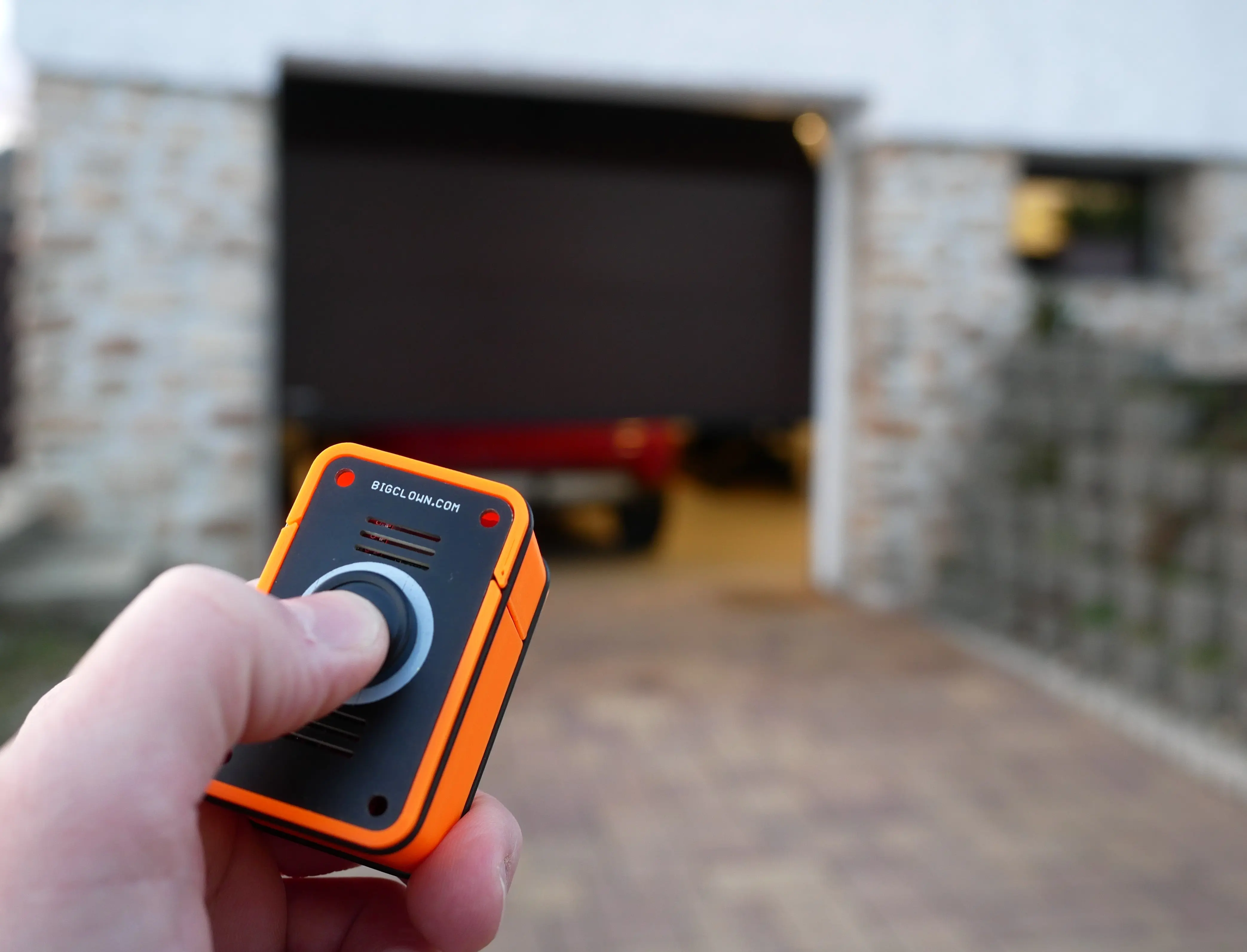
Push Set can interact with your world. Get phone notification, play next Spotify song, control your smart lights, trigger the egg timer or send a Tweet to the world.
In this tutorial you create a simple project with a button, that sends you push notification to your phone everytime you press it.
Build Hardware
You will need the Push Set and Radio Dongle.
Step 1: Assembly
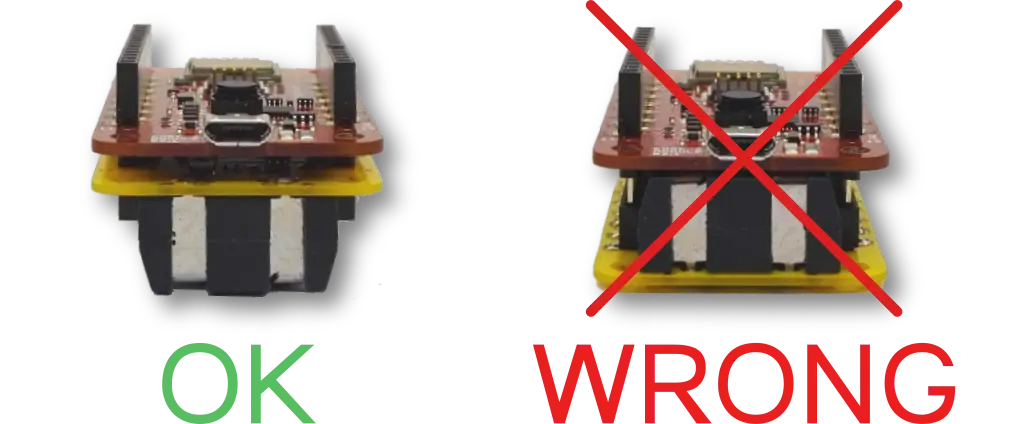
Put all three modules together to build the Push Button Kit. Note the orientation of the Mini Battery Module on the image below.
Step 2: Put the batteries in
The red LED on the Core Module will light up for 2 seconds when the batteries are inserted. This way you know that batteries are fine and kit is running ok.
Playground Set-Up
In this step you run the Playground application that manages Radio Dongle, Push Button and thanks to the Node-RED connects everything together.
Step 1: Download and run the latest HARDWARIO Playground

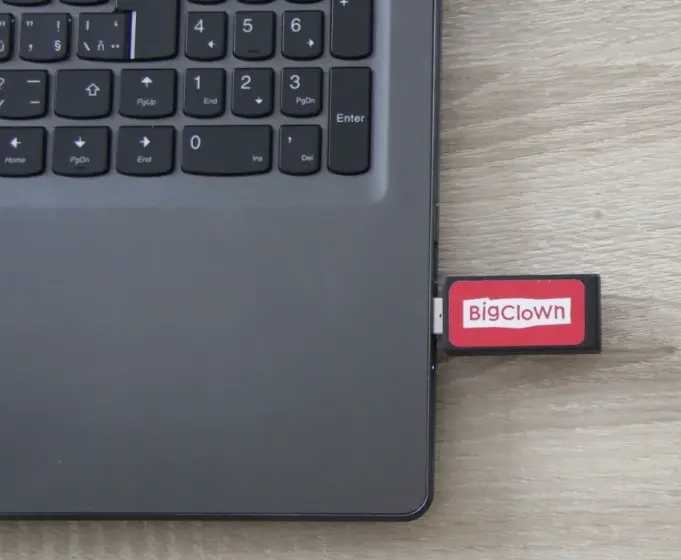
Step 2: Connect Radio Dongle to your computer
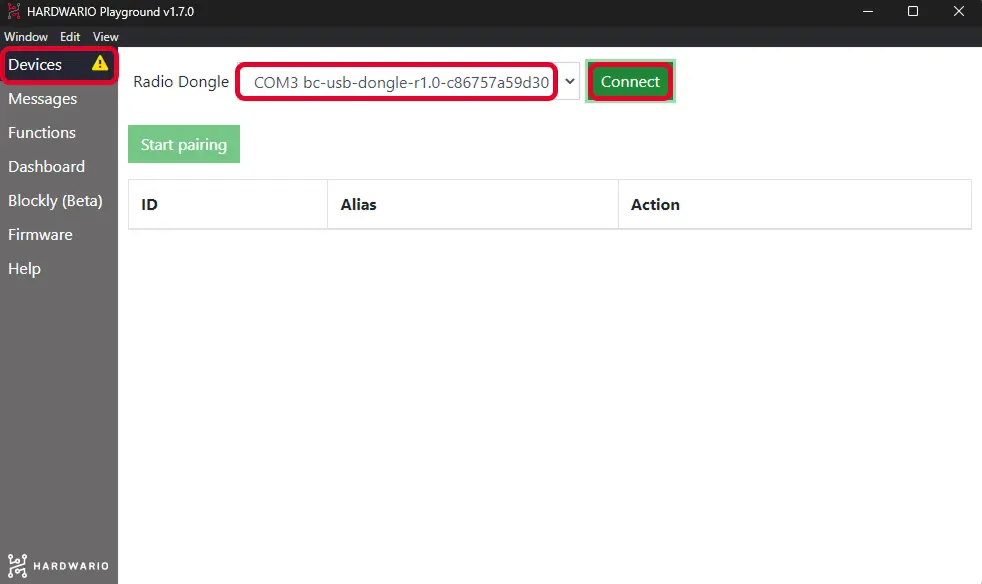
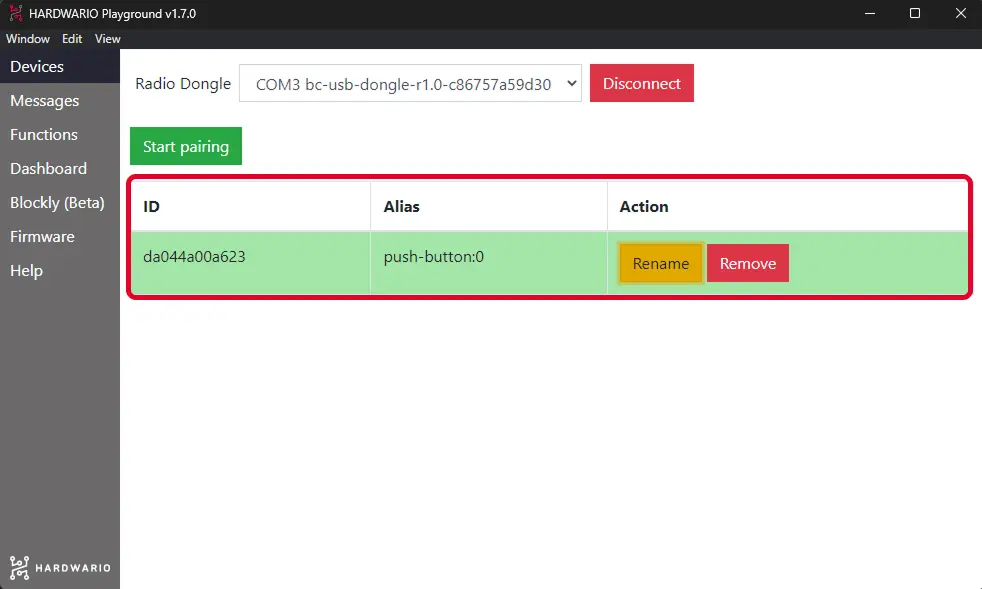
Step 3: Go to the Devices tab, check that the Radio Dongle is detected and click Connect
If you cannot see Radio Dongle in the devices, please see the Troubleshooting chapter.
Step 4: When connected. The already flashed and paired Push Button Kit will be in the paired devices
Step 5: Switch to the Functions tab and make sure you see the flow on the image below

In case you don't see the flow, build it yourself. You need three nodes wired in a row:
- An MQTT in node subscribed to the button-press topic
node/push-button:0/push-button/-/event-count. - A change node that sets
msg.payloadto the notification text you want, for exampleButton pressed, you're the best!. - A Blynk IoT node that delivers the notification (you add this in the next section, once your Blynk IoT account and template are ready).
We'll connect the Blynk IoT node in Putting it all together below.
Prepare the Blynk IoT app
In this step you set up Blynk IoT so your phone can receive notifications from the HARDWARIO Playground. The old Blynk Legacy app has been discontinued, so we use the current Blynk IoT platform.
Step 1: Create a Blynk IoT account, template, and device
If you don't have one yet, create an account in Blynk IoT and set up a device. The whole process — account, template, datastreams, and device — is described in this guide. You can reuse a template from a previous project if you have one.
Then download the Blynk IoT app to your phone from the App Store or Google Play and sign in with the same credentials.
Step 2: Define a notification Event on your template
In Blynk IoT, push notifications are sent through Events. Open your template in the Blynk IoT web console and create a new Event (for example named Button pressed). In the Event settings, turn on Notifications and pick who should receive the push notification on the linked device.
This is the message that will pop up on your phone every time the button is pressed. See the guide for the exact steps and screenshots.
Putting it all together
The final step is to connect Node-RED with Blynk IoT, so pressing the button triggers your notification Event.
Step 1: Add the Blynk IoT node
In the Playground Functions tab, add a Blynk IoT node after the change node and connect them. You'll find the Blynk IoT nodes on the left in the palette.
Step 2: Configure the connection
Double-click the node, then click the pencil icon to set up the Blynk connection. In the Url field enter blynk.cloud, and into the Auth Token and Template ID fields copy the values from your device detail in the Blynk IoT web console. Confirm, then point the node at the Event (Button pressed) you defined on the template so it fires that notification.
Step 3: Click the Deploy button. Everytime you edit the Node-RED flow you have to apply changes!
Action !
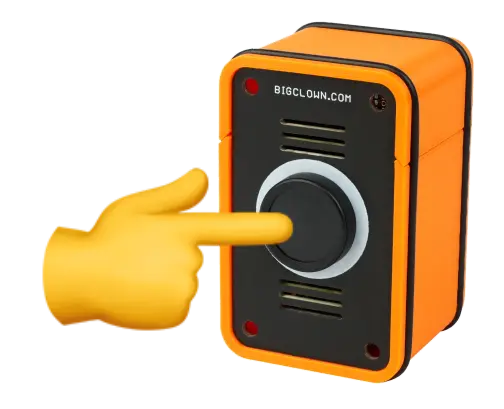
The time has come to PUSH THE BUTTON
Learn More
The goal of this Push Button Project is to show the basics in a few simple steps. Now you can learn more by browsing the documentation or by visiting the links below.
- Check out other HARDWARIO projects.
- Take a look at the Module Overview.
- Learn about MQTT and HARDWARIO MQTT topics to control LEDs and relays.
- Try other integrations with Grafana, Blynk, IFTTT, Ubidots and others.
- Use your Raspberry PI or other
- Flash other firmware or write your own firmware for the Core Module.
- Check the Core Module pinouts and add your own buttons, relays and sensors.