Im ok button
Introduction
Do your parents call you every day, asking if you got home from school? It’s a drag, but they simply worry about you. Make a button with which you can always send a simple message to their mobile. 📲
In this project, you will learn how to use the button to send a message to your parents’ mobile. 👩👱
You will need the box with the button and the USB dongle. You can do with the basic HARDWARIO set, the Start Set.
Get it started in the Node-RED
-
Put together the Start Set and pair it. For the Core Module, you need the radio push button firmware. If you don’t know how to download the firmware or what it is, you can find out here.
-
In the Playground, click on the Functions tab, where you find the Node-RED programming desktop.
-
Place a light purple bubble, or node, in the desktop. You will find it on the left as Input MQTT.
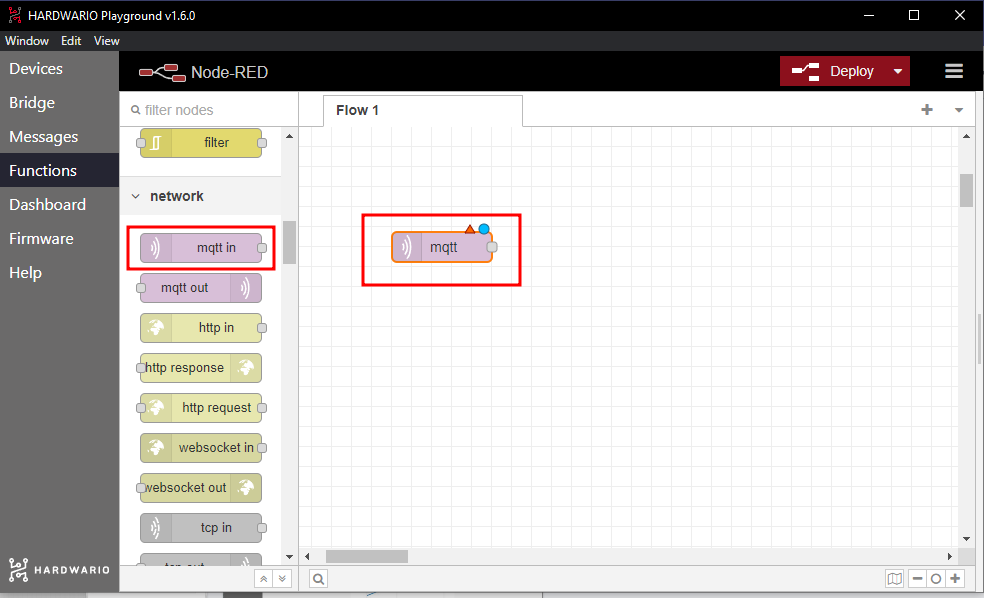
-
Inside the node you will set up a key feature - which is pressing a button. Double-click on the node and copy this line into the Topic field:
node/push-button:0/push-button/-/event-count
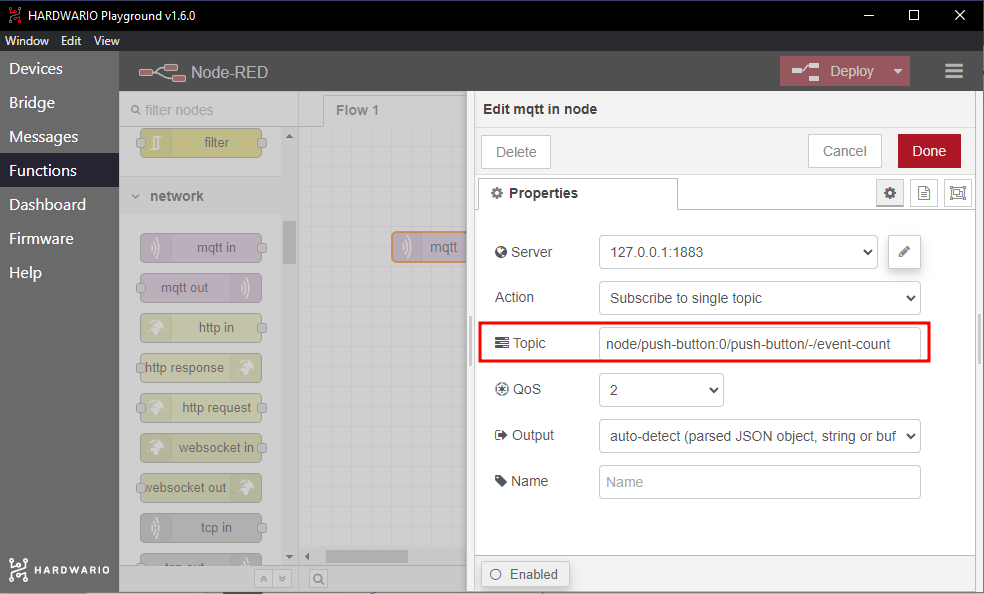
Confirm it with the Done button.
Tip: Instead of copying the line from here, you can simply copy the line that appears in the Messages tab after pressing the button.
Set up your message
- You can set up your message also here in the Node-RED. Drag the yellow node from the Functions section called Change anywhere next to the light purple MQTT input.
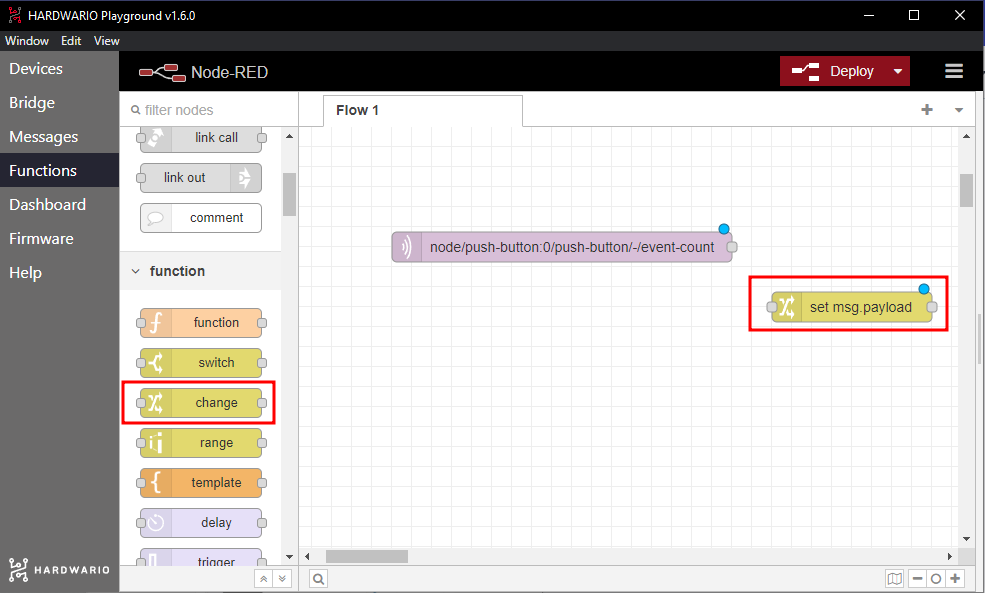
- Double-click on the node and write the message for your parents into the Rules field. Just be careful, Blynk doesn’t display any diacritics. Little inspiration:
- Easy. I’m home and safe.
- A celebrity came to visit….just kidding, it’s me.
- I was bitten by dogs, kidnapped by a UFO, but I made it home.
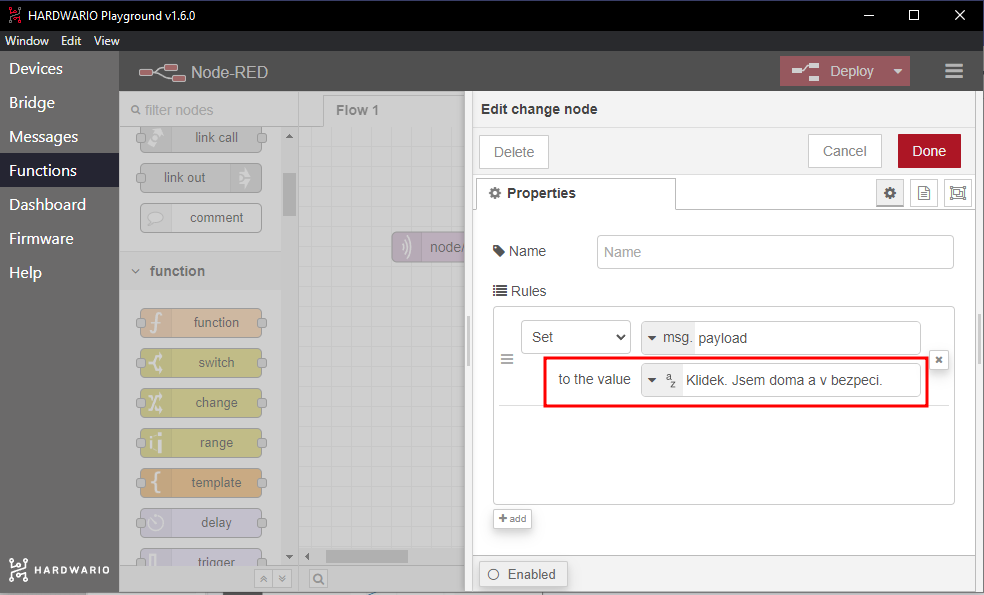
Confirm it with the Done button and link both nodes by dragging the mouse from one bubble to the other. 🐁
Prepare the Blynk IoT app
The push notification is delivered through the Blynk IoT app. If you don't have one yet, create an account and a device template — see this guide for how to do it, including creating templates and devices. You can also reuse a template from a previous project.
-
In Blynk IoT, push notifications are sent as an Event on the template. Open your template, go to the Events tab, and add a new Event (for example, name it
im_ok). Turn on Notifications for that Event so the parents' phone receives a push message when it is triggered. -
Borrow a smartphone from your mom or dad and make it yet a bit smarter. 🤓 They need the Blynk IoT app on their phone — from the App Store or Google Play — signed in with your account, so the notification lands on their device.
Connect the mobile with the box
- Go back to your computer. On the Node-RED desktop, add a green Blynk IoT node behind both nodes. You'll find it on the left under the Blynk IoT section.
- Open the node by double-clicking it. You'll see a small pencil on the right. Click on it and a new window will open. In the Url field enter
blynk.cloud, and into the Auth Token and Template ID fields copy the values from the device detail in the Blynk IoT web app on your computer. Set the node to log the Event you created (im_ok) so pressing the button fires that Event and its notification.
Confirm the settings by pressing the Add and Done buttons.
- Connect this node to the yellow node where you set the message. Now you have programmed the device so that pressing the button on the box ➡️ fires the Blynk IoT Event ➡️ that pushes your "I'm OK" message all the way to your parents' mobile. 👾
❗ Start and confirm the entire flow with the red Deploy button on the top right. 🚨
And… Action!
-
Press the button. A push notification popped up on your parents' mobile. 💪
-
Not only will your parents think you are gifted but you will also avoid their daily phone calls. 🎉 And that’s just so smart, it must be IoT. 🕺