Radio CO₂ Monitor
This document will guide you through the Radio CO₂ Monitor project. You will be able to see dashboard with CO2, temperature, humidity, ambient light and atmospheric pressure in Node-RED.
Block Concept

Requirements
-
Either CO₂ Monitor Kit, or individual components:
- 1x Core Module
- 1x Temperature Tag
- 1x Humidity Tag
- 1x Barometer Tag
- 1x CO₂ Module
- 1x Battery Module
- 1x Radio Dongle
-
One of these options:
- HARDWARIO Playground installed (recommended) You can find more information in the Quick Start Guide document.
- Raspberry Pi with the HARDWARIO Raspbian distribution You can find more information in the document Raspberry Pi Installation.
- HARDWARIO Firmware Tool installed You can find more information in the document Toolchain Setup.
Firmware Upload
In this procedure we will use the HARDWARIO Playground to upload firmware to the Core Module.
Step 1: Connect the Micro USB cable to the Core Module and your computer.
Step 2: Run the HARDWARIO Playground
In the Firmware tab choose and upload the bcf-radio-co2-monitor firmware to the Core Module:
Flashing Core Module R1 & R2 For differences of flashing older Core Module 1 and newer Core Module 2 please read Core Module R1 and R2 comparison in the Hardware section
Step 3: Remove the Micro USB cable from the Core Module and your computer.
At this point your firmware is successfully uploaded.
Hardware Assembling
See short video with easy step by step demonstration:
Step 1: Start with the Battery Module.
Make sure the Battery Module does not have batteries inserted.
Step 2: Plug the CO2 Module on top of the Battery Module.
Step 3: Plug the Core Module on top of the CO2 Module.
Step 4: Plug the Temperature Tag into a socket on the CO2 Module.
Step 5: Plug the Humidity Tag into a socket on the CO2 Module.
Step 6: Plug the Barometer Tag into a socket on the CO2 Module.
Step 7: Plug the Cover Module on top of the Core Module.
Playground Bootstrap
If you are using the new HARDWARIO Playground, then use the Functions tab instead of using http://localhost:1880/. Also the pairing process is now done in Devices tab. For communication test use the Messages tab.
Step 1: Open Node-RED in your web browser:
Step 2: You should see the empty workspace with Flow 1:
Step 3: Insert the following snippet in the flow (using Menu >> Import) and click in Flow 1 tab:
[{"id":"2fc604fc.3b6abc","type":"inject","z":"dfc861b.b2a02a","name":"List all gateways","topic":"gateway/all/info/get","payload":"","payloadType":"str","repeat":"","crontab":"","once":false,"x":560,"y":460,"wires":[["a2c10833.24d5d8"]]},{"id":"1e4502b8.2f63fd","type":"inject","z":"dfc861b.b2a02a","name":"Start node pairing","topic":"gateway/usb-dongle/pairing-mode/start","payload":"","payloadType":"str","repeat":"","crontab":"","once":false,"x":570,"y":580,"wires":[["795ff5a7.8e266c"]]},{"id":"3d844ce2.932864","type":"inject","z":"dfc861b.b2a02a","name":"Stop node pairing","topic":"gateway/usb-dongle/pairing-mode/stop","payload":"","payloadType":"str","repeat":"","crontab":"","once":false,"x":560,"y":640,"wires":[["5967c452.c838bc"]]},{"id":"f202b253.2705b","type":"inject","z":"dfc861b.b2a02a","name":"List paired nodes","topic":"gateway/usb-dongle/nodes/get","payload":"","payloadType":"str","repeat":"","crontab":"","once":false,"x":560,"y":520,"wires":[["f0aca138.0b2c3"]]},{"id":"349f02fd.890f6e","type":"inject","z":"dfc861b.b2a02a","name":"Unpair all nodes","topic":"gateway/usb-dongle/nodes/purge","payload":"","payloadType":"str","repeat":"","crontab":"","once":false,"x":560,"y":700,"wires":[["2f1c5bb6.53d6f4"]]},{"id":"cf61d75d.4ad8f8","type":"mqtt in","z":"dfc861b.b2a02a","name":"","topic":"#","qos":"2","broker":"67b8de4a.029d3","x":530,"y":400,"wires":[["a5cb0658.f5d658"]]},{"id":"a5cb0658.f5d658","type":"debug","z":"dfc861b.b2a02a","name":"","active":true,"console":"false","complete":"false","x":790,"y":400,"wires":[]},{"id":"a2c10833.24d5d8","type":"mqtt out","z":"dfc861b.b2a02a","name":"","topic":"","qos":"","retain":"","broker":"717f7c18.ba0a24","x":770,"y":460,"wires":[]},{"id":"f0aca138.0b2c3","type":"mqtt out","z":"dfc861b.b2a02a","name":"","topic":"","qos":"","retain":"","broker":"717f7c18.ba0a24","x":770,"y":520,"wires":[]},{"id":"795ff5a7.8e266c","type":"mqtt out","z":"dfc861b.b2a02a","name":"","topic":"","qos":"","retain":"","broker":"717f7c18.ba0a24","x":770,"y":580,"wires":[]},{"id":"5967c452.c838bc","type":"mqtt out","z":"dfc861b.b2a02a","name":"","topic":"","qos":"","retain":"","broker":"717f7c18.ba0a24","x":770,"y":640,"wires":[]},{"id":"2f1c5bb6.53d6f4","type":"mqtt out","z":"dfc861b.b2a02a","name":"","topic":"","qos":"","retain":"","broker":"717f7c18.ba0a24","x":770,"y":700,"wires":[]},{"id":"67b8de4a.029d3","type":"mqtt-broker","z":"","broker":"127.0.0.1","port":"1883","clientid":"","usetls":false,"compatmode":true,"keepalive":"60","cleansession":true,"willTopic":"","willQos":"0","willPayload":"","birthTopic":"","birthQos":"0","birthPayload":""},{"id":"717f7c18.ba0a24","type":"mqtt-broker","z":"","broker":"127.0.0.1","port":"1883","clientid":"","usetls":false,"compatmode":true,"keepalive":"60","cleansession":true,"willTopic":"","willQos":"0","willPayload":"","birthTopic":"","birthQos":"0","birthPayload":""}]
It will look like this:
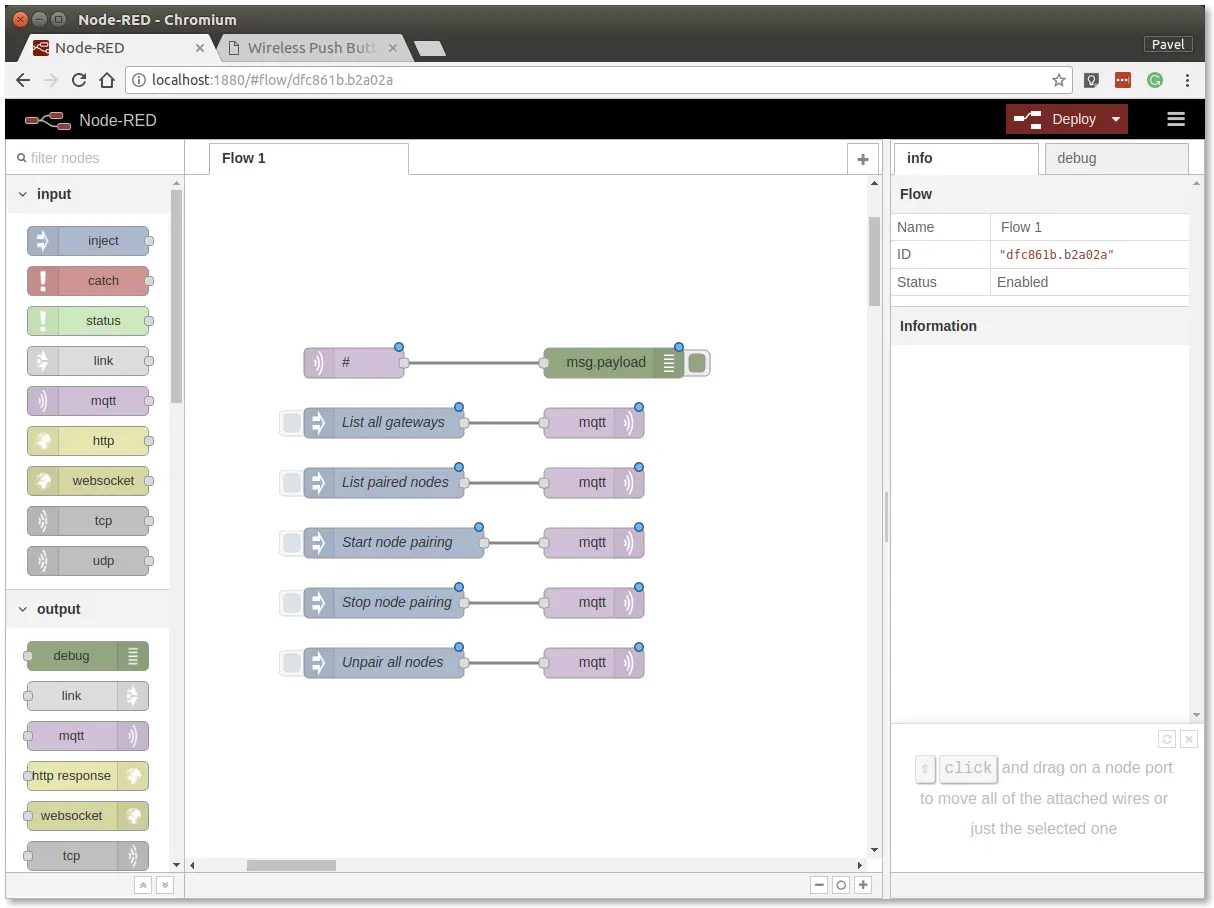
This snippet provides control buttons for gateway/radio commands. These commands are sent over the MQTT protocol.
Step 4: Deploy the flow using the Deploy button in the top-right corner:
Step 5: Open the debug tab:
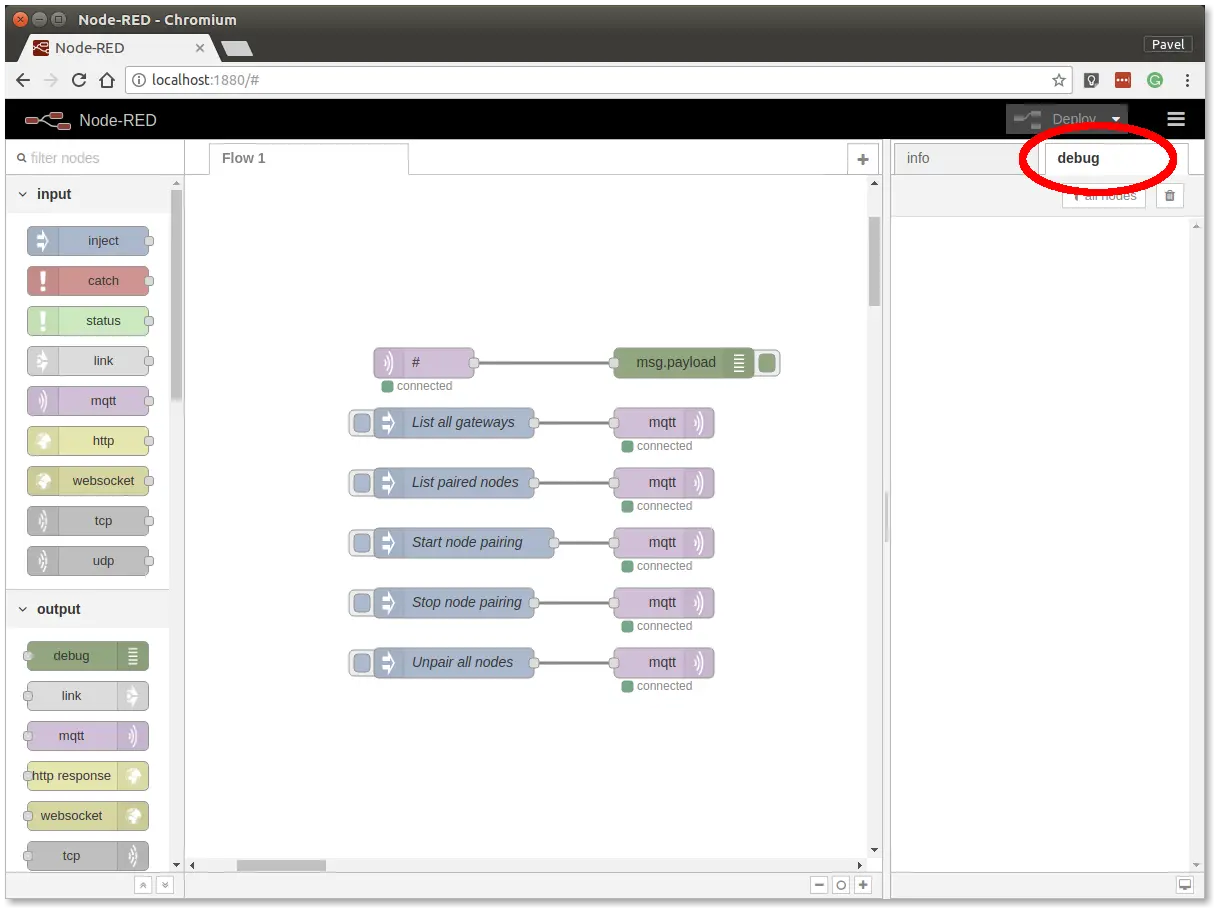
In the debug tab, you will be able to see all the MQTT messages.
Step 6: Click on the List all gateways button. You should see a response like this in the debug tab:
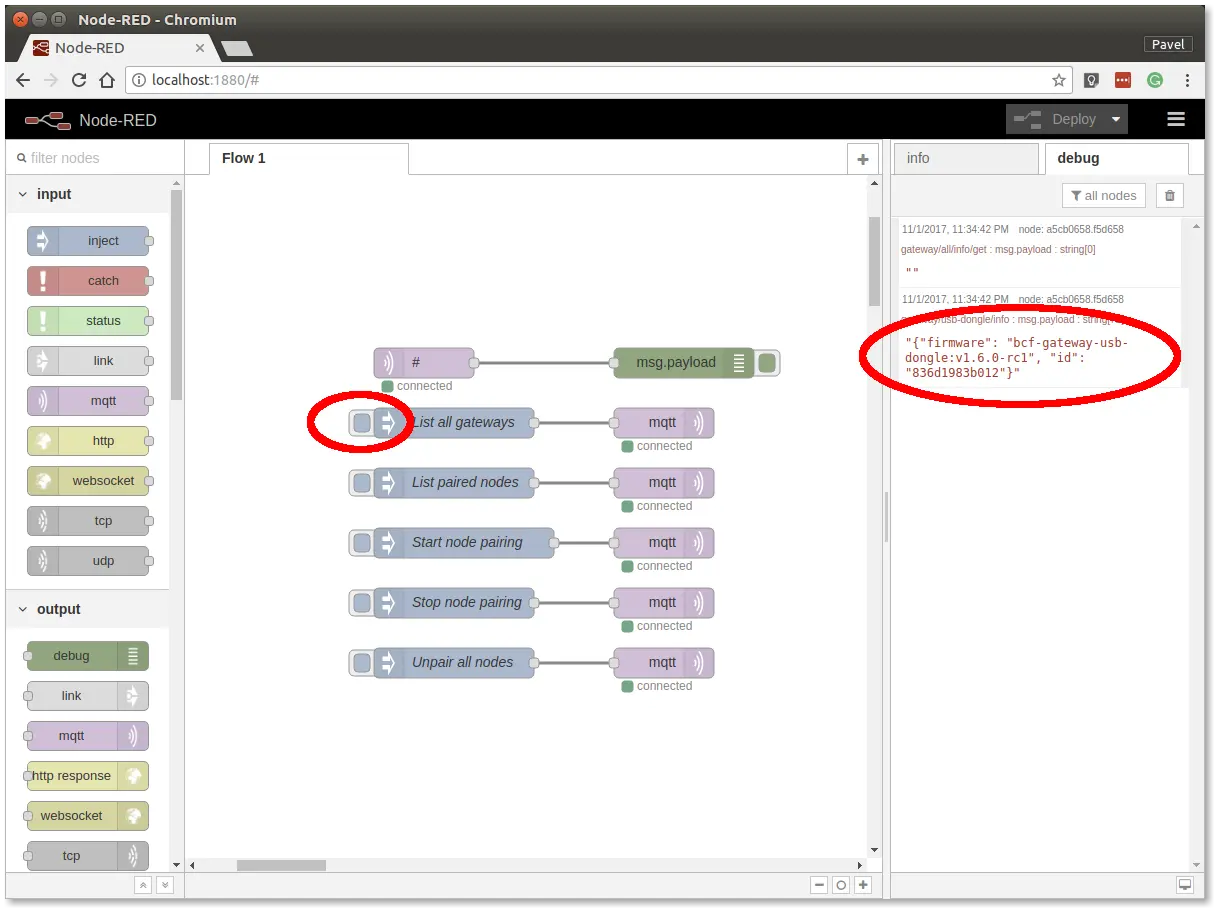
At this point, you've got working Node-RED, MQTT, HARDWARIO Radio Dongleand HARDWARIO Gateway.
Radio Pairing
In this section, we will create a radio link between the Radio Dongle and the Radio CO2 Monitor.
Follow these steps in Node-RED:
Step 1: Click on the Start node pairing button
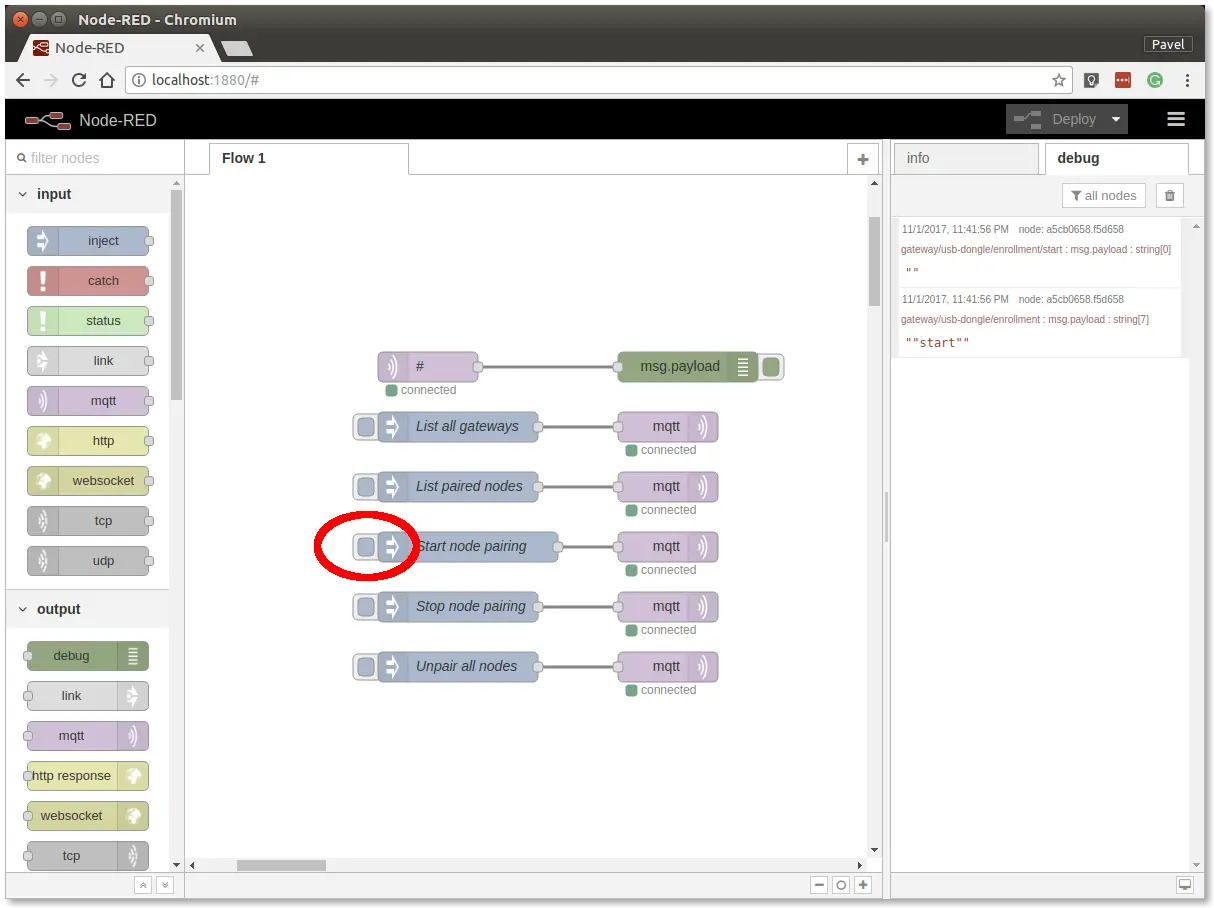
Step 2: Insert the batteries into the Radio CO2 Monitor to send the pairing request (you should also see the red LED on the Core Module to be on for about 2 seconds).
Step 3: Click on the Stop node pairing button.
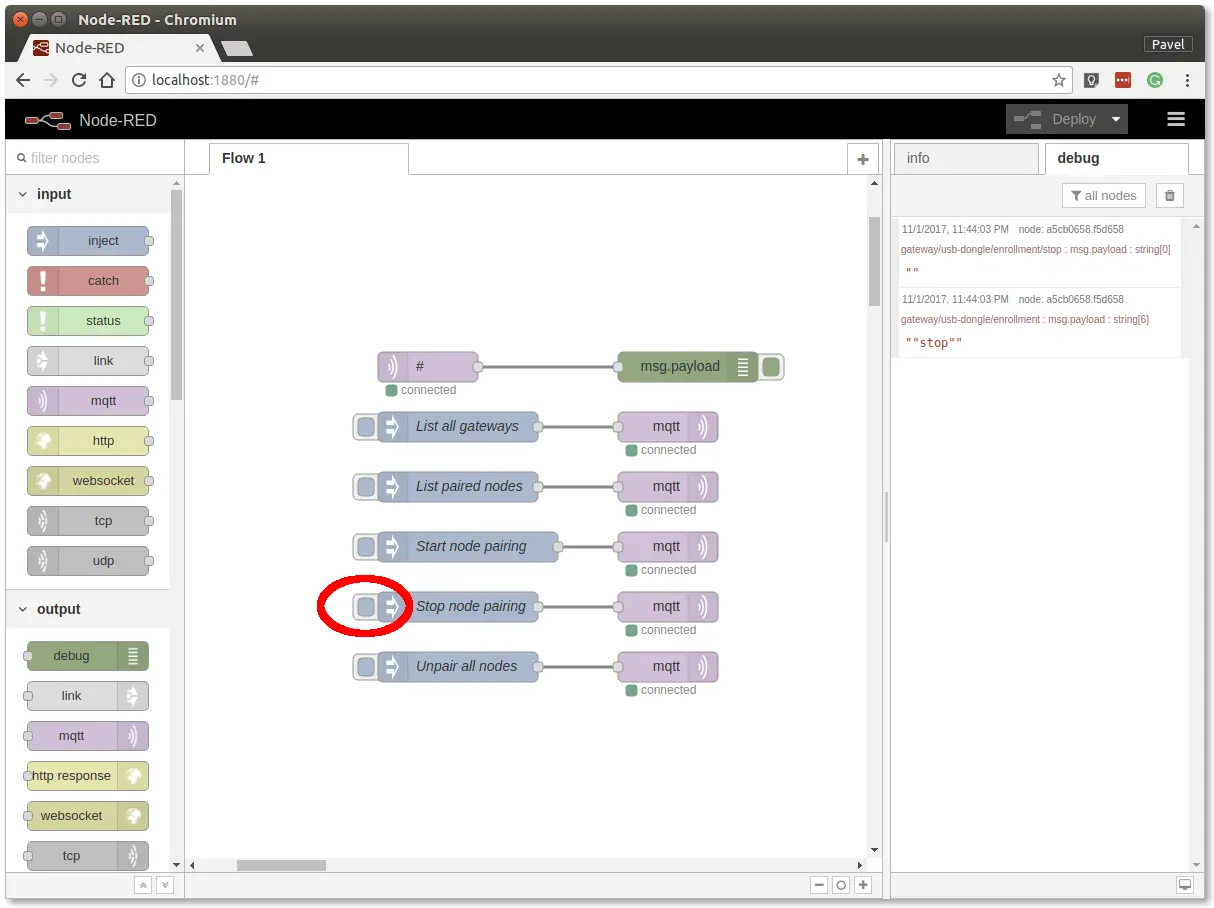
At this point, you've got established a radio link between the node (Radio Motion Detector) and the gateway (Radio Dongle).
Communication Test
Follow these steps in Node-RED:
Step 1: Switch to debug tab on the right
Step 2: Test it
Start breathing on the temperature sensor on the Temperature Tag to invoke a change of temperature and hence trigger a radio transmission.
You should then see similar messages:
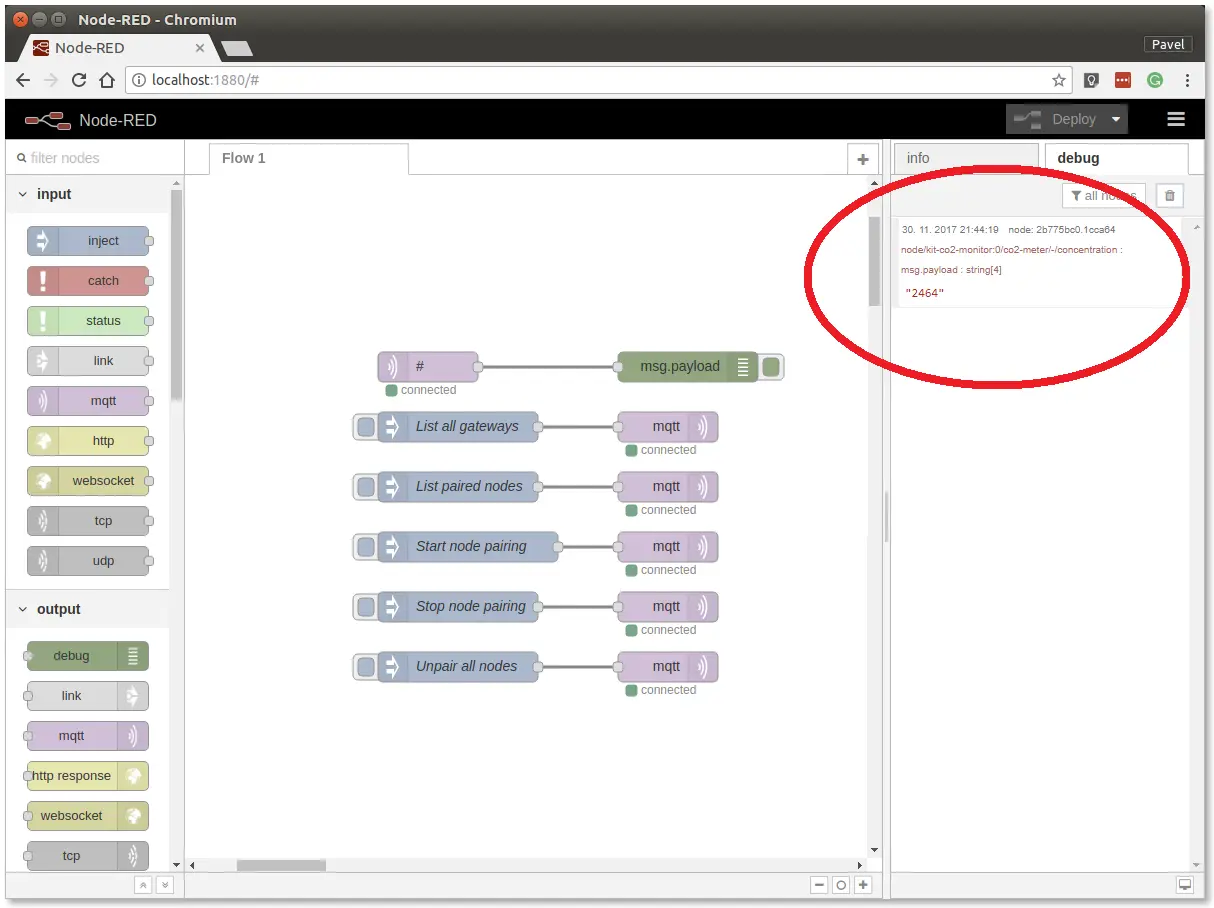
At this point, you've got verified radio communication.