Christmas detector
Introduction
Santa and Baby Jesus are highly secretive people, but with IoT you can catch either of them in the act of bringing presents. 🎄 The PIR Module: motion detector will help you
Under this project, you will learn how to detect motion in a remote room. Thanks to this you can check whether Santa Claus, Baby Jesus, Grandpa Frost or someone else is in your home. 😲
If you already have the Starter Set, you will only need the PIR Module. Alternatively, the Motion Set contains all the equipment you need.
Prepare the box
-
Put your Set together. You need the bcf-radio-motion-detector firmware for the Core Module.
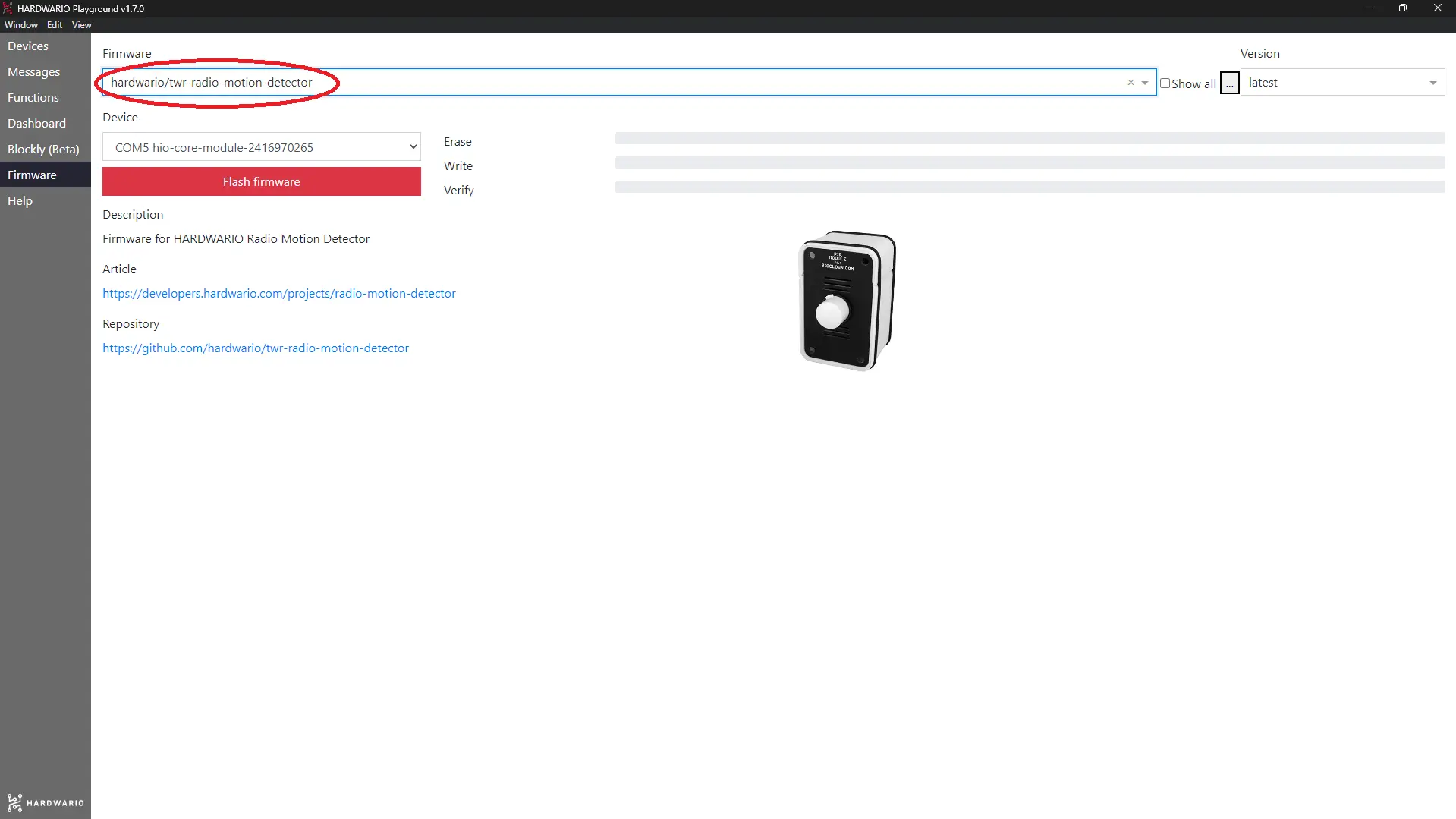
-
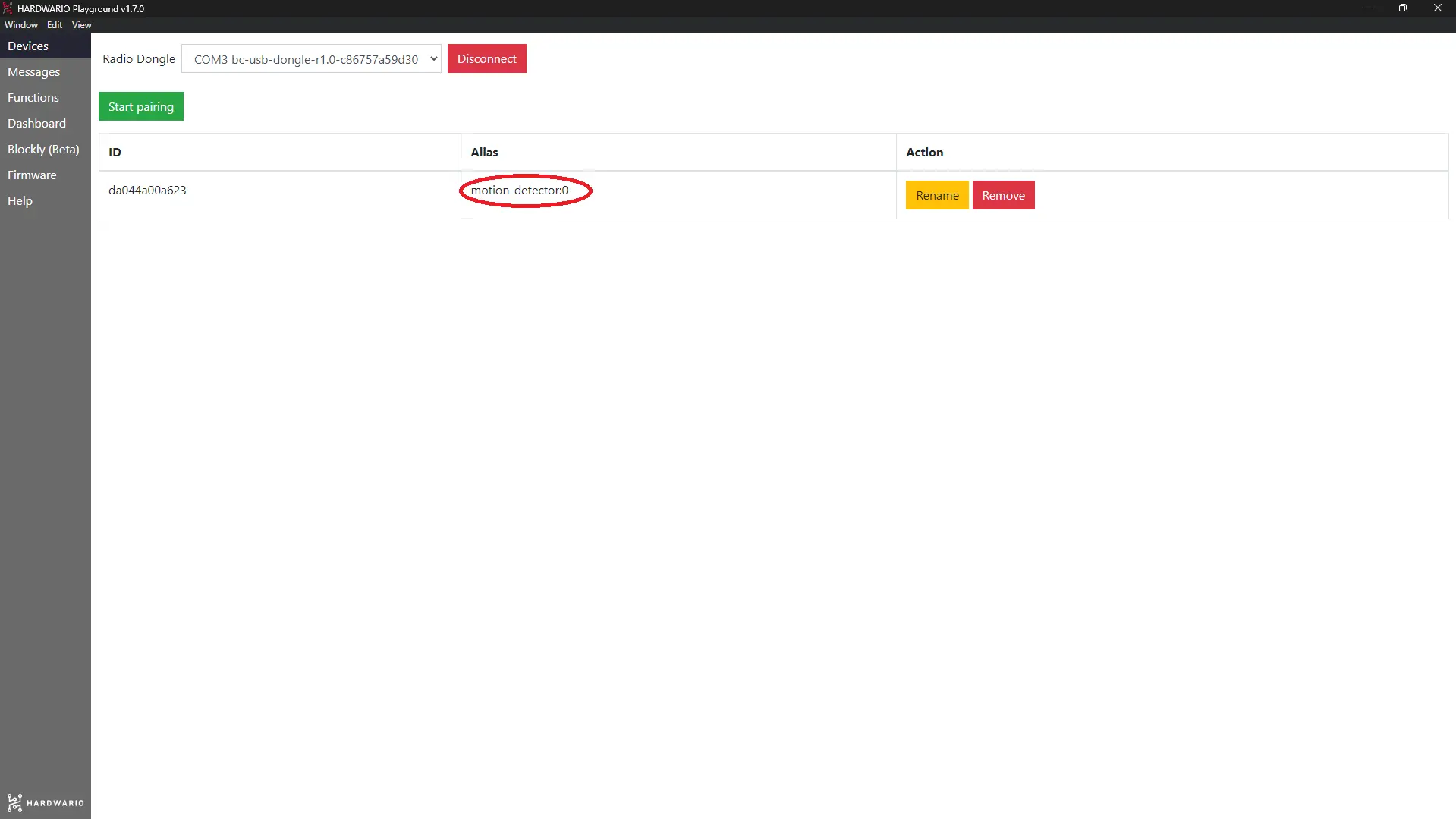
If the firmware is correctly installed, you will see the motion detector under the Devices Alias tab in Playground.
Set up Node-RED
-
Start programming in Node-RED. First, click on the Functions tab in Playground.
-
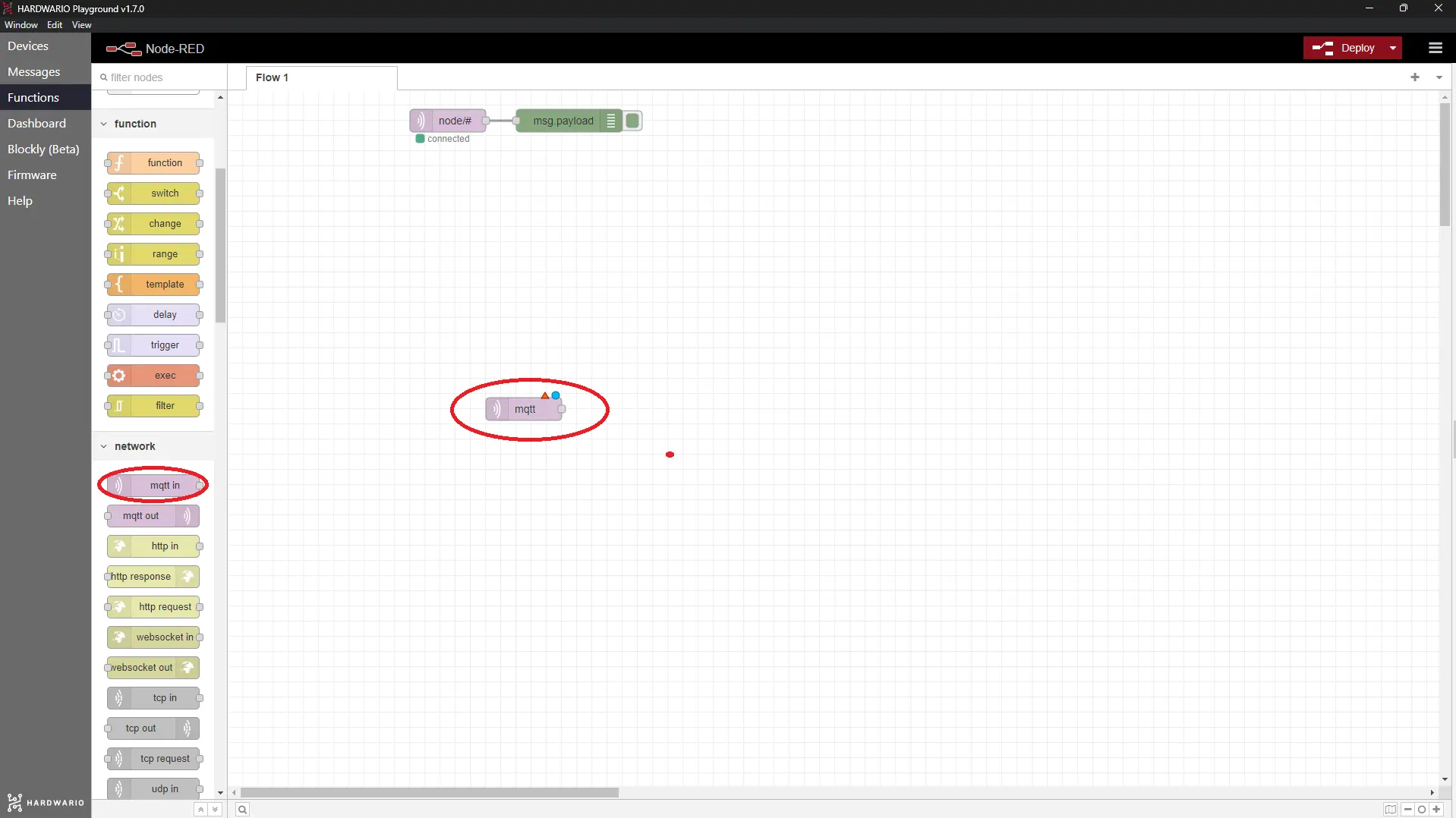
Drag a light purple MQTT node (bubble) onto the empty desktop. You can find it under the Input section.
- Double-click the node. In the Topic line, specify the key value. It will now function as a counter of movements that are recorded:
node/motion-detector:0/pir/-/event-count
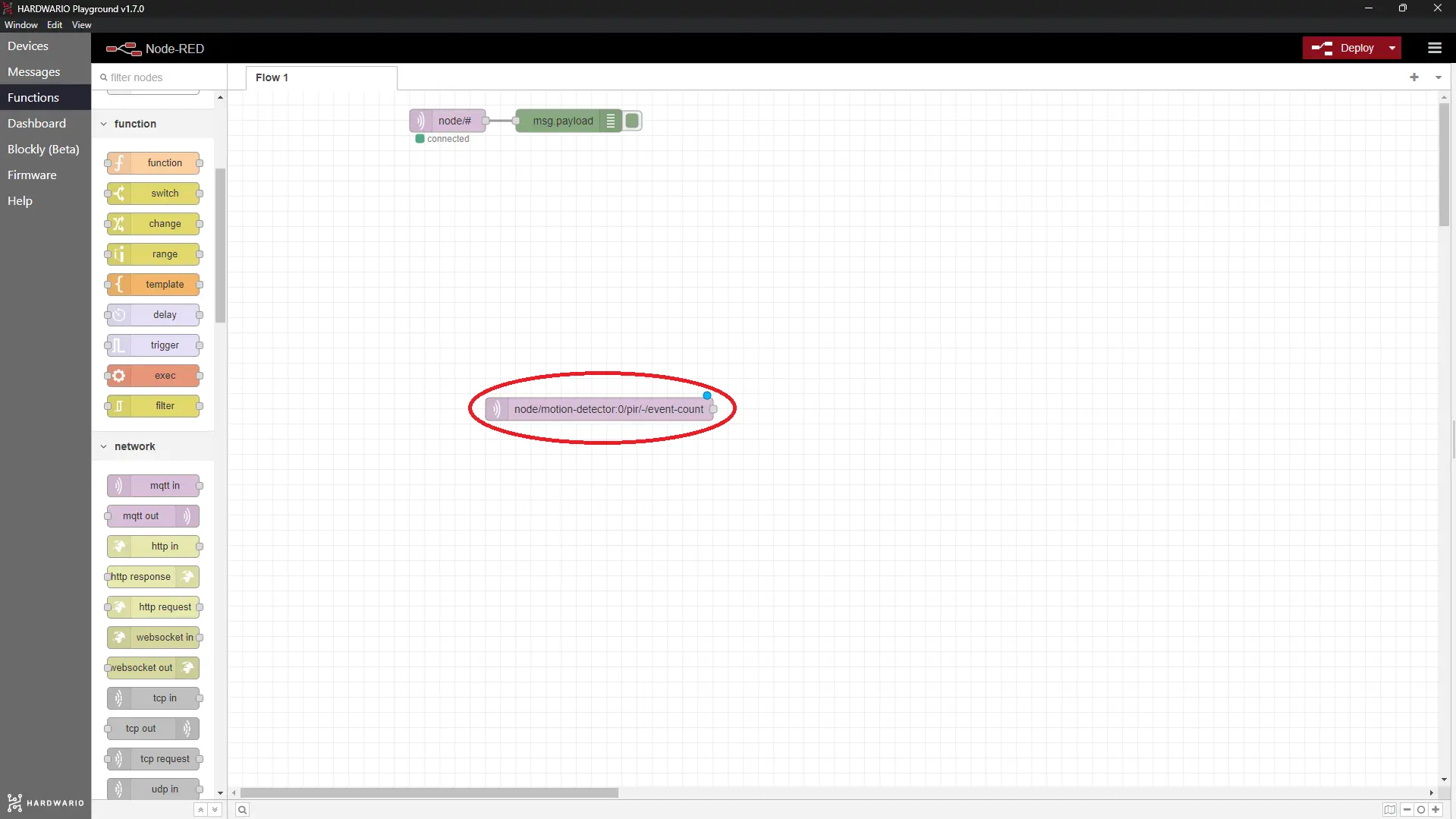
Confirm with the Done button.
-
Behind this node, place a Switch node from the Function section. This allows the device to recognize that the detector is on and can report any movements.
-
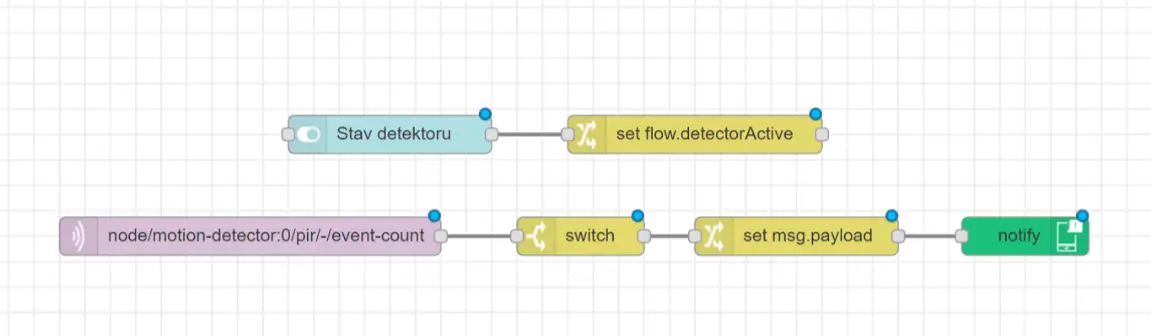
In the node, fill in the Property line as flow. detectorActive and edit the condition in the field to is true (take a look at the screenshot). Our tip: Read more about this feature.
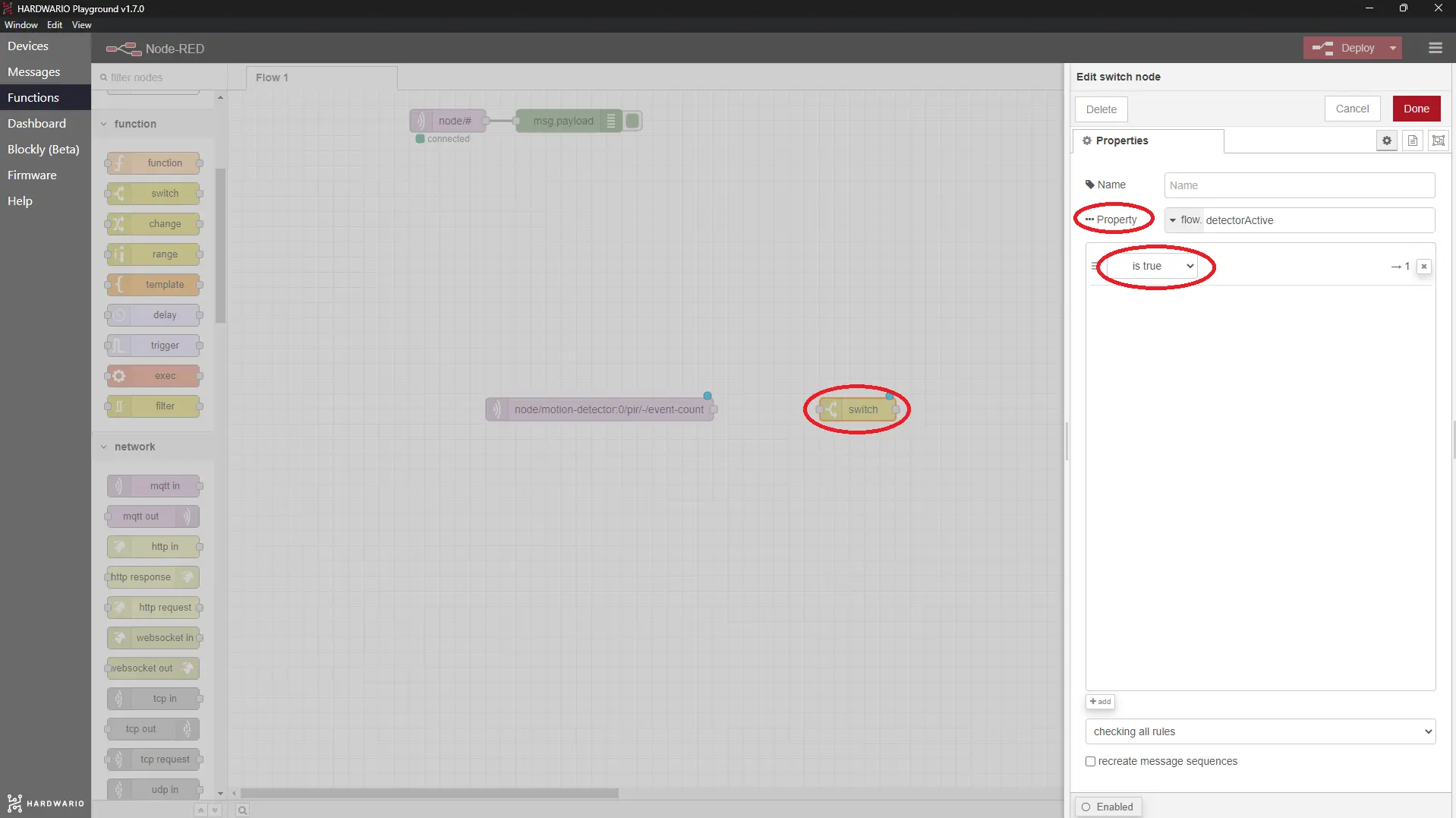
Confirm with the Done button.
-
Behind the switch node, place a Change node from the same Function section.
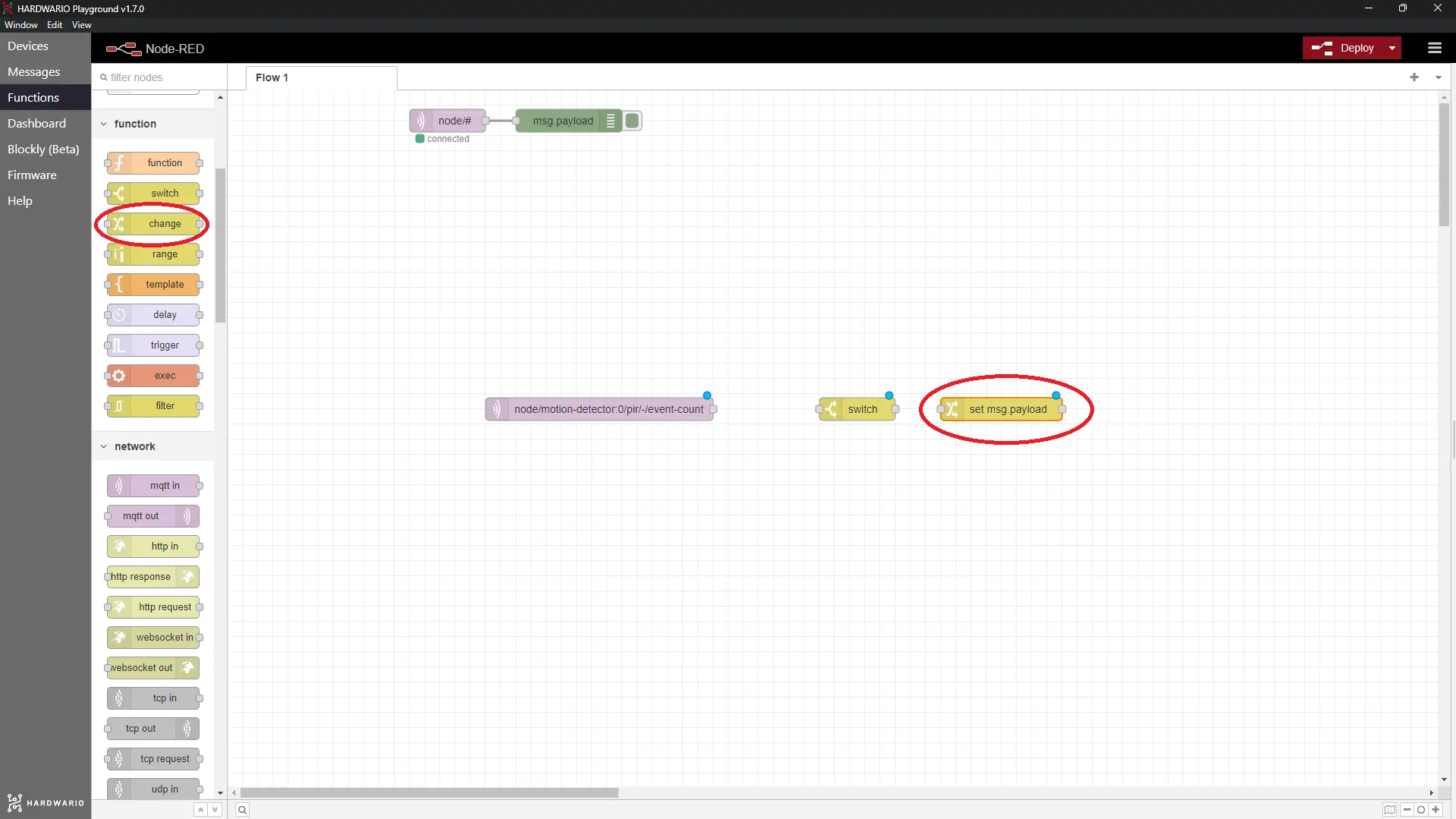
-
In the node, you set the message that you want to pop up when our bearded friend (or Baby Jesus) brings their presents. 🎅 👼 For example: Santa/Baby Jesus is in the living room. Our tip: If you also want to set notifications for your mobile, do not use accent marks (čárky) or hooks (háčky) — Blynk doesn't display diacritics.
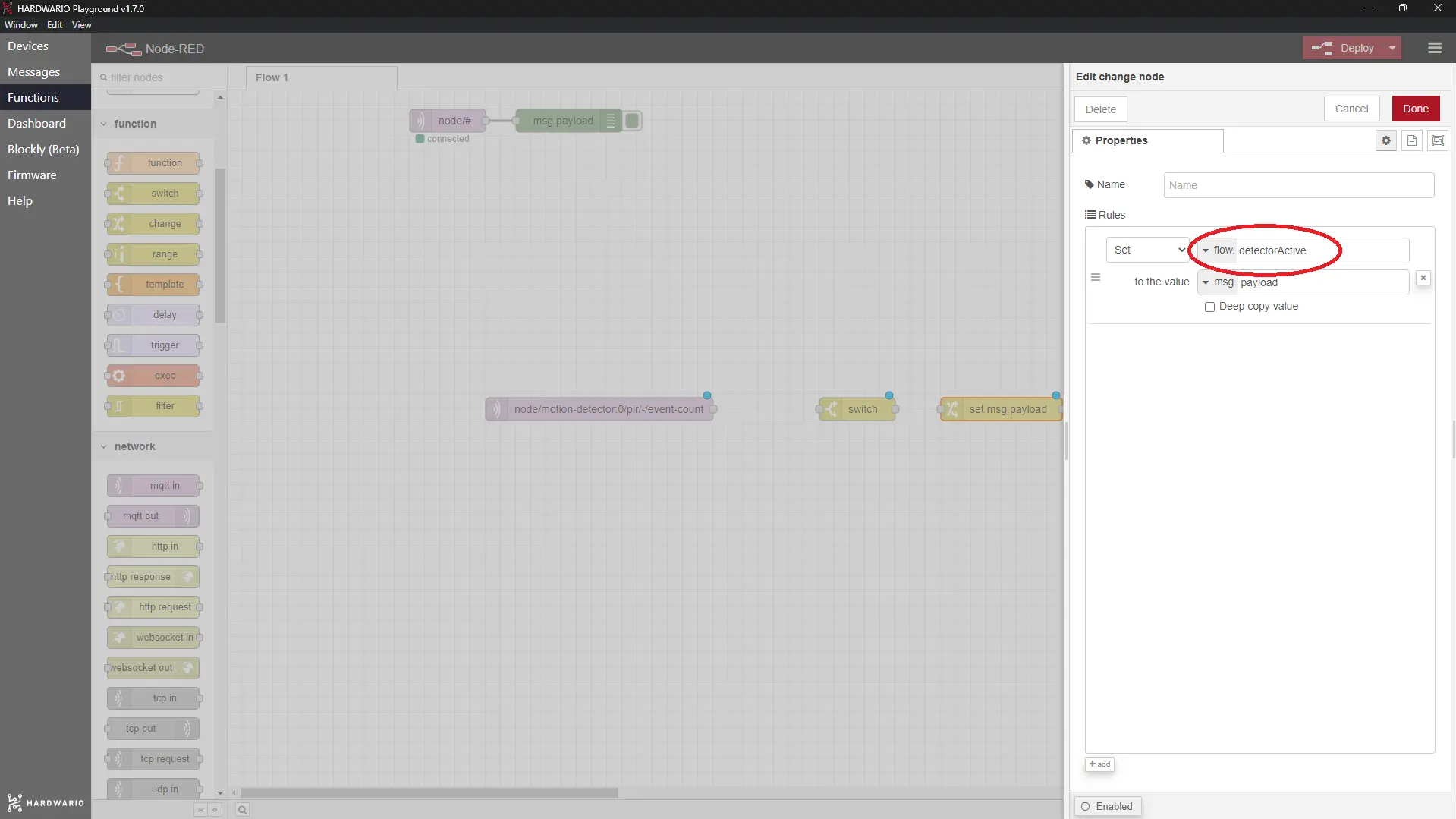
Confirm with the Done button.
-
Above this flow, start another one to be able to switch the detector on and off. It should consist of two nodes. The first is a Switch node from the Dashboard section.
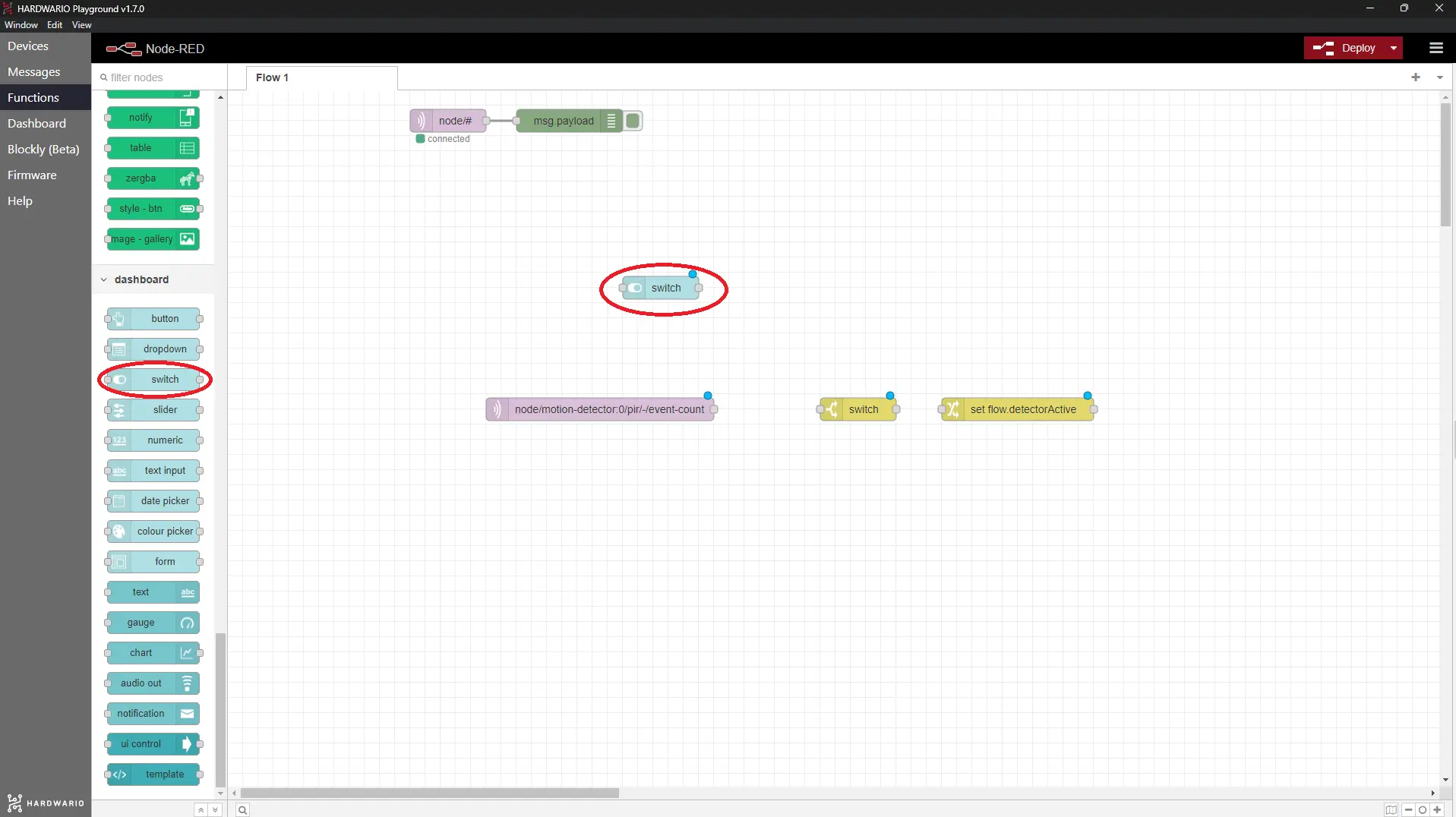
-
In this node, edit Label to Detector Status. This is how your Dashboard project will be labelled.
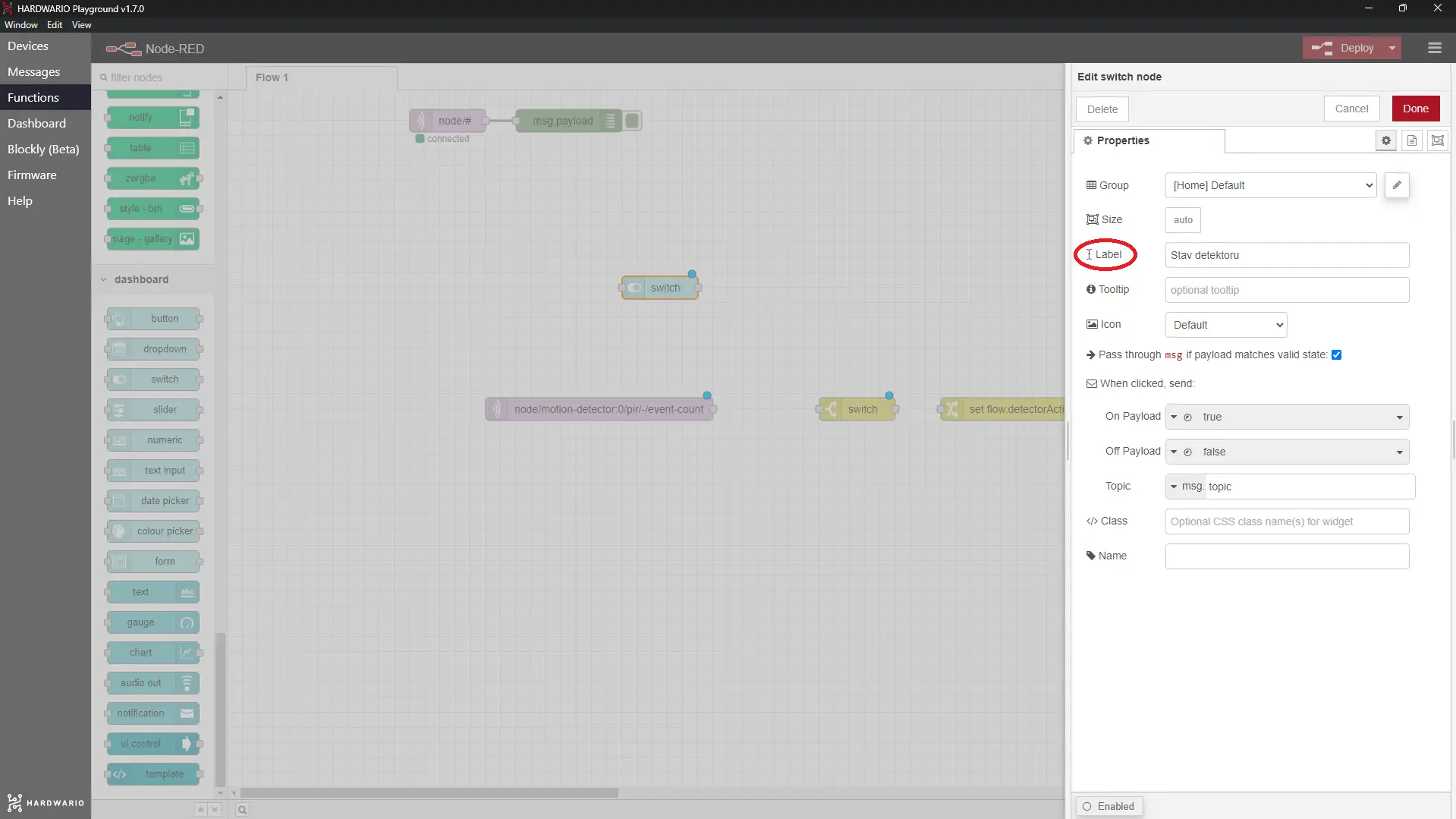
Confirm with the Done button.
-
Behind the switch node, place a Change node from the Dashboard section. That´s right, just like the one you already have a little lower down. 👍
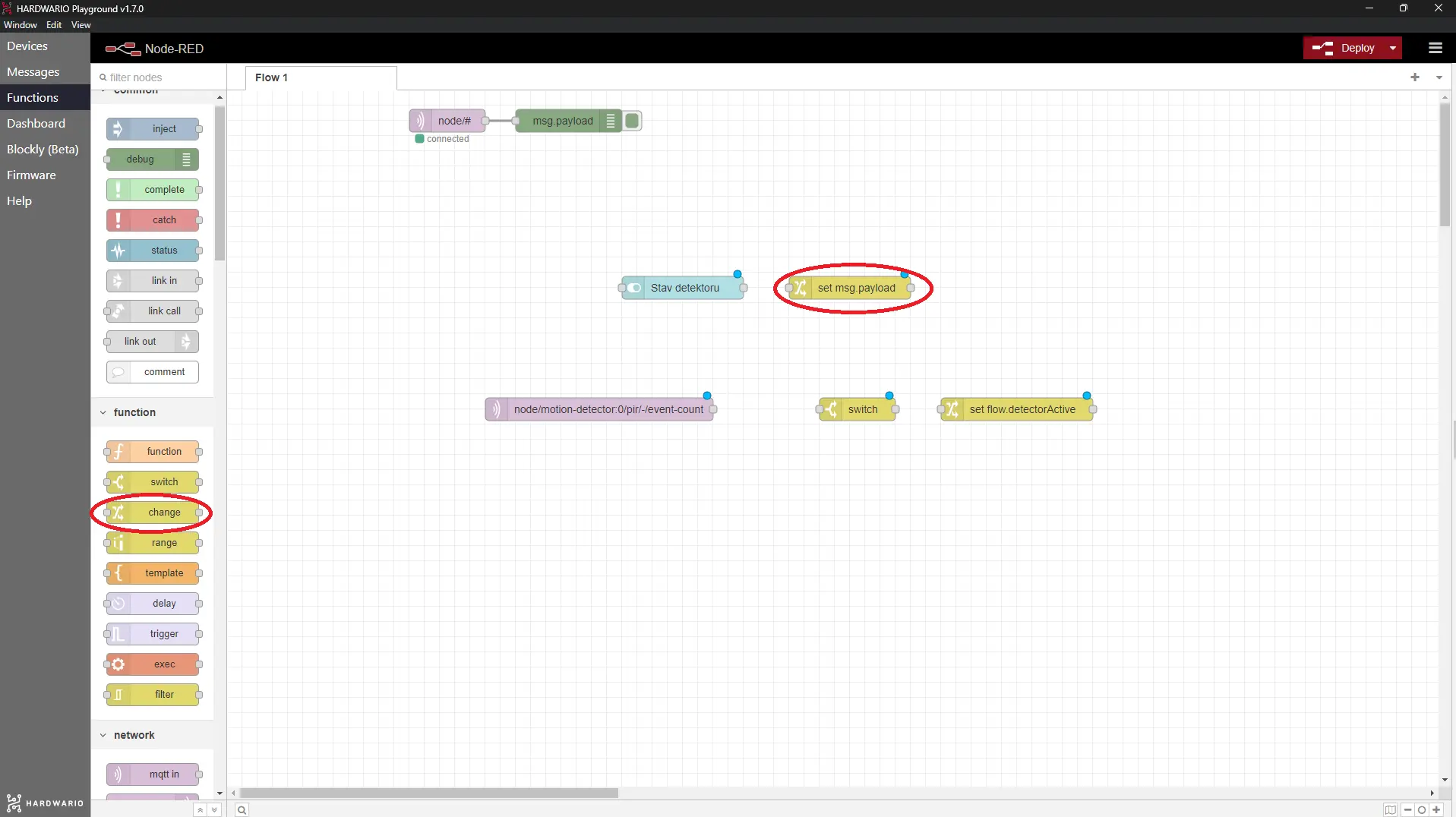
-
In the Rules field, set the function to: flow. detectorActive (see screenshot). This enables the device to recognize if the button is on or off. Beware of making typing errors!
Confirm with the Done button.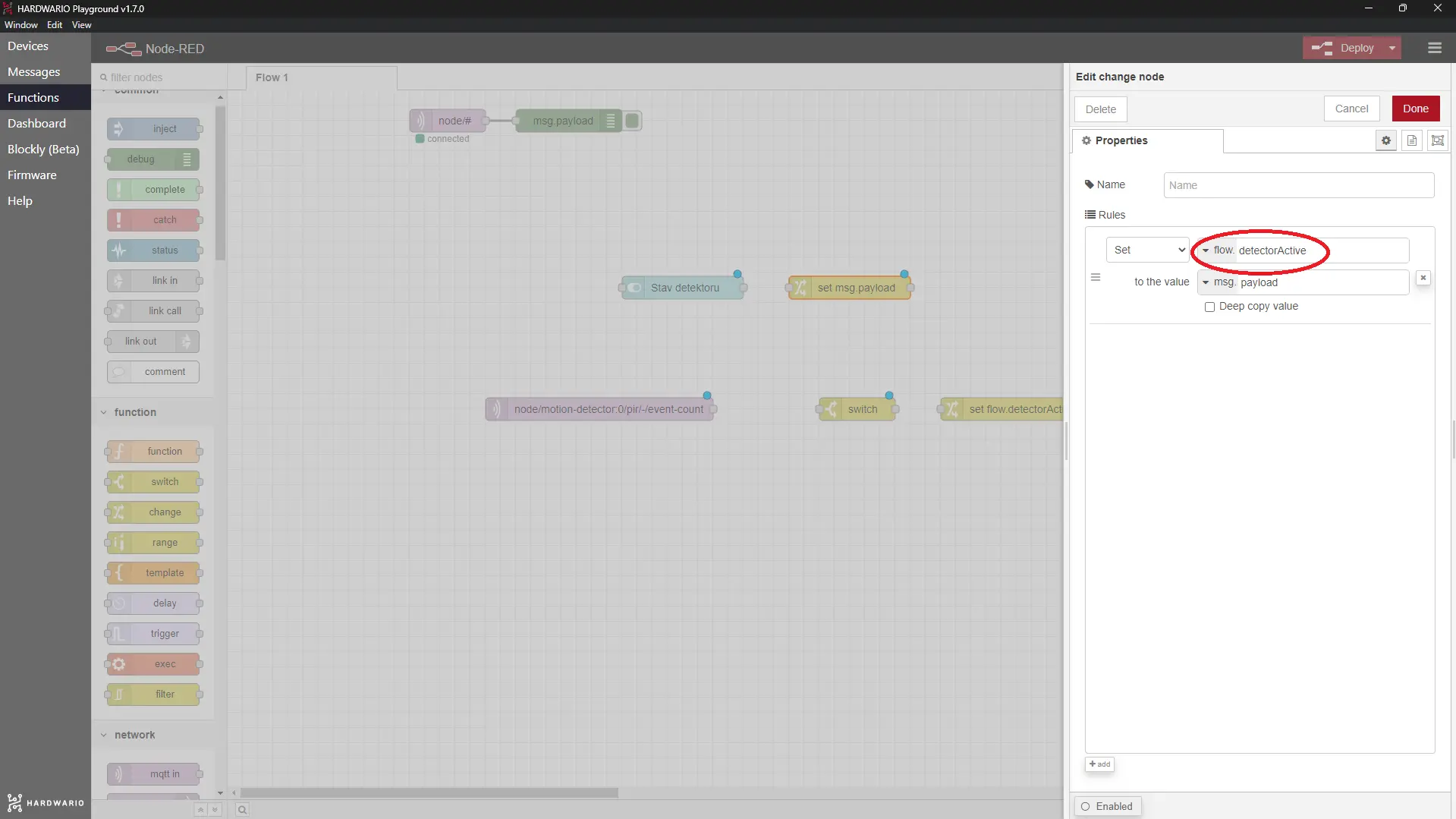
-
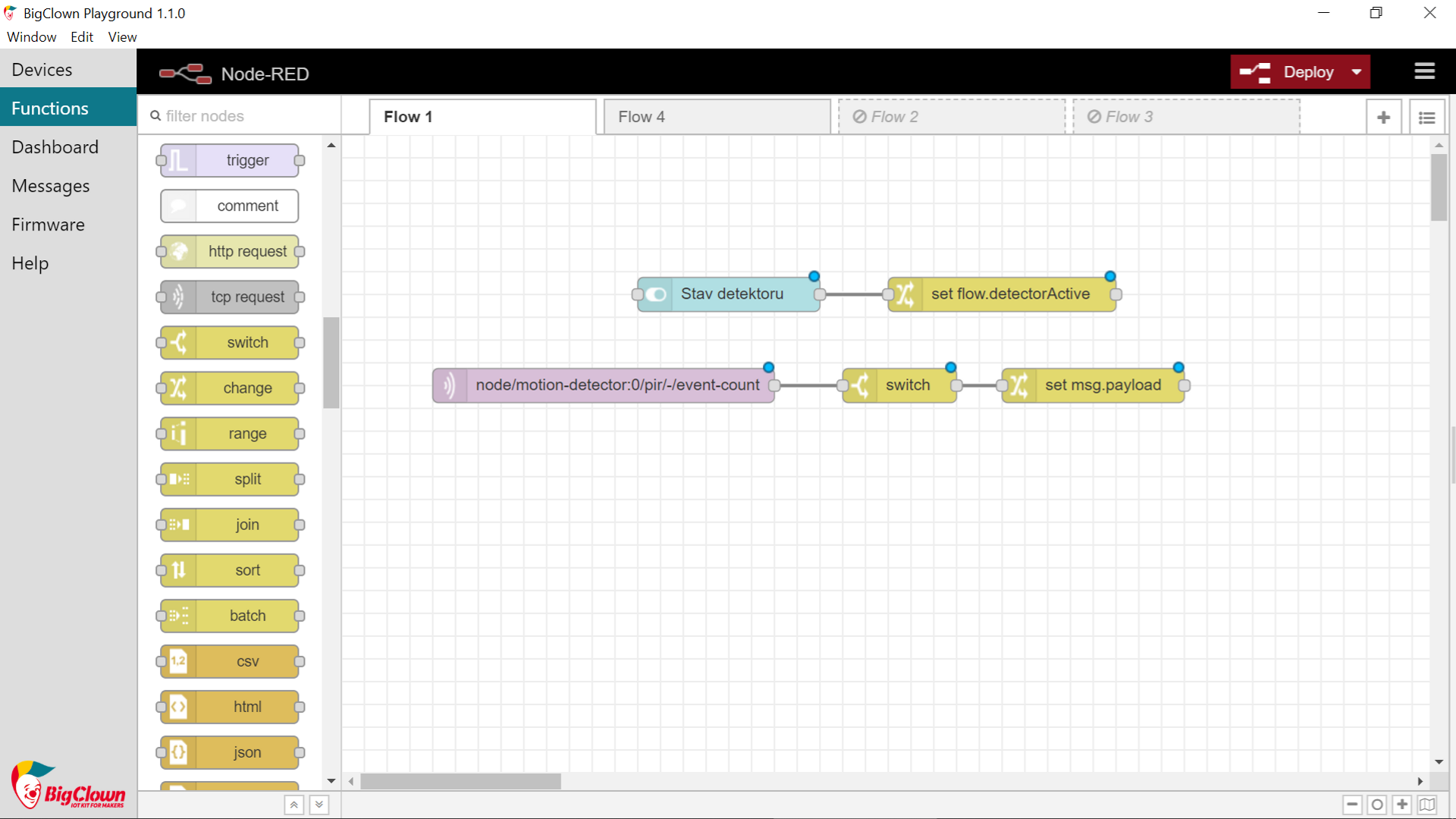
Now connect all the nodes as shown in the screenshot, but don't press the Deploy button yet. The last node, which we will add shortly, is still missing. With the last node you set up a notification to your mobile. 🤳
Prepare Blynk IoT for notifications
The detection will reach your smartphone through the Blynk IoT app, where the caught movement arrives as a push notification. And that´s pretty cool. 😎
-
If you don't have one yet, create an account in Blynk IoT. See this guide for how to set up your account, a device template, and a device — you'll need all three. You can also reuse a template from a previous project.
-
In Blynk IoT, a push notification isn't placed on the phone screen like a widget — it's sent as an Event defined on your template. On the template detail, open the Events tab and add a new event (for example, name it
motionand give it the message you want to receive, such as Santa is in the living room). Then turn on Notifications for that event so Blynk delivers it to your phone. The guide walks through the template settings. -
Download the Blynk IoT app on your phone from the App Store or Google Play and sign in with the same account. Make sure notifications are allowed for the app so the message can pop up. 📱
Connect your mobile with the box
-
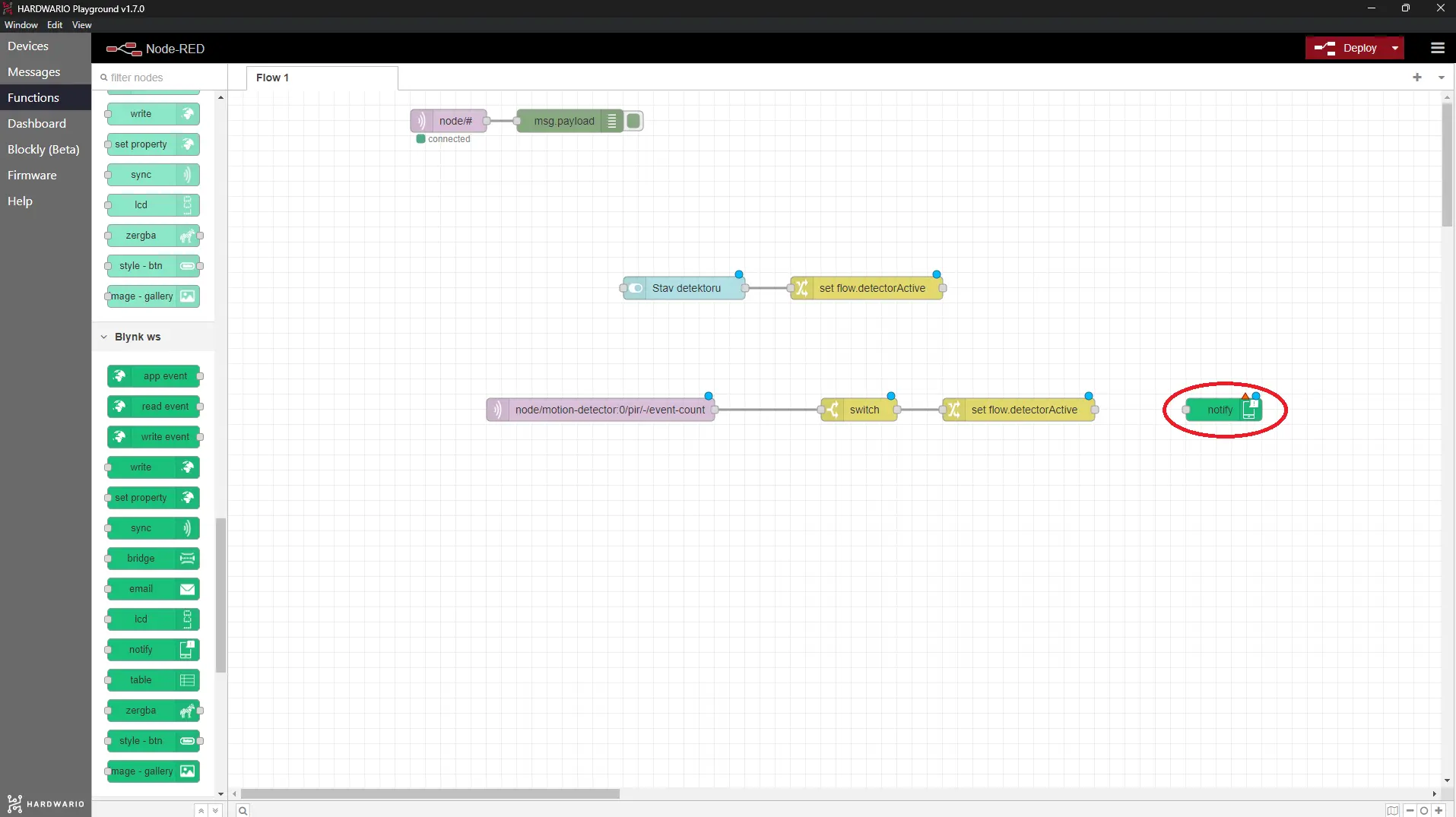
Go back to your computer. On the Node-RED canvas, place the last node for the whole project — a node from the Blynk IoT section that can trigger your event (the log event node). It should be placed directly behind the flow with the switch (see screenshot). 👀
-
Double-click the node to open it. On the right you'll see a small pencil. Click it and a new window opens. In the Url field enter
blynk.cloud, and into the Auth Token and Template ID fields copy the values from the device detail in the Blynk web app on your computer. Confirm with the Add button. -
Set the node to fire the Event you created (the event code, e.g.
motion). This is what turns the detected movement into the push notification. Confirm with the Done button. -
Finally, connect this green node to the previous flow so the detector ➡️ fires the Blynk IoT event ➡️ which arrives on your mobile. Then hit the red Deploy button. 🚨
Ready, steady… go!
-
It's high time to spy on those who come bearing gifts. Under the Dashboard tab in Playground, turn on your detector. 🕵️
-
The PIR Module senses even the slightest movement and sends the message that something is afoot to your mobile in no time. Santa or Baby Jesus don´t stand a chance! Quick! Catch them while you can!