Experiment
Time allocation: 10 min.
Transmitting the pulse count
Experiment Description
In this experiment, we will transmit the number of pulses picked up by an LED or magnetic sensor.
Experiment Steps
1. Assembling the Sensor Set
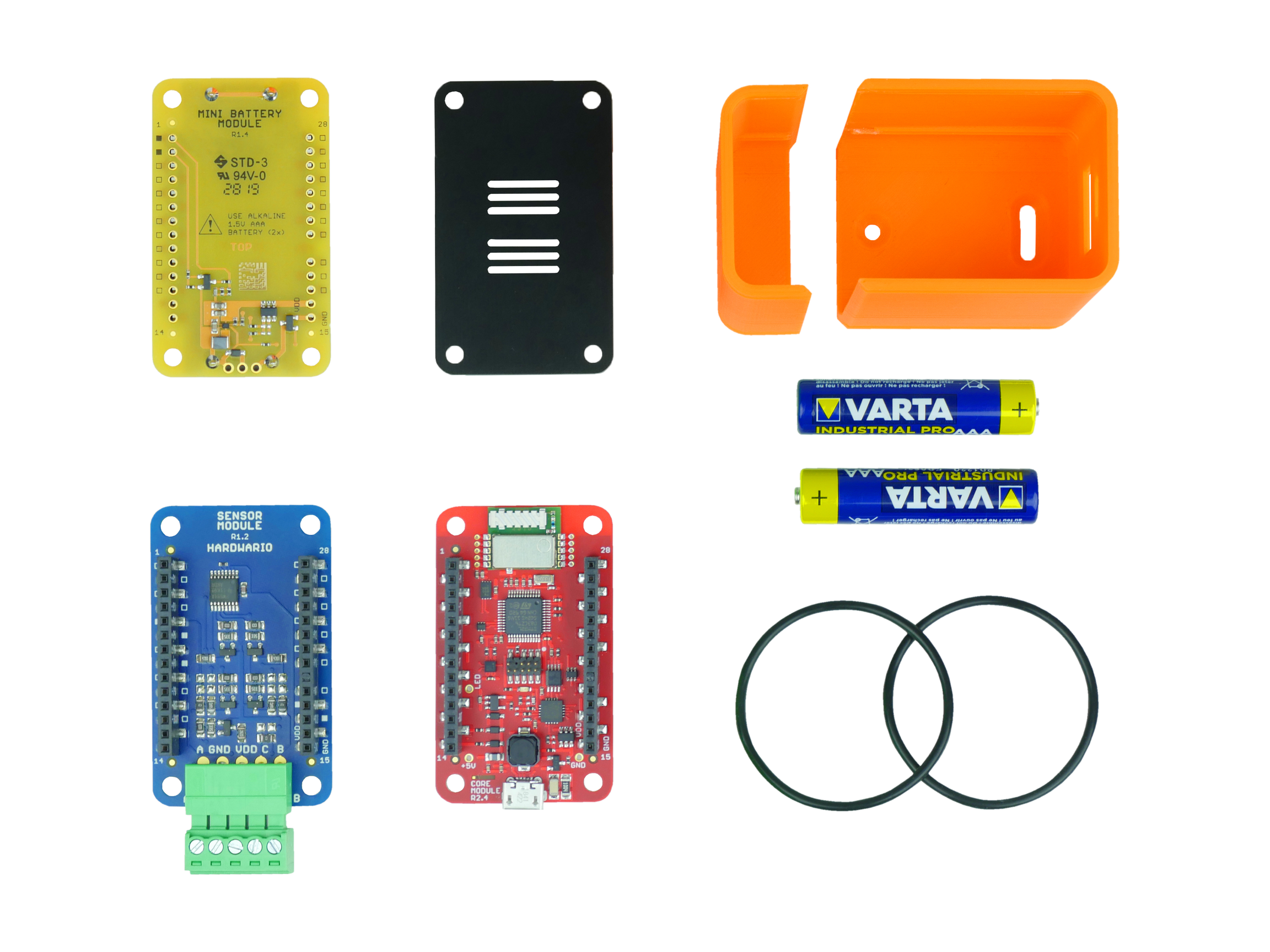
Modules in the setup:
- Core Module
- Mini Battery Module
- Sensor Module
tip
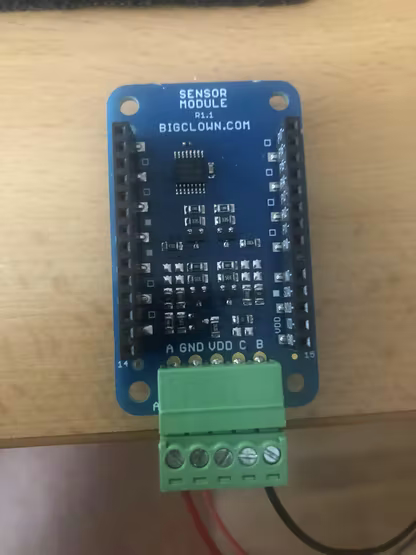
Don’t forget to connect the pulse sensor to the Sensor Module as shown in this picture:
2. Uploading the firmware
- Connect the Core Module to your computer.
- In the Playground application, upload the
twr-radio-pulse-counterfirmware on the Firmware tab. - If you don’t have the Playground application yet, download and install it.
3. Connecting the Units to the Playground
- Plug the Radio Dongle into a USB port on your computer.
- Open the Playground application and go to the Devices tab.
- Select your Radio Dongle from the list of USB devices and click Connect.
- Click Start pairing.
- Insert the batteries into the Sensor Set. Once pairing succeeds, a device named
radio-pulse-counter:0appears.
4. Showing the pulse count
- Switch to the Functions tab.
- Import this flow:
[{"id":"aadabfa1408a1d6f","type":"tab","label":"Pulse counter","disabled":false,"info":"","env":[]},{"id":"40233bb3597a5655","type":"mqtt in","z":"aadabfa1408a1d6f","name":"","topic":"node/radio-pulse-counter:0/pulse-counter/a/count","qos":"2","datatype":"auto","broker":"29fba84a.b2af58","nl":false,"rap":true,"rh":0,"inputs":0,"x":350,"y":180,"wires":[["4ad69dcbbbb6be2b","c4329fa59059d5ce","655a178d4a5198ef"]]},{"id":"4ad69dcbbbb6be2b","type":"ui_text","z":"aadabfa1408a1d6f","group":"57ff470b.93fdf8","order":22,"width":0,"height":0,"name":"","label":"Pulses","format":"{{msg.payload}}","layout":"row-spread","className":"","x":720,"y":120,"wires":[]},{"id":"c4329fa59059d5ce","type":"ui_chart","z":"aadabfa1408a1d6f","name":"","group":"57ff470b.93fdf8","order":23,"width":0,"height":0,"label":"Pulses in time","chartType":"line","legend":"false","xformat":"HH:mm:ss","interpolate":"linear","nodata":"","dot":false,"ymin":"","ymax":"","removeOlder":1,"removeOlderPoints":"","removeOlderUnit":"3600","cutout":0,"useOneColor":false,"useUTC":false,"colors":["#1f77b4","#aec7e8","#ff7f0e","#2ca02c","#98df8a","#d62728","#ff9896","#9467bd","#c5b0d5"],"outputs":1,"useDifferentColor":false,"className":"","x":760,"y":180,"wires":[[]]},{"id":"655a178d4a5198ef","type":"switch","z":"aadabfa1408a1d6f","name":"","property":"payload","propertyType":"msg","rules":[{"t":"eq","v":"30","vt":"str"},{"t":"eq","v":"70","vt":"str"}],"checkall":"true","repair":false,"outputs":2,"x":670,"y":260,"wires":[["58553e8bbf45d8c7"],["9c5daf0013adf09a"]]},{"id":"58553e8bbf45d8c7","type":"change","z":"aadabfa1408a1d6f","name":"","rules":[{"t":"set","p":"payload","pt":"msg","to":"30 ticks detected","tot":"str"}],"action":"","property":"","from":"","to":"","reg":false,"x":840,"y":240,"wires":[["bda64a03ae5bd8dd"]]},{"id":"bda64a03ae5bd8dd","type":"ui_toast","z":"aadabfa1408a1d6f","position":"dialog","displayTime":"3","highlight":"","sendall":true,"outputs":1,"ok":"OK","cancel":"","raw":false,"className":"","topic":"","name":"","x":1050,"y":260,"wires":[[]]},{"id":"9c5daf0013adf09a","type":"change","z":"aadabfa1408a1d6f","name":"","rules":[{"t":"set","p":"payload","pt":"msg","to":"70 ticks detected","tot":"str"}],"action":"","property":"","from":"","to":"","reg":false,"x":840,"y":280,"wires":[["bda64a03ae5bd8dd"]]},{"id":"29fba84a.b2af58","type":"mqtt-broker","name":"","broker":"127.0.0.1","port":"1883","clientid":"","autoConnect":true,"usetls":false,"protocolVersion":"4","keepalive":"60","cleansession":true,"birthTopic":"","birthQos":"0","birthPayload":"","birthMsg":{},"closeTopic":"","closePayload":"","closeMsg":{},"willTopic":"","willQos":"0","willPayload":"","willMsg":{},"sessionExpiry":""},{"id":"57ff470b.93fdf8","type":"ui_group","name":"Default","tab":"11207769.c31889","order":1,"disp":true,"width":"6","collapse":false},{"id":"11207769.c31889","type":"ui_tab","name":"Home","icon":"dashboard"}]

- Switch to the Messages tab. If everything went well, you will see incoming messages from the Sensor Set.
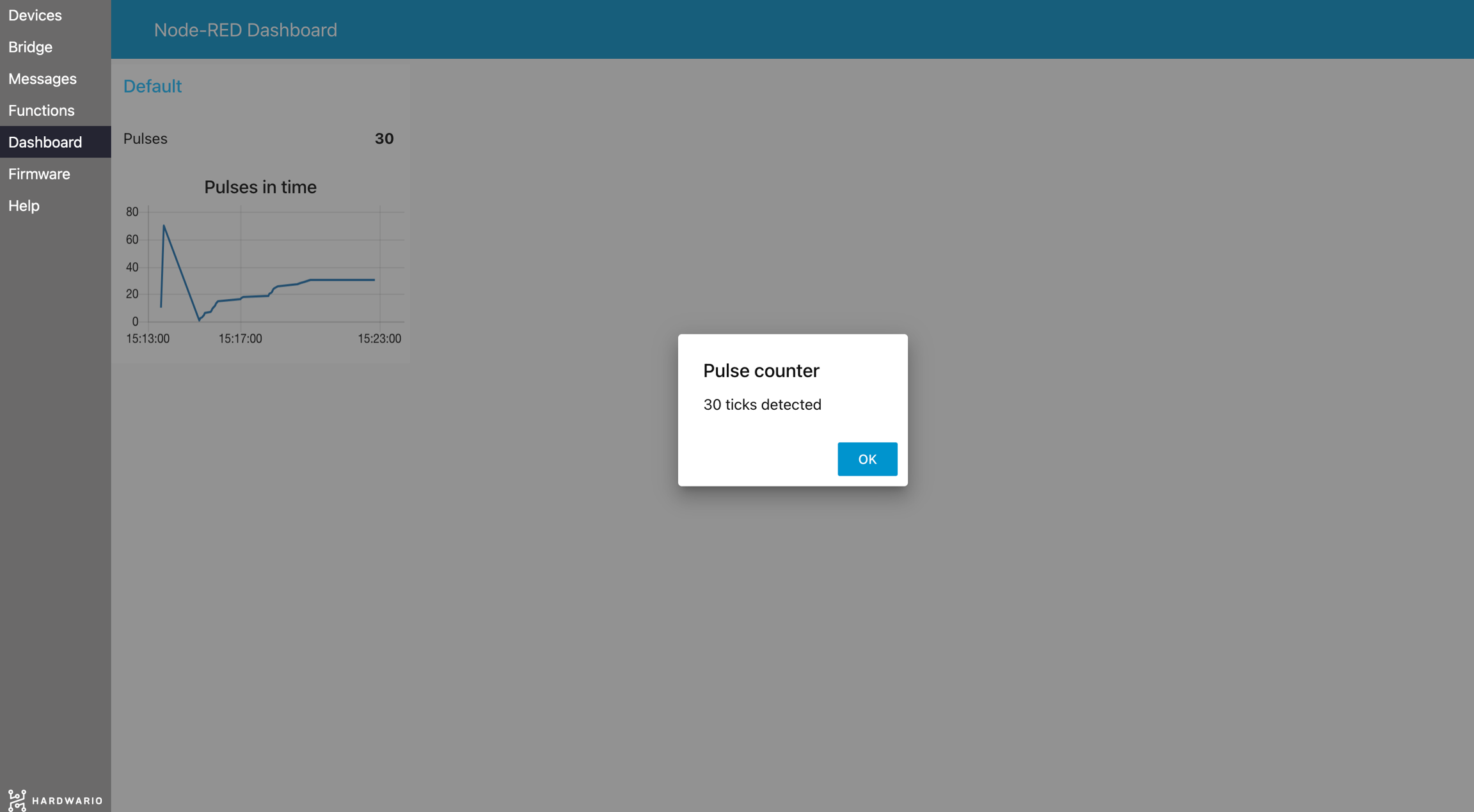
- Switch to the Dashboard tab: a chart of the pulse count appears.
info
The flow also includes an automatic alert that appears when the pulse count reaches 30 or 70.