Experiment
Time allocation: 10 min.
Detecting shocks with the IoT button
Experiment Description
We will build an IoT button from the HARDWARIO kit. The device will report when vibration exceeds a set limit, and we will then work with that information.
The button communicates wirelessly with the Radio Dongle plugged into a USB port on the computer. When the limit is exceeded, we will show it in the HARDWARIO Playground application, on the dashboard of its built-in Node-RED.
Experiment Steps
- Assembling the button
- Connecting the button to Playground
- Showing a chart of the measured vibration level
- Setting up an alert when vibration exceeds the limit
Assembling the Button
Modules in the setup:
- Core Module
- Mini Battery Module
- Push Button Module
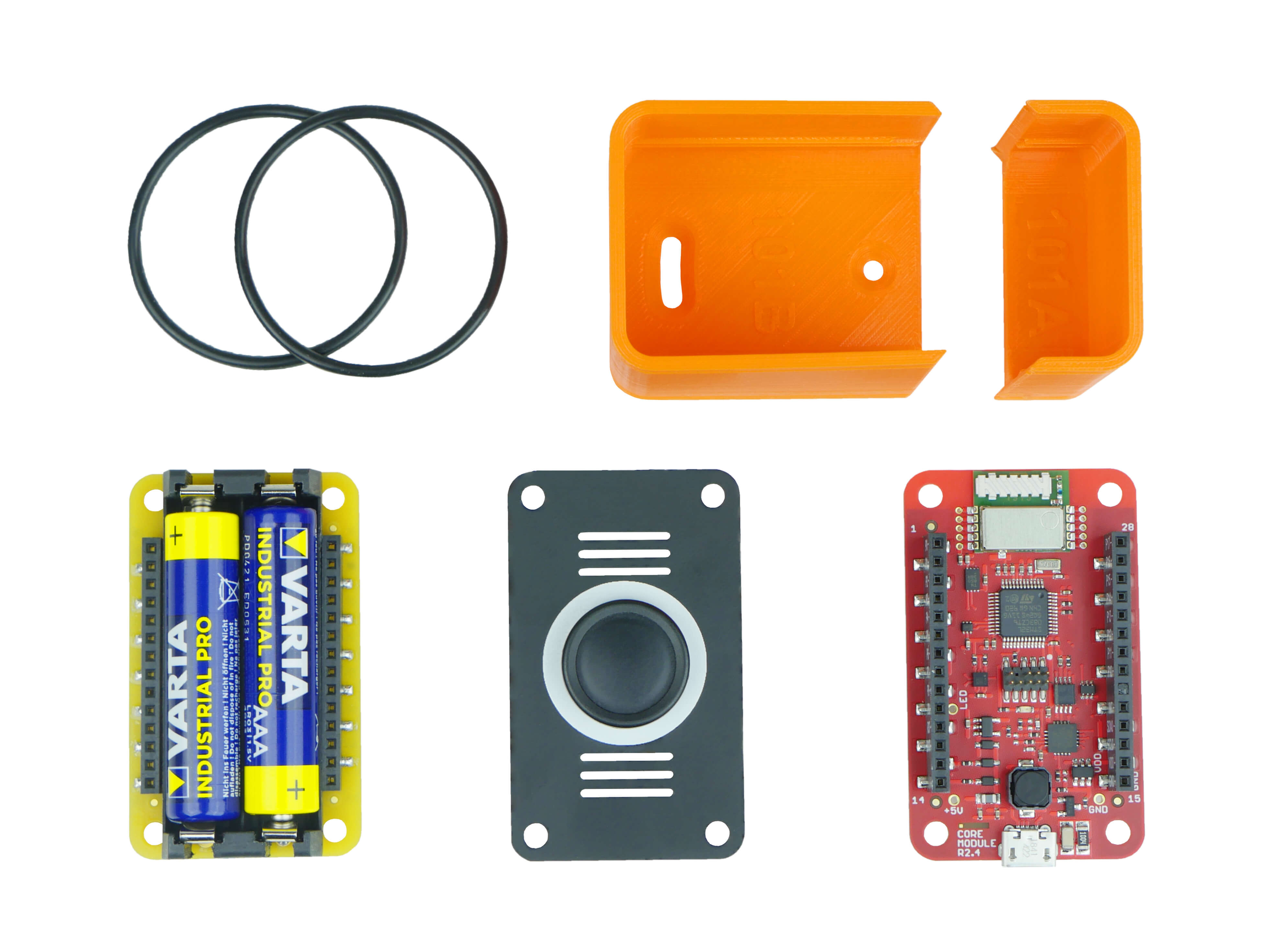
Assemble the unit following the video tutorial.
Uploading the firmware
Connect the Core Module to your computer with a USB cable. In the Playground application (if you don’t have it yet, download and install it), open the Firmware tab, search for the twr-radio-vibration-monitor firmware and upload it to the Core Module.
See the detailed guide to uploading firmware to the Core Module.
Connecting the Units to the Playground
- Plug the Radio Dongle into a USB port on your computer
- Open the Playground application and go to the Devices tab
- Select your Radio Dongle from the list of USB devices and click Connect
- Click Start pairing
- Insert the batteries into the button
- Once pairing succeeds, a device named vibration-monitor:0 appears in the Devices list
Showing vibration over time
- Switch to the Functions tab
- Import this flow:
[{"id":"51d26186.e3f3b","type":"mqtt in","z":"d4f8ad49.c7f6a","name":"","topic":"node/vibration-monitor:0/magnitude","qos":"2","datatype":"auto","broker":"bb7a191.cab93e8","x":280,"y":420,"wires":[["c48fdc72.9e318"]]},{"id":"c48fdc72.9e318","type":"ui_chart","z":"d4f8ad49.c7f6a","name":"","group":"5ee4041d.fa300c","order":0,"width":"9","height":"4","label":"Vibrations in time","chartType":"line","legend":"false","xformat":"HH:mm:ss","interpolate":"linear","nodata":"","dot":false,"ymin":"","ymax":"","removeOlder":"10","removeOlderPoints":"100","removeOlderUnit":"60","cutout":0,"useOneColor":false,"colors":["#1f77b4","#aec7e8","#ff7f0e","#2ca02c","#98df8a","#d62728","#ff9896","#9467bd","#c5b0d5"],"useOldStyle":false,"x":660,"y":420,"wires":[[]]},{"id":"bb7a191.cab93e8","type":"mqtt-broker","z":"","broker":"127.0.0.1","port":"1883","clientid":"","usetls":false,"compatmode":true,"keepalive":"60","cleansession":true,"birthTopic":"","birthQos":"0","birthPayload":"","willTopic":"","willQos":"0","willPayload":""},{"id":"5ee4041d.fa300c","type":"ui_group","z":"","name":"Vibrations","tab":"11207769.c31889","disp":false,"width":"18","collapse":false},{"id":"11207769.c31889","type":"ui_tab","z":"","name":"Home","icon":"dashboard"}]

- Switch to the Messages tab. If everything went well, you will see incoming messages from the unit (vibration-monitor)
- Switch to the Dashboard tab. If everything went well, you will see the vibration level change over time

Alert when the limit is exceeded
We will extend the experiment with an alert that appears when vibration exceeds an adjustable limit. The alert is a notification on the HARDWARIO Playground dashboard, and a switch node checks the limit.

The final flow, with the vibration chart and the alert for an exceeded limit
Procedure
- Add a switch node to the flow.
- Double-click the node to open its settings. In the condition, choose >= (greater than or equal to), set the value type to number and enter your limit, for example 2.
- Add a notification node from the dashboard section and double-click it to open its settings.
- In the Topic field, type the message you want to show, for example Vibrations over limit:.
- Connect all the nodes and start the flow with the Deploy button.
- Experiment and try to exceed the vibration limit.
The final flow:
[{"id":"e835f2569a18b792","type":"tab","label":"Flow 1","disabled":false,"info":"","env":[]},{"id":"c668cf1ccdecb9c5","type":"mqtt in","z":"e835f2569a18b792","name":"","topic":"node/vibration-monitor:0/magnitude","qos":"2","datatype":"auto","broker":"54516ae2.8f3d14","nl":false,"rap":false,"inputs":0,"x":260,"y":160,"wires":[["2750b2a68969d71b","470f40e6383a2fab"]]},{"id":"2750b2a68969d71b","type":"ui_chart","z":"e835f2569a18b792","name":"","group":"12628c606492ac26","order":0,"width":"9","height":"4","label":"Vibrations in time","chartType":"line","legend":"false","xformat":"HH:mm:ss","interpolate":"linear","nodata":"","dot":false,"ymin":"","ymax":"","removeOlder":"10","removeOlderPoints":"100","removeOlderUnit":"60","cutout":0,"useOneColor":false,"colors":["#1f77b4","#aec7e8","#ff7f0e","#2ca02c","#98df8a","#d62728","#ff9896","#9467bd","#c5b0d5"],"outputs":1,"x":570,"y":160,"wires":[[]]},{"id":"54d1edb0c2a4230b","type":"ui_toast","z":"e835f2569a18b792","position":"top right","displayTime":"3","highlight":"","sendall":true,"outputs":0,"ok":"OK","cancel":"","raw":false,"className":"","topic":"Vibrations over limit:","name":"Vibrations over limit","x":730,"y":260,"wires":[]},{"id":"470f40e6383a2fab","type":"switch","z":"e835f2569a18b792","name":"","property":"payload","propertyType":"msg","rules":[{"t":"gte","v":"2","vt":"num"}],"checkall":"true","repair":false,"outputs":1,"x":530,"y":260,"wires":[["54d1edb0c2a4230b"]]},{"id":"54516ae2.8f3d14","type":"mqtt-broker","name":"","broker":"localhost","port":"1883","clientid":"","autoConnect":true,"usetls":false,"protocolVersion":"4","keepalive":"60","cleansession":true,"birthTopic":"","birthQos":"0","birthPayload":"","birthMsg":{},"closeTopic":"","closePayload":"","closeMsg":{},"willTopic":"","willQos":"0","willPayload":"","willMsg":{},"sessionExpiry":""},{"id":"12628c606492ac26","type":"ui_group","name":"Vibrations","tab":"11207769.c31889","order":2,"disp":false,"width":"18","collapse":false},{"id":"11207769.c31889","type":"ui_tab","name":"Home","icon":"dashboard"}]