Experiment
Time allocation: 2H Module: 15 mins. 4H Module: 30 mins. 8H Module: 2 x 45 mins.
Experiment 1 - Indoor Air Quality Monitor
Time allocation: 15 mins.
Experiment Description
The HARDWARIO kit will be used to build the indoor climate quality monitor. The device allows us to measure the concentration of carbon dioxide (CO2), the concentration of organic volatile substances (VOC), temperature and relative humidity. Communication will be carried out wirelessly to Radio Dongle plugged into the USB port of the computer. The measured data will be displayed in the HARDWARIO Playground application, resp. in the embedded Node-RED dashboard.
In the experiment, we will understand:
- that warm air is rising and why
- what is the relative humidity and dew point
- that the standard outdoor CO2 concentration is 400 ppm, 0.04% and that in an unventilated room to increase and at higher concentrations negatively affect our performance
- that CO2 is heavier than air
- that VOCs are volatile organic compounds, measured in ppb and the acceptable TVOC concentration (VOC total) is 500 ppb (0.00005%)
Experiment Steps
- The building of the monitoring unit
- Playground application installation
- Connecting unit to Playground
- The setting of monitoring and data display functions
- Measurement of temperature, humidity, CO2 and VOC
The building of the monitoring unit
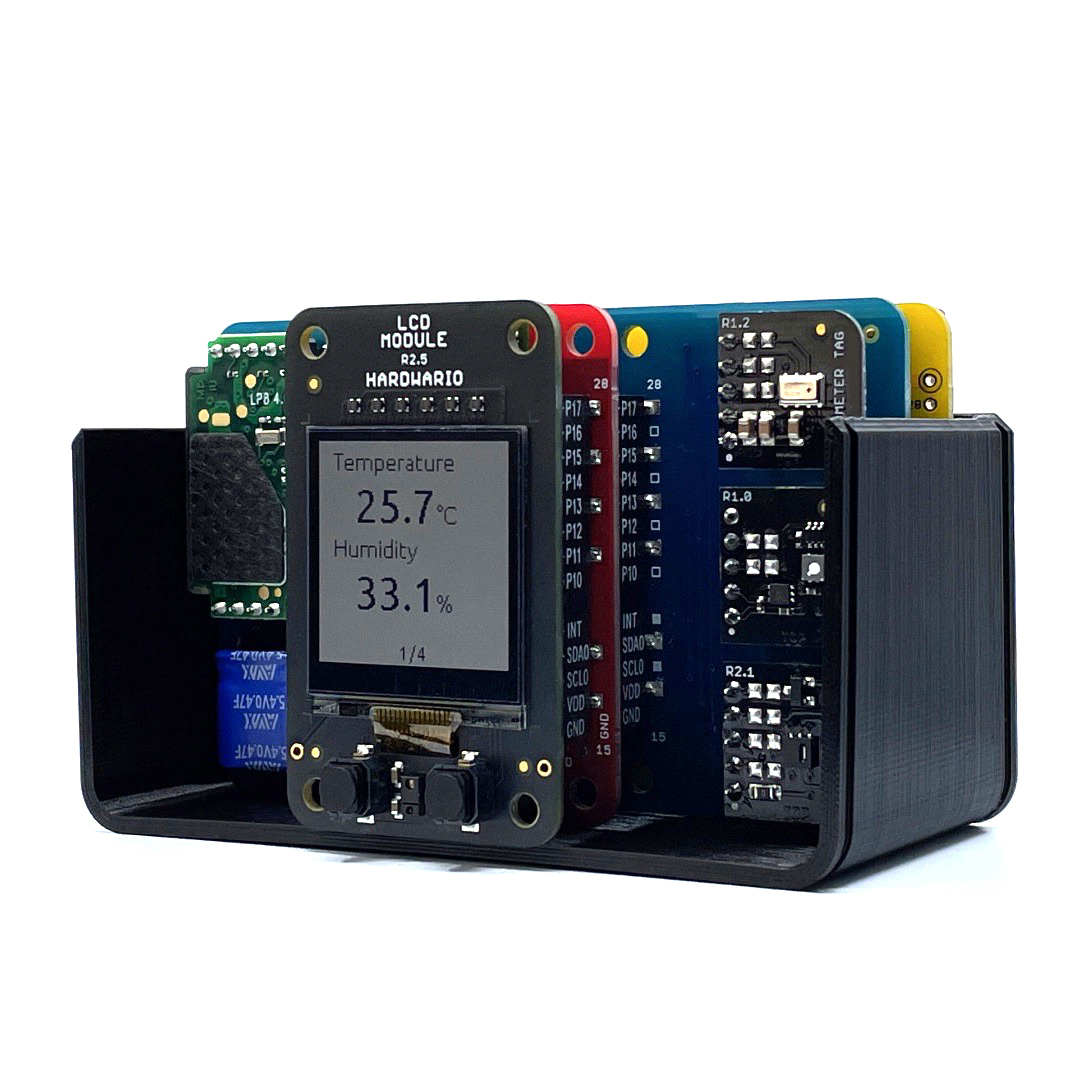
Modules in the unit:
- Core Module
- Battery Module
- CO2 Module
- Temperature Tag
- Humidity Tag
- VOC-LP Tag
Follow the video tutorial to build the unit correctly.
Playground application installation
Download HARDWARIO Playground and install it on your computer.
Connecting unit to Playground
- Plug the Radio Dongle into the USB port of your computer
- Open the Playground app and go to the Devices tab
- Click Start pairing
- Insert the batteries into the unit
The setting of monitoring and data display functions
- Switch to the Functions tab
- Perform the import flow
[{"id":"79e43d5b.b7de84","type":"mqtt in","z":"e4c105de.aff268","name":"","topic":"node/co2-monitor:0/battery/-/voltage","qos":"2","datatype":"auto","broker":"bb7a191.cab93e8","x":300,"y":200,"wires":[["521ff625.3eaca8"]]},{"id":"dcc8f17c.0ed3c","type":"mqtt in","z":"e4c105de.aff268","name":"","topic":"node/co2-monitor:0/co2-meter/-/concentration","qos":"2","datatype":"auto","broker":"bb7a191.cab93e8","x":330,"y":240,"wires":[["e0721e5a.aa664"]]},{"id":"eacac94f.005308","type":"mqtt in","z":"e4c105de.aff268","name":"","topic":"node/co2-monitor:0/thermometer/0:1/temperature","qos":"2","datatype":"auto","broker":"bb7a191.cab93e8","x":340,"y":280,"wires":[["d24263f2.a3fbc"]]},{"id":"aa9d7939.9416e8","type":"mqtt in","z":"e4c105de.aff268","name":"","topic":"node/co2-monitor:0/hygrometer/0:4/relative-humidity","qos":"2","broker":"bb7a191.cab93e8","x":350,"y":320,"wires":[["5596bacf.f825d4"]]},{"id":"521ff625.3eaca8","type":"ui_gauge","z":"e4c105de.aff268","name":"","group":"57ff470b.93fdf8","order":6,"width":"3","height":"3","gtype":"gage","title":"Voltage","label":"V","format":"{{value}}","min":0,"max":10,"colors":["#00b500","#e6e600","#ca3838"],"seg1":"","seg2":"","x":820,"y":200,"wires":[]},{"id":"e0721e5a.aa664","type":"ui_gauge","z":"e4c105de.aff268","name":"","group":"57ff470b.93fdf8","order":1,"width":"3","height":"3","gtype":"gage","title":"CO2 concentration","label":"ppm","format":"{{value}}","min":0,"max":"3000","colors":["#00b500","#e6e600","#ca3838"],"seg1":"","seg2":"","x":850,"y":240,"wires":[]},{"id":"d24263f2.a3fbc","type":"ui_gauge","z":"e4c105de.aff268","name":"","group":"57ff470b.93fdf8","order":2,"width":"3","height":"3","gtype":"gage","title":"Temperature","label":"°C","format":"{{value}}","min":0,"max":"40","colors":["#00b500","#e6e600","#ca3838"],"seg1":"","seg2":"","x":830,"y":280,"wires":[]},{"id":"5596bacf.f825d4","type":"ui_gauge","z":"e4c105de.aff268","name":"","group":"57ff470b.93fdf8","order":3,"width":"3","height":"3","gtype":"gage","title":"Humidity","label":"%","format":"{{value}}","min":0,"max":"100","colors":["#00b500","#e6e600","#ca3838"],"seg1":"","seg2":"","x":820,"y":320,"wires":[]},{"id":"269d7f32.45109","type":"mqtt in","z":"e4c105de.aff268","name":"","topic":"node/co2-monitor:0/voc-sensor/0:0/tvoc","qos":"2","datatype":"auto","broker":"e649966c.8c2af8","x":310,"y":360,"wires":[["9fd92dd4.fa6a3"]]},{"id":"9fd92dd4.fa6a3","type":"ui_gauge","z":"e4c105de.aff268","name":"","group":"2fc45a9a.bbfd66","order":0,"width":0,"height":0,"gtype":"gage","title":"TVOC","label":"units","format":"{{value}} ppb","min":0,"max":"200","colors":["#00b500","#e6e600","#ca3838"],"seg1":"","seg2":"","x":810,"y":360,"wires":[]},{"id":"bb7a191.cab93e8","type":"mqtt-broker","z":"","broker":"127.0.0.1","port":"1883","clientid":"","usetls":false,"compatmode":true,"keepalive":"60","cleansession":true,"birthTopic":"","birthQos":"0","birthPayload":"","willTopic":"","willQos":"0","willPayload":""},{"id":"57ff470b.93fdf8","type":"ui_group","z":"","name":"Default","tab":"11207769.c31889","disp":true,"width":"6","collapse":false},{"id":"e649966c.8c2af8","type":"mqtt-broker","z":"","name":"","broker":"127.0.0.1","port":"1883","clientid":"","usetls":false,"compatmode":true,"keepalive":"60","cleansession":true,"birthTopic":"","birthQos":"0","birthPayload":"","closeTopic":"","closeQos":"0","closePayload":"","willTopic":"","willQos":"0","willPayload":""},{"id":"2fc45a9a.bbfd66","type":"ui_group","z":"","name":"Default","tab":"54d3d6be.bc2ca8","disp":true,"width":"6","collapse":false},{"id":"11207769.c31889","type":"ui_tab","z":"","name":"Home","icon":"dashboard"},{"id":"54d3d6be.bc2ca8","type":"ui_tab","z":"","name":"Home","icon":"dashboard"}]
- Press Deploy
- Switch to the Messages tab, if everything went well, you should see the incoming messages from the unit
- Switch to the Dashboard tab, if everything went well, you should see the gauges with the current temperature, humidity, CO2 and VOC readings.
Notes:
1. Breathe warm air to speed up the sending of data to the unit
2. It may take a while to display the results of CO2 and VOC measurements, be patient :)
Measuring of temperature, humidity, CO2 and VOC
- Compete in teams who generate the highest temperature with their breath Question for the team with the lowest temperature Why does the warm air rise up?
- Compare the measured humidity between teams A question for all teams The measured humidity is relative humidity. Explain the terms of relative humidity and dew point.
- Compare the measured CO2 and VOC concentrations between the teams CO2 and VOC A question for all teams How do you explain the differences in the measured values?
Experiment 2 - Air Quality Monitor Integration with the Google Sheet
Time allocation: 15 mins.
Experiment Description
Experiment 1 can be followed by integration with the Google Sheet. The measured data from the indoor air quality monitor will be stored in a table from which we will create well-arranged graphs.
In the experiment, we will understand:
- how to connect Google Sheet spreadsheet with Playground
- how to create well-arranged graphs showing the dependence of measured values with the timetable and number of students in the classroom
Experiment Steps
-
Create a Google account
-
Create a new Google sheet, eg. via sheets.new
-
Rename your current List from List1 to Data, we will refere to that in the code later
-
You can also change first line to say what values are on the columns, it will arrive in this order CO2, Temperature, Humidity, TVOC.
-
On the Tools tab select Script editor
-
Paste the script below and save it with Ctrl + S
function doPost(e) {
  var sheet;
  var rawData = e.parameter.val; // Data arrives in format "CO2;temp;hum;TVOC"
  sheet = SpreadsheetApp.getActiveSpreadsheet().getSheetByName("Data");

  var cuttedData = rawData.split(";"); //This cuts arrived data into separated values
  sheet.appendRow([cuttedData[0], cuttedData[1], cuttedData[2], cuttedData[3], new Date()]); //Data arrives in this order: "CO2, Temperature, Humidity, TVOC"
}
-
Name the project by your team name and press OK
-
On the Publish tab, select Deploy as web app
-
In the authorization settings, for Who has access to the app, select Anyone, even anonymous, and then press Deploy
-
Press the Review Permission button. A window will pop up that the application is not verified. Select Advanced and Go to
<your project name>(unsafe). Allow your project to access your Google Account by pressing the Allow button. -
Use Ctrl + C to copy the displayed URL for further use and press OK.
-
In the Playground app, go to the Functions tab and import this flow
[{"id":"1fa190de.6bf34f","type":"mqtt in","z":"2c41a2bd.aa36ae","name":"","topic":"node/co2-monitor:0/co2-meter/-/concentration","qos":"2","datatype":"auto","broker":"d0869e74.d39d3","x":230,"y":380,"wires":[["1058eb8d.695774"]]},{"id":"fdb48a87.f1bde8","type":"mqtt in","z":"2c41a2bd.aa36ae","name":"","topic":"node/co2-monitor:0/thermometer/0:1/temperature","qos":"2","datatype":"auto","broker":"d0869e74.d39d3","x":240,"y":420,"wires":[["d2a76868.4a1a88"]]},{"id":"ad8c529f.84e79","type":"mqtt in","z":"2c41a2bd.aa36ae","name":"","topic":"node/co2-monitor:0/hygrometer/0:4/relative-humidity","qos":"2","broker":"d0869e74.d39d3","x":250,"y":460,"wires":[["92c2dca0.e7b93"]]},{"id":"f011b140.62712","type":"mqtt in","z":"2c41a2bd.aa36ae","name":"","topic":"node/co2-monitor:0/voc-sensor/0:0/tvoc","qos":"2","datatype":"auto","broker":"a1e2fc41.c77ce","x":210,"y":500,"wires":[["5d4d663a.f49858"]]},{"id":"f6f1904c.f411e","type":"function","z":"2c41a2bd.aa36ae","name":"Data Parser","func":"msg.payload = flow.get(\"co2\") + \";\" + flow.get(\"temp\") + \";\" +\n flow.get(\"humidity\") + \";\" + flow.get(\"tvoc\");\nmsg.payload = { val: msg.payload,\n type: 'rawData'};\n msg.headers = {'content-type':'application/x-www-form-urlencoded'};\nreturn msg;","outputs":1,"noerr":0,"x":790,"y":440,"wires":[["992d7e0f.3141e"]]},{"id":"1058eb8d.695774","type":"change","z":"2c41a2bd.aa36ae","name":"","rules":[{"t":"set","p":"co2","pt":"flow","to":"payload","tot":"msg"}],"action":"","property":"","from":"","to":"","reg":false,"x":530,"y":380,"wires":[["f6f1904c.f411e"]]},{"id":"d2a76868.4a1a88","type":"change","z":"2c41a2bd.aa36ae","name":"","rules":[{"t":"set","p":"temp","pt":"flow","to":"payload","tot":"msg"}],"action":"","property":"","from":"","to":"","reg":false,"x":530,"y":420,"wires":[["f6f1904c.f411e"]]},{"id":"92c2dca0.e7b93","type":"change","z":"2c41a2bd.aa36ae","name":"","rules":[{"t":"set","p":"humidity","pt":"flow","to":"payload","tot":"msg"}],"action":"","property":"","from":"","to":"","reg":false,"x":540,"y":460,"wires":[["f6f1904c.f411e"]]},{"id":"5d4d663a.f49858","type":"change","z":"2c41a2bd.aa36ae","name":"","rules":[{"t":"set","p":"tvoc","pt":"flow","to":"payload","tot":"msg"}],"action":"","property":"","from":"","to":"","reg":false,"x":530,"y":500,"wires":[["f6f1904c.f411e"]]},{"id":"2e286fc4.213ca","type":"inject","z":"2c41a2bd.aa36ae","name":"","topic":"","payload":"-1","payloadType":"num","repeat":"","crontab":"","once":true,"onceDelay":0.1,"x":130,"y":300,"wires":[["980aadd7.47307","2e69ab31.67fa74","a6a27021.dbb98","7dd059ea.b9bd08"]]},{"id":"980aadd7.47307","type":"change","z":"2c41a2bd.aa36ae","name":"","rules":[{"t":"set","p":"co2","pt":"flow","to":"payload","tot":"msg"}],"action":"","property":"","from":"","to":"","reg":false,"x":390,"y":200,"wires":[[]]},{"id":"2e69ab31.67fa74","type":"change","z":"2c41a2bd.aa36ae","name":"","rules":[{"t":"set","p":"temp","pt":"flow","to":"payload","tot":"msg"}],"action":"","property":"","from":"","to":"","reg":false,"x":390,"y":240,"wires":[[]]},{"id":"a6a27021.dbb98","type":"change","z":"2c41a2bd.aa36ae","name":"","rules":[{"t":"set","p":"humidity","pt":"flow","to":"payload","tot":"msg"}],"action":"","property":"","from":"","to":"","reg":false,"x":400,"y":280,"wires":[[]]},{"id":"7dd059ea.b9bd08","type":"change","z":"2c41a2bd.aa36ae","name":"","rules":[{"t":"set","p":"tvoc","pt":"flow","to":"payload","tot":"msg"}],"action":"","property":"","from":"","to":"","reg":false,"x":390,"y":320,"wires":[[]]},{"id":"992d7e0f.3141e","type":"http request","z":"2c41a2bd.aa36ae","name":"","method":"POST","ret":"txt","paytoqs":false,"url":"","tls":"","persist":false,"proxy":"","authType":"","x":910,"y":280,"wires":[[]]},{"id":"d0869e74.d39d3","type":"mqtt-broker","z":"","broker":"127.0.0.1","port":"1883","clientid":"","usetls":false,"compatmode":true,"keepalive":"60","cleansession":true,"birthTopic":"","birthQos":"0","birthPayload":"","willTopic":"","willQos":"0","willPayload":""},{"id":"a1e2fc41.c77ce","type":"mqtt-broker","z":"","name":"","broker":"127.0.0.1","port":"1883","clientid":"","usetls":false,"compatmode":true,"keepalive":"60","cleansession":true,"birthTopic":"","birthQos":"0","birthPayload":"","closeTopic":"","closeQos":"0","closePayload":"","willTopic":"","willQos":"0","willPayload":""}]

- In the flow, click the http request bubble and paste your project URL into the URL field and add the following snipet, then press Done
- The upper part with the -1 node is just to set default values in case some of the sensors didn't send any data yet.
?value={{{payload}}}

- Confirm the Functions setting by pressing the Deploy button
- Look at your Google sheet project and you should see how the measured values increase in each tab
- If you see -1 in some column it means that the sensor didn't send any data yet.
- At the end of the measurement, complete the worksheets by specifying the timetable and number of pupils and then present the results to others.